
 PartitionAssistant NTFS for Mac
Does NTFS Work on Mac? How to Enable Full External Drive Compatibility?
This article answers does NTFS work on Mac, common NTFS issues on macOS Sequoia, and practical ways to read and write NTFS drives on Mac.

By Irene / Updated on January 20, 2026


Does NTFS work on Mac? Yes or No
Does NTFS work on Mac? The answer is yes, but only to a limited extent. macOS can recognize NTFS, which is the default file system used by Windows, and it can open NTFS-formatted external drives without extra setup. This means Mac users can view files and copy data from an NTFS drive to their Mac. However, macOS does not allow writing to NTFS drives by default. You cannot edit files, create new folders, delete data, or transfer files from your Mac onto the NTFS drive.
This behavior is not a system error but a design choice. NTFS is a proprietary journaling file system developed by Microsoft, and while it offers strong stability and performance on Windows, macOS only includes read-only support for it. When an NTFS drive is connected, macOS mounts it as read-only within the file system hierarchy.
At the system level, the macOS kernel blocks write access to reduce the risk of file system damage, especially in cases of unexpected shutdowns or disk errors. Although Apple has an experimental NTFS write feature, it is hidden and not safe for regular use.
In short, NTFS works on Mac for reading files, but not for full use. To get complete read and write access, additional NTFS support is required.
How to make NTFS work on Mac?
Fix 1. Use an NTFS for Mac tool
Since macOS only supports NTFS in read-only mode, you need extra help if you want full access. The most practical way to make NTFS work on Mac is to use a third-party NTFS tool. These tools add safe write support so your Mac can fully use NTFS-formatted drives. However, not all tools work the same way. Some are outdated, while others may not support Apple Silicon Macs or newer macOS versions. That’s why it is important to choose a solution that is stable, compatible, and easy to use.
For users who want simple and fast read-and-write access, PartitionAssistant NTFS for Mac is a free and dependable option. After installation, NTFS drives behave like native macOS disks. You can copy files to the drive, edit documents, delete data, and rename folders directly in Finder. It supports common storage devices such as external hard drives, SSDs, USB flash drives, and memory cards.
| Pros | Cons |
|---|---|
| Free to use with full read and write NTFS support | Requires installing the third-party software |
| Easy integration with Finder, no complex setup | |
| Works on Intel and Apple Silicon Macs with modern macOS |
With the right NTFS tool installed, using NTFS drives on a Mac becomes smooth, safe, and practical for everyday file transfers.
Note: Make sure you change the security settings in macOS Recovery Mode. macOS can read NTFS drives by default, but it cannot write to them. To enable writing, you must install a third-party NTFS driver. Because these drivers use kernel extensions, macOS needs lower security settings to allow them to run.
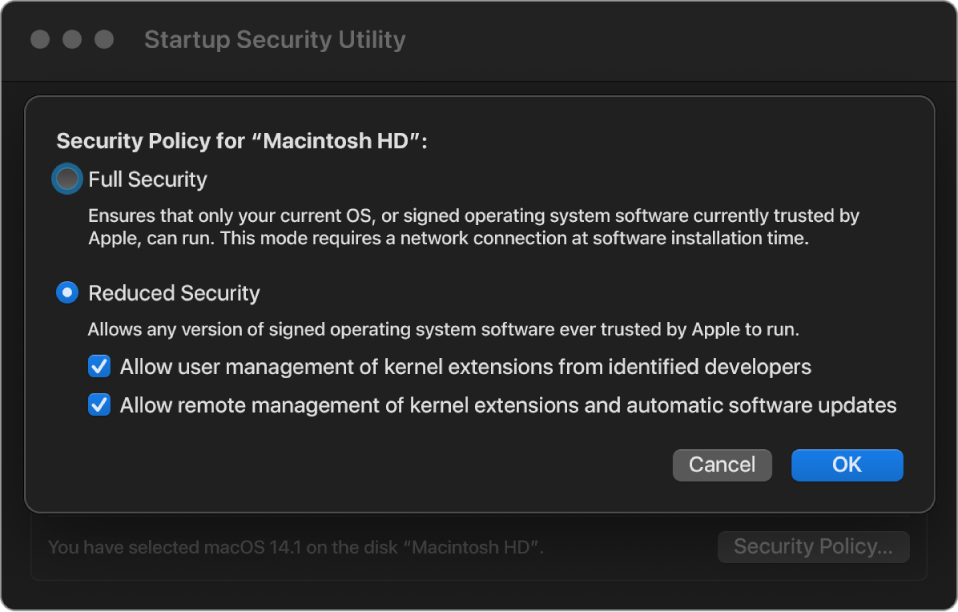
Step 1. Download the installer and follow the on-screen steps to install it on your Mac. Then open PartitionAssistant NTFS for Mac and connect your NTFS-formatted drive. The software will automatically detect the device and show all connected drives in its main interface.

Step 2. Select the drive you want to operate and click "Open".
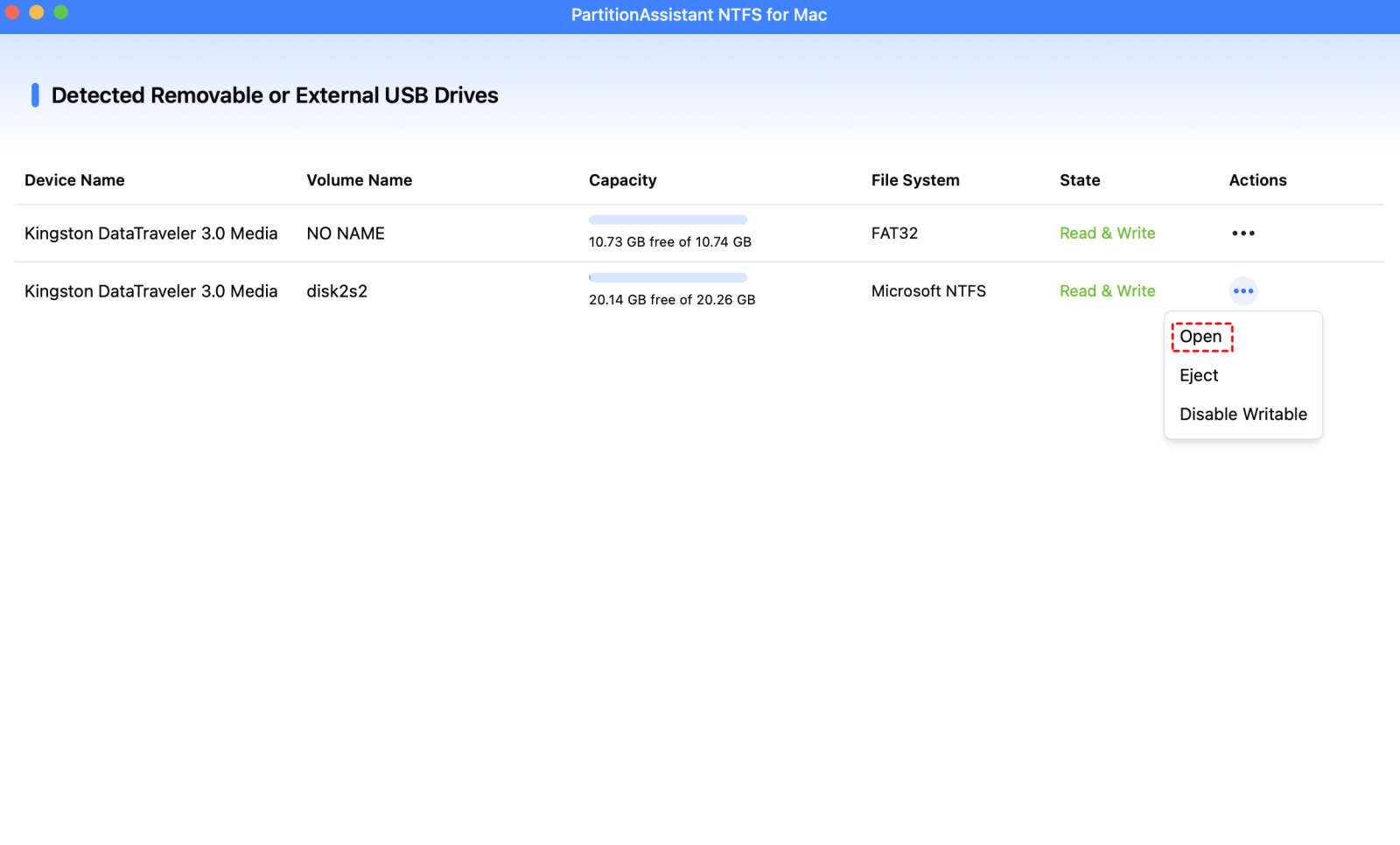
Now you have made NTFS work on Mac. You can also copy, delete, move, and rename files on the drive.

Step 3. After all operations are complete, please click "Eject" to disconnect the external hard drive from your Mac.
Fix 2. Make NTFS work on Mac with Terminal
macOS actually has a hidden, experimental NTFS write driver, but it is turned off by default because it is unreliable and may cause data loss.
Warning: Proceed with extreme caution. Errors here can render your drive unreadable.
Step 1. Open Terminal and type the following command: sudo nano /etc/fstab
Step 2. Enter the command and fill in your administrator password when prompted.
Step 3. Add the following line in the text editor: LABEL=DRIVE_NAME none ntfs rw, auto, nobrowse
Step 4. Press the Ctrl + O keys to save the file. Restart your Mac, and the NTFS drive should now be writable.
Conclusion
Does NTFS work on Mac? NTFS drives can be read on a Mac, but writing to them is not supported natively. macOS mounts NTFS volumes as read-only to protect the file system from potential corruption, and Apple’s hidden write feature is not safe for regular use. To fully read and write to NTFS drives, using a reliable third-party NTFS tool like PartitionAssistant NTFS for Mac is the safest and most practical solution. With the right software, Mac users can copy, edit, move, and delete files on NTFS drives just like they would on native macOS disks, making cross-platform file management smooth and secure.
FAQs
🗨️ Why can't Mac read NTFS?
Mac can read NTFS drives by default, but it cannot write to them. Reading works because macOS includes basic support to access NTFS metadata and files. Writing is disabled to prevent data corruption, as NTFS is a proprietary Windows file system and Apple’s native driver is experimental and unsafe for regular use.
🗨️ Does Mac support NTFS or FAT32?
macOS supports both, but differently. NTFS is supported read-only by default, while FAT32 is fully supported for read and write. FAT32 is compatible with almost all operating systems, but it has file size limitations of 4GB per file, unlike NTFS. To convert NTFS to FAT32 on Mac, you can follow this guide.
🗨️ Is NTFS Windows only?
NTFS is developed by Microsoft for Windows and works best on Windows systems. While macOS and Linux can access NTFS drives, macOS can only read NTFS natively. Full read/write access on Mac requires a third-party NTFS driver.
🗨️ Is exFAT or NTFS faster?
The speed depends on usage. NTFS is faster for small file operations, journaling, and security features, making it ideal for Windows. exFAT is generally faster for large files and cross-platform transfers between Windows and Mac, but it lacks journaling.
🗨️ What are the advantages of NTFS?
NTFS offers better stability, security, and reliability compared to older file systems like FAT32. Its advantages include:
-
Support for large files and partitions
-
File permissions and encryption for security
-
Journaling to reduce corruption risks
-
Compression and disk quotas for efficient storage management
