
 PartitionAssistant NTFS for Mac
Fixed: Unable Copy Files From Mac To External Hard Drive?
Users sometimes find their files not copying to an external hard drive on Mac. This article assists those unable to copy files and explains how to copy files from Mac successfully.

By Irene / Updated on March 2, 2026


User case: How to copy files to external hard drive on Mac?
How do I save all my files from my old Mac to an External Hard Drive?
I got the new (not so) space black M3 and I wanna save all the files from my old Mac. I don’t want to migrate everything to the new one. I use my phone for everything and I have a work laptop so this new Mac will be for music production only. I need to sell my old Mac to get some money back but when I do I’ll lose access to my old files. So my question is. How do I save all the files from my Mac to an external HDD and avoid unable to copy files from so it’s accesible later without migrating all the data.
- Question from www.reddit.com
Copying files from a Mac to an external hard drive is a common way to transfer data or free up storage. However, many users find that the copy process fails or the drive does not behave as expected. This problem can be frustrating, but it is usually caused by a few common issues.
First, check the basic hardware connections. Make sure the external hard drive is powered on and any indicator light is visible. Try using a different USB cable or plugging the drive into another USB port on your Mac. If possible, connect the drive directly to the Mac instead of through a hub. You can also test the drive on another computer to see whether the issue comes from the drive itself or from your Mac.
If the drive is physically connected but still not working properly, open Disk Utility on your Mac. Check whether the external hard drive appears in the list. If it shows up but cannot be written to, the problem may be related to the file system, permission settings, or disk errors. In some cases, the drive may be formatted in a way that only allows reading, not writing.
Other common reasons include insufficient free space on the external drive, unstable connections, incompatible file formats, incorrect file names, or system-related issues. Malware or system errors can also prevent files from being copied successfully. No matter which error you encounter, there are several fixes you can try step by step. If you prefer a faster solution, using a reliable backup tool can help copy files to an external hard drive smoothly with just one click.
How to fix unable to copy files from Mac to external hard drive?
🔥Fix 1. Allow NTFS drive to read and write
If you need to manage files on an NTFS-formatted drive without the risk of formatting or data loss, PartitionAssistant NTFS for Mac provides a professional-grade solution. By bridging the compatibility gap between Windows and macOS, it allows you to treat NTFS drives as if they were native Mac-formatted volumes.
-
Zero-Risk Data Preservation: Traditional fixes often require "erasing" or "reformatting" to ExFAT or APFS, which wipes your data. This solution grants write access non-destructively, keeping your years of archives, family photos, and backups exactly where they are.
-
Seamless Cross-Platform Collaboration: Perfect for editors and designers who receive NTFS-formatted drives from Windows-using clients. You can edit project files, save renders, and hand the drive back.
-
Silicon-Native Optimization: Unlike older drivers that lag on newer hardware, this is built specifically for the M1, M2, and M3 architecture, ensuring that file transfer speeds aren't throttled by emulation.
PartitionAssistant provides a one-click solution. This eliminates the technical barrier for users who need to collaborate between Windows and Mac environments daily.
🌟 Tip: Please follow to configure Security Policy in iOS Recovery Mode beforehand.
Step 1. Open Partition Assistant NTFS for Mac and plug in your NTFS hard drive. The software will automatically detect, mount, and display all connected removable and external drives.

Step 2. Select the drive you want to operate. You can click the three dots to change the State to Read Only or Read & Write. To write files, please click "Open".
Step 3. Now you can copy files on your Mac and click "Paste Item" to copy the files to the drive.
Step 4. You can also copy, rename, move and delete files on the external hard drive.
Step 5. After all operations are complete, please click "Eject" to disconnect the external hard drive from your Mac.
Fix 2. Verify drive permissions
If your external drive uses a Mac-compatible format such as APFS or HFS+ but you still cannot copy files to it, the issue is often related to permission settings.
Step 1. Plug the external hard drive into your Mac. In Finder or on the desktop, right-click (or Control-click) the drive icon.
Step 2. Choose Get Info from the menu.
Step 3. In the info window, scroll down to Sharing & Permissions. If a lock icon appears, click it and enter your administrator password to allow changes.
Step 4. Enable the option Ignore ownership on this volume. This allows your Mac to treat you as the owner of the drive and can fix problems that prevent files from being copied.
Fix 3. Reformat the external hard drive
If the external drive is properly connected but still will not mount, Finder may report that macOS cannot read the disk because the format is incompatible. In this situation, reformatting the drive can restore normal access. Formatting will erase all existing data, so you should back up any important files on another computer before continuing.
Step 1. Open Applications, go to Utilities, and launch Disk Utility.
Step 2. Select the external drive in the left sidebar. If the drive is not mounted, click Mount in the toolbar.
Step 3. Click Erase at the top of the Disk Utility window.
Step 4. Choose APFS as the format and enter a name for the drive.
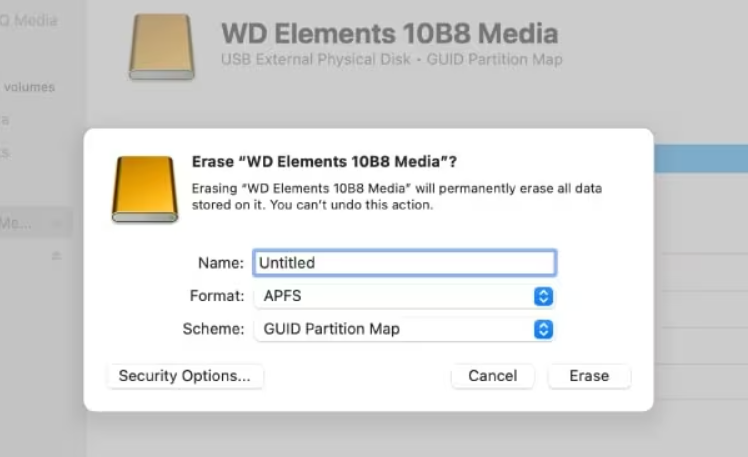
Step 5. Click Erase to confirm and start the reformatting process.
Once the process finishes, the drive should mount correctly and allow you to copy files from your Mac without issues.
Conclusion
How to copy files from Mac to external hard drive? In summary, copying files from a Mac to an external hard drive is usually simple once you identify the real cause of the problem. Most issues come from drive formats, permission settings, or system compatibility, not from the files themselves. By checking the connection, confirming the drive format, adjusting permissions, or using a reliable NTFS solution like PartitionAssistant NTFS for Mac, you can safely save your files without migrating your entire system. This makes it easier to keep important data accessible, protect your files before selling an old Mac, and set up a new Mac exactly the way you want.
FAQs
🗨️ Why am I not able to transfer files from Mac to an external hard drive?
This usually happens because the external drive is formatted as NTFS, which is read only on macOS, or because of permission issues. Other common reasons include insufficient free space, disk errors, unstable connections, or the drive not being mounted properly in Disk Utility.
🗨️ How do I back up everything on my Mac to an external hard drive?
Connect the external hard drive to your Mac, make sure it is writable, and then use Time Machine or manually copy your files. For a full system backup, open System Settings, choose Time Machine, select the external drive, and start the backup.
🗨️ How do I copy files from Apple Mac to an external hard drive without formatting?
First, check the drive format and permissions. If the drive is NTFS, use an NTFS driver for Mac to enable write access instead of reformatting. This allows you to copy files without deleting existing data.
🗨️ How do I copy and paste files to an external hard drive?
Select the files you want to transfer, right-click and choose Copy, then open the external drive in Finder. Right-click again and select Paste. The files will be saved to the external hard drive if it is writable.
