
 PartitionAssistant NTFS for Mac
Solved: How to Delete Files from Seagate External Hard Drive on Mac
If you are unable to delete files from your Seagate drive, this article helps how to delete files from Seagate external hard drive on Mac correctly. It ensures your external storage works smoothly with your Mac system.

By Irene / Updated on January 12, 2026


Discussions Apple: Unable to delete files from Seagate hard drive on Mac
I have removed an old hard drive from a windows laptop and have used an adapter so I can access the files. I would like to move the files off the old hard drive, and onto an external hard drive. So I tried to copy the relevant folder, and the files started to copy but couldn't transfer a number of files.
So I thought I'd just delete the folders/files that have transferred and start again; however, it's not letting me delete a number of files/folders, saying that the some files need to be unlocked and/or permissions changed to read/write. Any idea what is going on and how I can delete these folders?
- Question from discussions.apple.com
A user shared on Apple Discussions that he is unable to delete files on Seagate external hard drive on Mac. Seagate is a popular brand for external drives, known for being easy to use on both Mac and Windows. Still, some users face difficulties when deleting files from Seagate drives, especially on a Mac. This happens because many Seagate drives use the NTFS file system, which macOS can only read by default. While you can open and copy files from an NTFS drive, you cannot modify, move, or delete files without third-party software.
If you encounter this issue, it’s important to understand how macOS handles NTFS drives. With the right steps or tools, you can successfully delete or move files on your Seagate external hard drive.
How to delete files from Seagate external hard drive on Mac?
The main reason you might not be able to delete files from a Seagate external hard drive on a Mac is that macOS cannot write to NTFS drives by default. To delete, edit, or save files, you need to install a third-party NTFS driver like PartitionAssistant NTFS for Mac. Once installed, your Seagate drive will work like a normal Mac drive, allowing full read and write access.
Another option is to reformat the drive. If you often use the drive on both Mac and Windows, formatting it as exFAT is a practical choice. exFAT supports full read and write access on both systems without extra software. However, reformatting will erase all existing data. If you want to reserve a part of the data on the external hard drive, use the powerful NTFS tool is an ideal choice.
If you still cannot delete files, check for these common issues: the drive is NTFS (read-only on Mac), permissions are set to read-only for your user, or the drive may be affected by malware. Changing permissions on the external hard drive or using the right software usually solves the problem.
Step 1.Open PartitionAssistant NTFS for Mac and plug in your Seagate NTFS hard drive. The drive, along with any other connected removable drives, will be recognized, mounted, and displayed in the list.

Step 2. Select the drive you want to operate and click "Open". Now you can delete files to Seagate external hard drive on Mac.
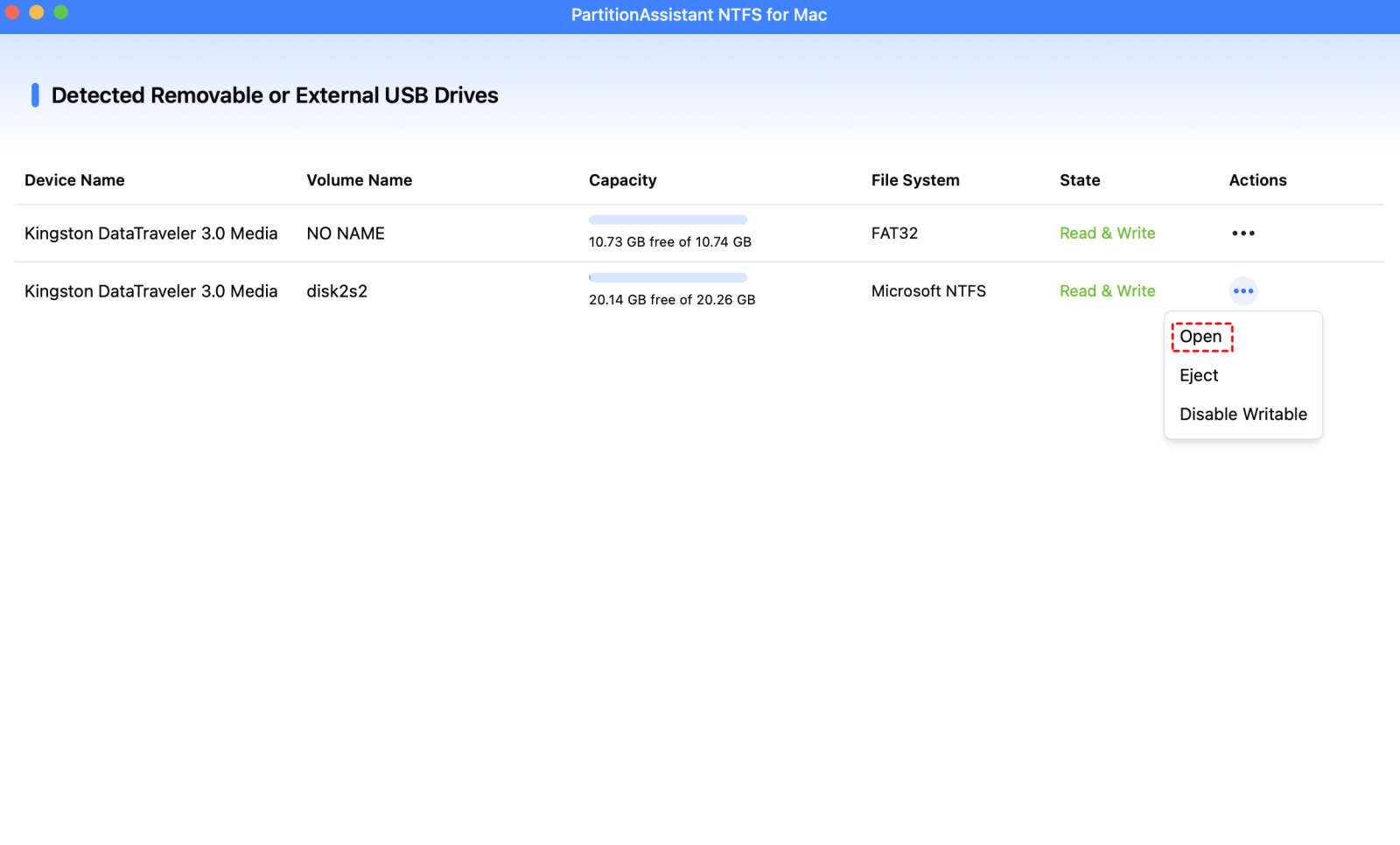
Step 3. You can also copy, move, and rename files on the Seagate drive.
Step 4. After all operations are complete, please click "Eject" to disconnect the Seagate drive from your Mac.
Conclusion
Deleting files from a Seagate external hard drive on a Mac can be tricky because macOS does not support writing to NTFS drives by default. By understanding the drive format, adjusting permissions, or using third-party NTFS software like PartitionAssistant NTFS for Mac, you can easily manage your files. Reformatting the drive to exFAT is another effective solution for full compatibility between Mac and Windows. Following the correct steps ensures you can safely delete, move, or edit files on your Seagate drive without any issues.
FAQs
🧐 How do I delete files off an external hard drive on my Mac?
Connect the external hard drive to your Mac and open Finder. Select the drive from the sidebar, then choose the files you want to remove. Right-click and select Move to Trash, or drag the files to the Trash. After that, empty the Trash to permanently delete them.
🧐 How to wipe a Seagate external hard drive on Mac?
Open Disk Utility on your Mac. Select the Seagate drive from the left panel, then click Erase. Choose a compatible format such as exFAT or APFS, give the drive a name, and click Erase again. This will remove all data from the drive. If the Disk Utility erase button greyed out, you can click to get the solution.
🧐 How do I free up space on my Seagate external hard drive?
You can free up Seagate drive space by deleting unnecessary files or moving them to another location. If the drive is not easy to manage or shows space errors. It allows you to manage partitions, check disk usage, and clean up unnecessary data more efficiently, especially when the drive is used on both Windows and Mac.
🧐 Why can't I delete files from my external hard drive?
This usually happens when the drive is formatted as NTFS, which macOS can only read but not write to. It can also be caused by file permission restrictions, the drive being locked, or disk errors. Using a compatible format or a third-party tool can fix this issue.
🧐 Are Seagate external hard drives compatible with Mac?
Yes, Seagate external hard drives are compatible with Mac. However, many of them are pre-formatted for Windows. To avoid issues, the drive should be formatted to exFAT, APFS, or Mac OS Extended, or used with proper software support.
🧐 Why does my Seagate drive not work on my Mac?
Common reasons include an unsupported file system, insufficient power supply, connection issues, or disk errors. Try changing the USB cable or port, checking the drive in Disk Utility, or reformatting the drive to a Mac-supported format if needed.
