
 PartitionAssistant NTFS for Mac
[Quick Guide] How to Format SD Card to NTFS on Mac
If you need to format SD card to NTFS on a Mac and use it smoothly, this guide shares how to format SD card to NTFS to achieve NTFS compatibility while ensuring your files remain accessible and editable.

By Irene / Updated on January 12, 2026


Super User: How to format SD card to NTFS on Mac?
How to reformat SD card to NTFS
I want to reformat a 16 GB SD card to NTFS so that I can use it to transfer large files (larger than 4 GB) from one computer to another easily, but my computer will only allow FAT variations.
- Question from superuser.com
A discussion on Superuser.com brings attention to a situation that many Mac users may find familiar. In the post, a user explained that they wanted to reformat a 16 GB SD card to NTFS in order to transfer files larger than 4 GB between different computers. This need is quite common, especially when handling videos, photos, or other large data files. However, when the user attempted to format the SD card on a Mac, the system only offered FAT-based formats, with no option to select NTFS.
This behavior is not a fault with the SD card itself, but rather a limitation of macOS. By default, macOS can read NTFS drives but does not fully support writing or formatting them. Because of this restriction, users may be unable to format an SD card to NTFS, delete existing files, or make other changes using built-in Mac tools. Situations like this often cause confusion, particularly for users who regularly switch between macOS and Windows.
This real case clearly reflects a broader issue many people face when using SD cards across different platforms. In the following sections, we will explain why this happens and walk you through reliable ways to format an SD card to NTFS on a Mac smoothly and safely.
How to format SD card to NTFS on Mac?
On macOS, Disk Utility does not provide an option to format an SD card to NTFS, as Apple does not natively support creating or writing to NTFS file systems. Instead, Disk Utility only supports formats such as APFS, Mac OS Extended, FAT32, and exFAT. For this reason, many users choose to format the SD card to NTFS on a Windows PC, where NTFS is fully supported.
Afterward, the card can be read on a Mac, but writing is restricted. To conveniently add, delete, or manage files on the NTFS-formatted SD card, a reliable solution such as PartitionAssistant NTFS for Mac is required. So, we will provide step-by-step methods to guide you format SD card to NTFS and then use it smoothly on your Mac.
Part 1. How to format SD card to NTFS
If you need your SD card to store large files or work across Windows systems on Mac, formatting it to NTFS is the most reliable choice. Here’s how to do it using Windows Disk Management.
Step 1. Press Windows + R to open the Run box, type diskmgmt.msc, and press Enter to launch Disk Management.
Step 2. In Disk Management, locate your SD card, right-click it, and select Format.
Step 3. In the Format window, choose NTFS as the file system. Optionally, you can give your SD card a Volume label for easier identification.
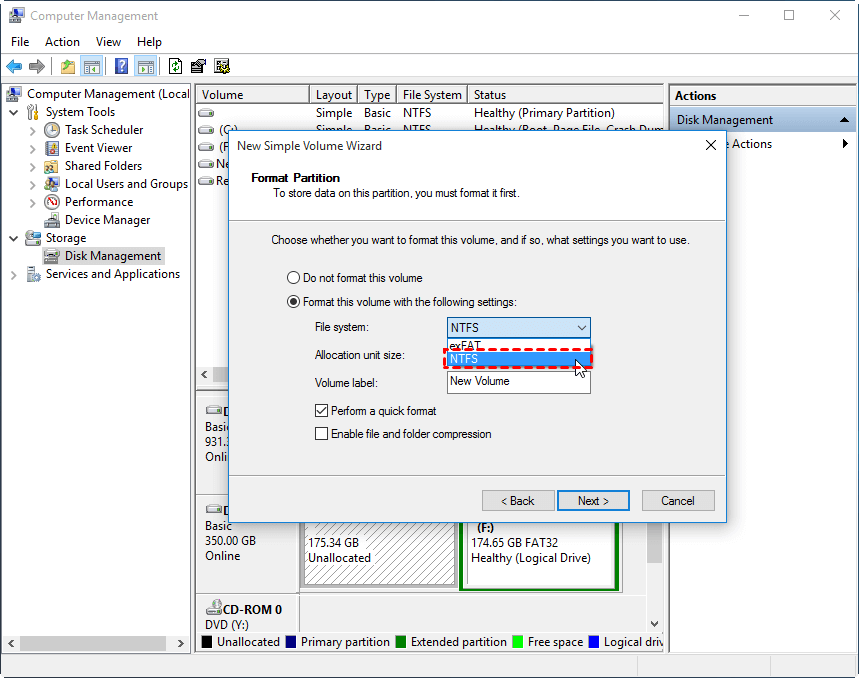
Step 4. Click OK to confirm. Windows will format the SD card to NTFS, usually within a few seconds.
Once formatted, the SD card is ready for large files and will work seamlessly on Windows. To use it on a Mac, you will need a tool like PartitionAssistant NTFS for Mac to write files.
Part 2. How to use NTFS SD card on Mac
If you often work with large files or share an SD card between Mac and Windows, having an NTFS-formatted card is really necessary. By default, macOS can only read NTFS drives, so you cannot add, delete, or change files, and move files to NTFS drive on Mac without extra help. This can make managing your files slow and frustrating.
PartitionAssistant NTFS for Mac makes this simple and reliable. It allows your Mac to fully read and write to NTFS SD cards, so you can transfer large files, organize data easily, and use the same card across both Mac and Windows without hassle. For anyone who depends on SD cards for important files, this tool makes your workflow much smoother.
Step 1. Open PartitionAssistant NTFS for Mac and connect your SD card to your Mac. Click Enable Writable to switch the card to full read and write mode. Once enabled, all connected drives, including removable and external ones, will be mounted and displayed in the program.

Now your SD card is writable. You can copy, delete, and rename files from your SD card to Mac.
Step 2. Once you’ve finished all operations, click Eject to safely disconnect the SD card from your Mac. Your Mac will continue to have full read and write access to any other NTFS devices connected.
Conclusion
If you want to know how to format SD card to NTFS on Mac, it’s important to understand that macOS does not support writing or creating NTFS drives by default. Using PartitionAssistant NTFS for Mac makes the process simple and reliable. It allows you to fully read and write to NTFS SD cards, transfer large files, and manage your data smoothly. By following the steps in this guide, you can use your SD card on both Mac and Windows without losing any files or running into restrictions, making your workflow much easier and more efficient.
FAQs
🗨️ Why can't Mac write to NTFS?
macOS can read NTFS drives but cannot write to them by default. This is because Apple has not included full NTFS support in macOS, so you can view or copy files from an NTFS drive, but you cannot add, delete, or modify files without using third-party tools like PartitionAssistant NTFS for Mac.
🗨️ Should I format an SD card to NTFS?
You should format an SD card to NTFS if you need to store files larger than 4 GB or plan to use the card frequently on Windows computers. On a Mac, you will need a tool like PartitionAssistant NTFS for Mac to write to the card.
🗨️ Is ExFAT or NTFS better for Mac?
ExFAT is generally better for Mac users because it is natively supported on both macOS and Windows and handles large files easily. NTFS is better if the card will be primarily used on Windows and you need full file security or advanced features.
🗨️ What should I format my SD card to on a Mac?
On a Mac, choose a format based on your needs. For compatibility with both Mac and Windows and large files, ExFAT is ideal. If you only use the card on Mac, APFS or Mac OS Extended is recommended.
🗨️ Should I format my SD card to ExFAT or FAT32?
ExFAT is usually the better choice because it supports files larger than 4 GB and works on both Mac and Windows. FAT32 is only suitable for smaller files and older devices that do not support ExFAT.
