
 PartitionAssistant NTFS for Mac
How To Format Toshiba External Hard Drive For Mac?
A clear overview is provided regarding how a Toshiba external hard drive can be formatted for macOS. It highlights the transition steps and software options that ensure a smooth user experience.

By Irene / Updated on January 12, 2026


What file system formats does Mac support?
Mac computers work with several file system formats, but not all of them. If an external hard drive uses an unsupported format, macOS may not detect it or may allow only limited access. This is why some Toshiba external hard drives, which are usually set up for Windows, do not work fully on a Mac right away.
macOS supports these file system formats:
-
HFS / HFS+: Used by older versions of macOS, mainly macOS 10.12 and earlier.
-
APFS: The default format for newer Macs, supported on macOS 10.13 and later.
-
FAT32: Works on both Windows and Mac, but it is best for small drives due to size limits.
-
exFAT: Also compatible with both systems and suitable for larger storage devices.
Mac can also open drives formatted with NTFS, which is common on Windows. However, macOS can only read NTFS drives and cannot write data to them. If you need to use NTFS on Mac, you will need a professional and handy tool.
How to format Toshiba external hard drive for Mac?
Case 1. Format Toshiba external hard drive to NTFS on Mac
Writing to NTFS drives on a Mac is difficult because macOS only allows read access by default. This means you can view files on a Windows-formatted drive, but you cannot copy, edit, or delete them. As a result, many users feel stuck when working with NTFS drives and often consider reformatting or using complex methods that may lead to data loss.
PartitionAssistant NTFS for Mac offers a simple and safe solution. It lets you read and write NTFS drives directly on macOS without changing the drive format. You can copy, edit, delete, rename, and move files just as easily as on a Windows PC. The software works smoothly inside macOS and removes the read-only limit right away. Whether you are moving large files, backing up data, or organizing folders, it gives you full control of your NTFS drives while keeping your data secure.
Before starting, you need to configure Security Policy in iOS Recovery Mode.
Step 1. Run PartitionAssistant NTFS for Mac and connect your Toshiba external hard drive.
Step 2. The connected, removable, and external hard drives will be mounted and listed.

Step 3. Select the drive you want to operate and click "Open".
Step 4. Now you can copy files on your Mac and click "Paste Item" to copy the files to the Toshiba external hard drive.
Step 5. You can also copy, delete, and rename files on the external hard drive.
Step 6. After all operations are complete, please click "Eject" to disconnect the Toshiba external hard drive from your Mac.
Case 2. Format Toshiba external hard drive to exFAT
The built-in Disk Utility on macOS is a wonderful resource for formatting a Toshiba external hard drive to exFAT. This tool is quite reliable and often has the capability to detect a drive even if it does not immediately appear in the Finder, which can be very helpful for addressing minor system errors.
Before the process begins, it is helpful to keep in mind that formatting involves erasing the current contents of the drive. While this is a common way to change file format, it does mean that existing files will be removed. If there are important memories or documents on the drive, making a backup beforehand is a kind way to ensure nothing is lost.
Step 1. Open Disk Utility (navigate to Finder > Applications > Utilities).
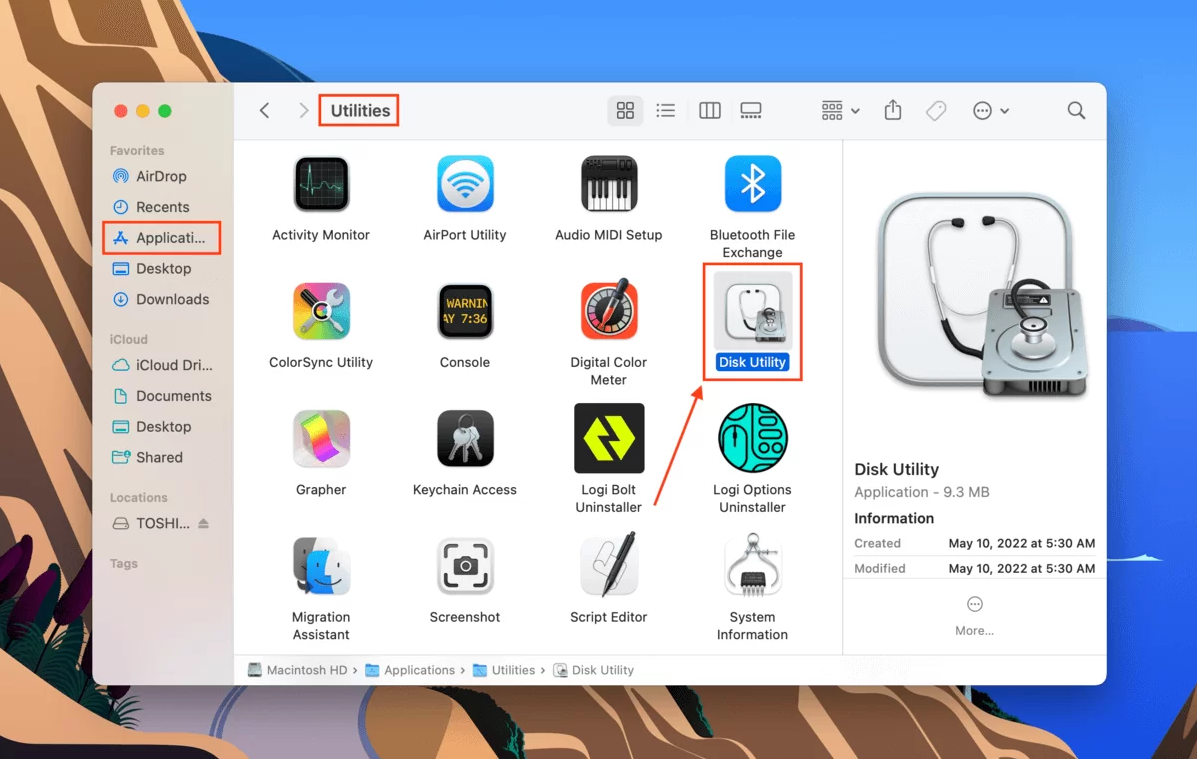
Step 2. Select the “View” menu and choose the “Show all devices” option.

Step 3. Pick your Toshiba drive from the list on the left and hit the “Erase” icon.
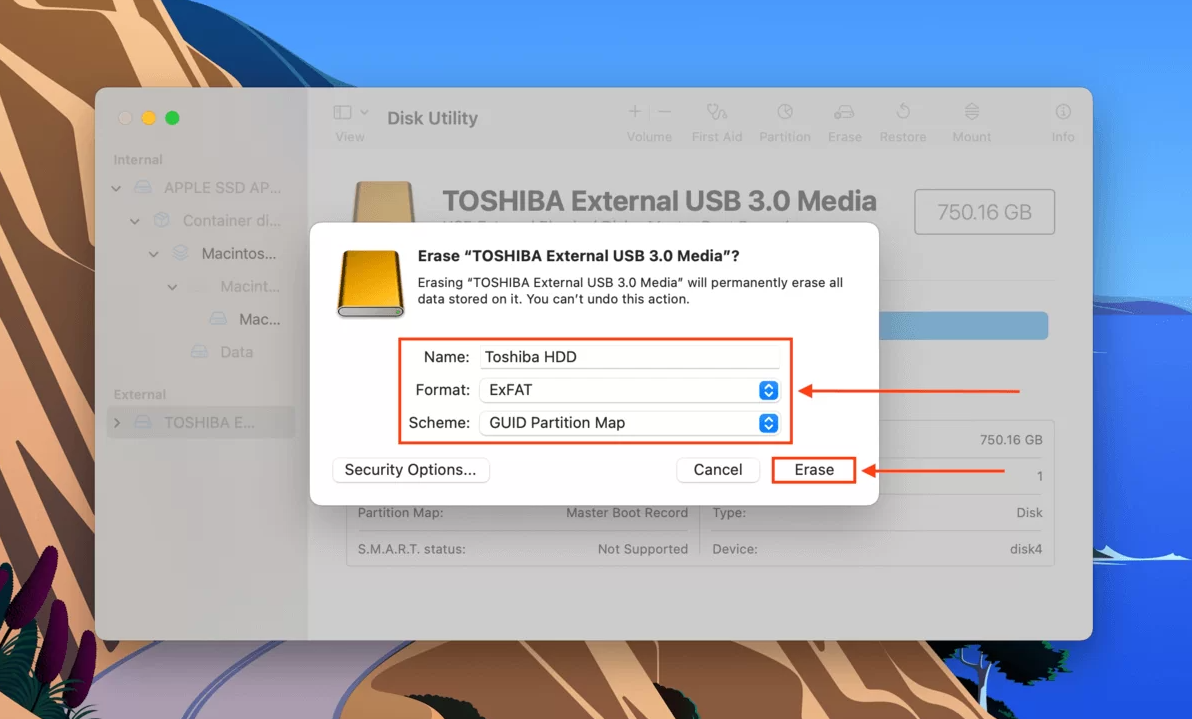
Step 4. Title your drive, pick GUID Partition Map as the scheme, and set the format to ExFAT (Consult this section of the article for the benefits of ExFAT). Finally, select “Erase” to wipe and reset your Toshiba drive.
Conclusion
Selecting the appropriate file system ensures that a Toshiba external hard drive functions seamlessly with a Mac. Whether the choice is the cross-platform flexibility of ExFAT or the full read and write capabilities of NTFS through a dedicated tool like PartitionAssistant NTFS for Mac, the necessary steps to manage data effectively are now available. A prior backup of important files is always a helpful precaution to keep information secure before any formatting begins.
FAQs
* Can I use a Toshiba external hard drive on a Mac?
Yes. Toshiba external hard drives work with Mac, but many are formatted for Windows. You may need to reformat the drive or use NTFS software to get full access.
* How do I format my external hard drive for Mac?
Connect the drive, open Disk Utility, select the external drive, click Erase, choose APFS or exFAT, then confirm. Back up your data first because formatting deletes all files.
* Is exFAT or NTFS better for Mac?
exFAT is better for Mac because it supports both reading and writing without extra software. NTFS is read-only on Mac unless you install a third-party driver like PartitionAssistant NTFS for Mac.
* How do I make an external hard drive compatible with a Mac?
Format the drive to a Mac-supported file system such as APFS, HFS+, or exFAT, or install NTFS software if the drive must stay in NTFS format.
* How do I get my Mac to recognize an external hard drive?
Check the cable and port, try another USB port, then open Disk Utility to see if the drive appears. If it does, mount or format it so macOS can access it.
