
 PartitionAssistant NTFS for Mac
How to Fix Sabrent External Hard Drive Not Showing Up Mac
Have you ever found your Sabrent external hard drive not showing up Mac? In this article, you will know why it happens and learn how to fix this issue in five powerful and effective ways.

By Hedy / Updated on March 11, 2026


External storage devices make life easier. Whether you're backing up photos, transferring large files, or expanding your storage capacity, an external drive is often the simplest solution. But what happens when you plug in your Sabrent external hard drive, and your Mac simply refuses to recognize it? No pop-up, no drive icon, nothing.
This issue can be incredibly frustrating. You might immediately worry that the drive is broken or that your data has disappeared forever. Fortunately, in most cases, the problem is much simpler than that. A Sabrent external hard drive not showing up on Mac usually happens due to connection problems, macOS settings, file system incompatibility, or minor disk errors.
Many Mac users encounter this situation at least once. According to troubleshooting reports, loose cables, unmounted drives, and software glitches are among the most common reasons external drives fail to appear in Finder or on the desktop.
The good news? Most of these issues can be solved in just a few minutes.
This guide walks you through why your Sabrent external hard drive may not show up on Mac and how to fix it step-by-step. By the end, you’ll know exactly how to detect, repair, and restore access to your drive without losing data.
Here is a quick look at how to fix the Sabrent external hard drive not showing up Mac:
|
Fix 1. Check the Physical Connection |
Start by confirming the hardware connection is stable and functioning. Try another USB port, cable, or adapter to ensure the Mac can properly detect the Sabrent external hard drive. |
|
Fix 2. Manually Mount the Drive in Disk Utility |
Sometimes the drive is detected but not automatically mounted. Open Disk Utility and manually mount the Sabrent drive so it becomes visible and accessible in Finder. |
|
Fix 3. Repair the Drive Using First Aid |
Disk errors or minor corruption may prevent the drive from appearing. Run First Aid in Disk Utility to scan the disk and repair possible file system problems. |
|
Fix 4. Reformat the Drive to exFAT or APFS |
If the file system is incompatible or corrupted, reformatting may help. Use exFAT for cross-platform compatibility or APFS for optimal performance on macOS devices. |
|
Fix 5. Make Sabrent External Hard Drive Writable on Mac |
Some drives are formatted with NTFS, which is read-only on macOS. Use a reliable NTFS for Mac tool to enable full read and write access. |
Why Sabrent external hard drive not showing up Mac?
If a Sabrent external hard drive is not showing up on a macOS device, the issue usually relates to connection problems, file system incompatibility, or disk errors. Below are the most common causes.
1. Loose or faulty USB connection: A damaged cable, loose USB port, or faulty adapter may prevent the Mac from detecting the drive. Try reconnecting the drive, switching USB ports, or using another cable.
2. The drive is not mounted: Sometimes the drive is detected but not mounted. Open Disk Utility and check if the external drive appears in the sidebar. If it does, select it and click Mount.
3. Incompatible file system: Many external drives are formatted with NTFS, which macOS can read but not fully write to. In some cases, the drive may not behave properly until it is reformatted to exFAT or APFS.
4. Insufficient power supply: Large 3.5-inch hard drives often require external power. If the drive relies only on USB power, the Mac may fail to recognize it.
5. Disk errors or corruption: File system corruption may prevent the drive from appearing normally. Running First Aid in Disk Utility can scan and repair minor disk errors.
6. Hardware failure: If the drive does not appear in Disk Utility or System Information, the external hard drive itself—or the enclosure electronics—may be damaged.
How to fix Sabrent external hard drive not showing up Mac
When a Sabrent external hard drive fails to appear on your Mac, it can interrupt your workflow and raise concerns about your data. In many cases, the issue is caused by simple connection problems, file system incompatibility, or minor disk errors. Fortunately, macOS provides several built-in tools that can help detect and repair external drives.
Below are five effective methods to fix a Sabrent external hard drive not showing up on Mac.
Fix 1. Check the physical connection
Sometimes the problem is not with the drive itself but with the connection between the drive and the Mac. A loose cable, damaged USB port, or insufficient power can prevent the drive from being detected.
Step 1. Disconnect the Sabrent external hard drive from your Mac.
Step 2. Inspect the USB cable and connector for visible damage.
Step 3. Reconnect the drive firmly to the Mac’s USB port.
Step 4. Try another USB port on the Mac if available.
Step 5. Use a different USB cable or adapter if possible.
Step 6. If the drive requires external power, ensure the power adapter is properly connected.
After reconnecting, wait a few seconds to see whether the drive appears on the desktop or in Finder.
Fix 2. Manually mount the drive in Disk Utility
Sometimes the external drive is recognized by macOS but not automatically mounted. In this case, the drive may appear in Disk Utility, and you can mount it manually.
Step 1. Open Finder. Navigate to Applications > Utilities.
Step 2. Launch Disk Utility. Locate your Sabrent external hard drive in the left sidebar.
Step 3. Select the drive name. Click the Mount button at the top of the window.
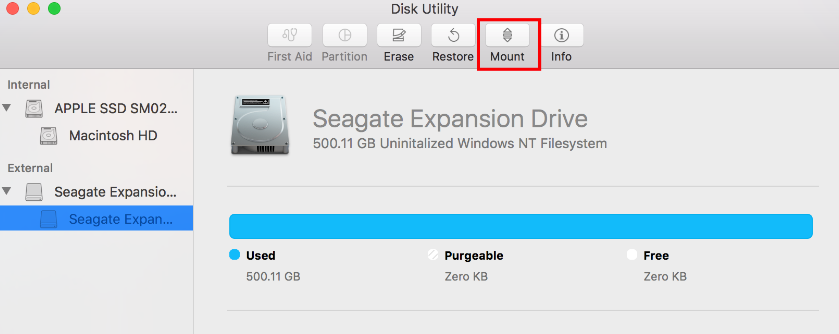
If the drive mounts successfully, it should immediately appear in Finder and become accessible.
Fix 3. Repair the drive using First Aid
Disk errors can prevent macOS from properly reading an external hard drive. The First Aid feature in Disk Utility scans the disk and repairs common file system problems.
Step 1. Open Disk Utility from Applications > Utilities.
Step 2. Select your Sabrent external hard drive from the sidebar.
Step 3. Click the First Aid button in the toolbar.
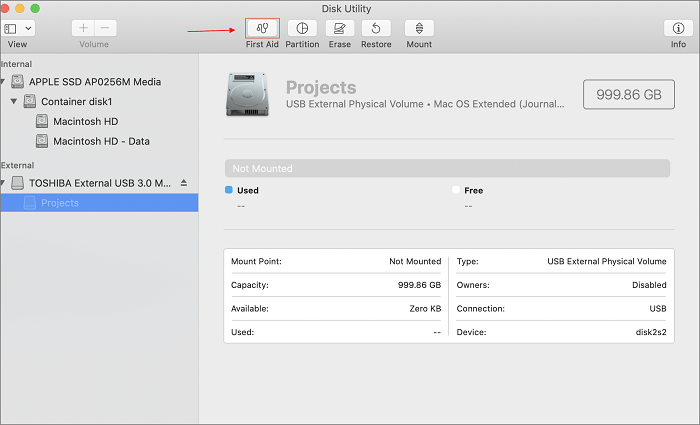
Step 4. Choose Run when prompted.
Step 5. Wait while macOS scans and repairs the drive.
Step 6. Once the process finishes, reconnect or remount the drive.
If the issue was caused by minor disk corruption, First Aid may resolve the problem quickly.
Fix 4. Reformat the drive to exFAT or APFS
If the drive still does not work properly, the file system may be incompatible with macOS. Some external drives use Windows-based formats that may cause limited access or detection issues. Reformatting the drive to a macOS-compatible file system can help.
Important: Reformatting erases all data on the drive, so make sure to back up important files first if possible.
Step 1. Open Disk Utility. Select the Sabrent external hard drive.
Step 2. Click Erase at the top of the window. Enter a new name for the drive.
Step 3. Choose one of the following formats:
APFS – Best for drives used only with Mac.
exFAT – Ideal for sharing between Mac and Windows.
Step 4. Click Erase to start formatting. Wait until the process finishes.
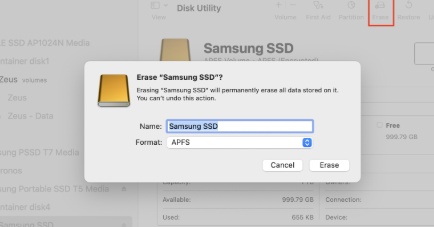
Once formatted, reconnect the drive and check whether it appears normally.
Fix 5. Make Sabrent external hard drive writable on Mac
Many external drives are formatted with NTFS, a Windows file system. macOS can read NTFS drives but usually cannot write to them. As a result, the drive may appear but not allow you to copy files.
To enable full read and write access, you can use NTFS compatibility tools designed for macOS. PartitionAssistant NTFS for Mac is a utility designed to give macOS full access to NTFS partitions. This tool installs a lightweight NTFS driver on macOS that removes the read-only limitation. Once installed, it allows your Mac to work with NTFS drives just like Windows does.
This software provides several useful capabilities for managing NTFS drives on macOS:
✍ Full NTFS read & write access: After enabling write support, you can create, modify, copy, move, and delete files on NTFS drives directly from Finder.
✍ No need to reformat the drive: You can keep the original NTFS format of the Sabrent drive, avoiding data loss and maintaining compatibility with Windows computers.
✍ Automatic drive detection: Once the external hard drive is connected, the software automatically detects and mounts the NTFS partition.
✍ Wide device compatibility: It supports multiple storage devices, includingexternal hard drives, SSDs, USB flash drives, SD cards, and Thunderbolt drives
✍ Compatibility with modern Macs: PartitionAssistant NTFS for Mac works with macOS 10 and later and supports both Intel-based Macs and Apple Silicon chips (such as M1).
With this software, you can easily manage data stored on external hard drives, SSDs, USB flash drives, and other NTFS-formatted storage devices.
Step 1. Open PartitionAssistant NTFS for Mac and insert your Sabrent external hard drive. You can click "Enable Writable" to adjust the state to Read & Write. Then the program will automatically detect, mount, and display all connected external and removable drives.
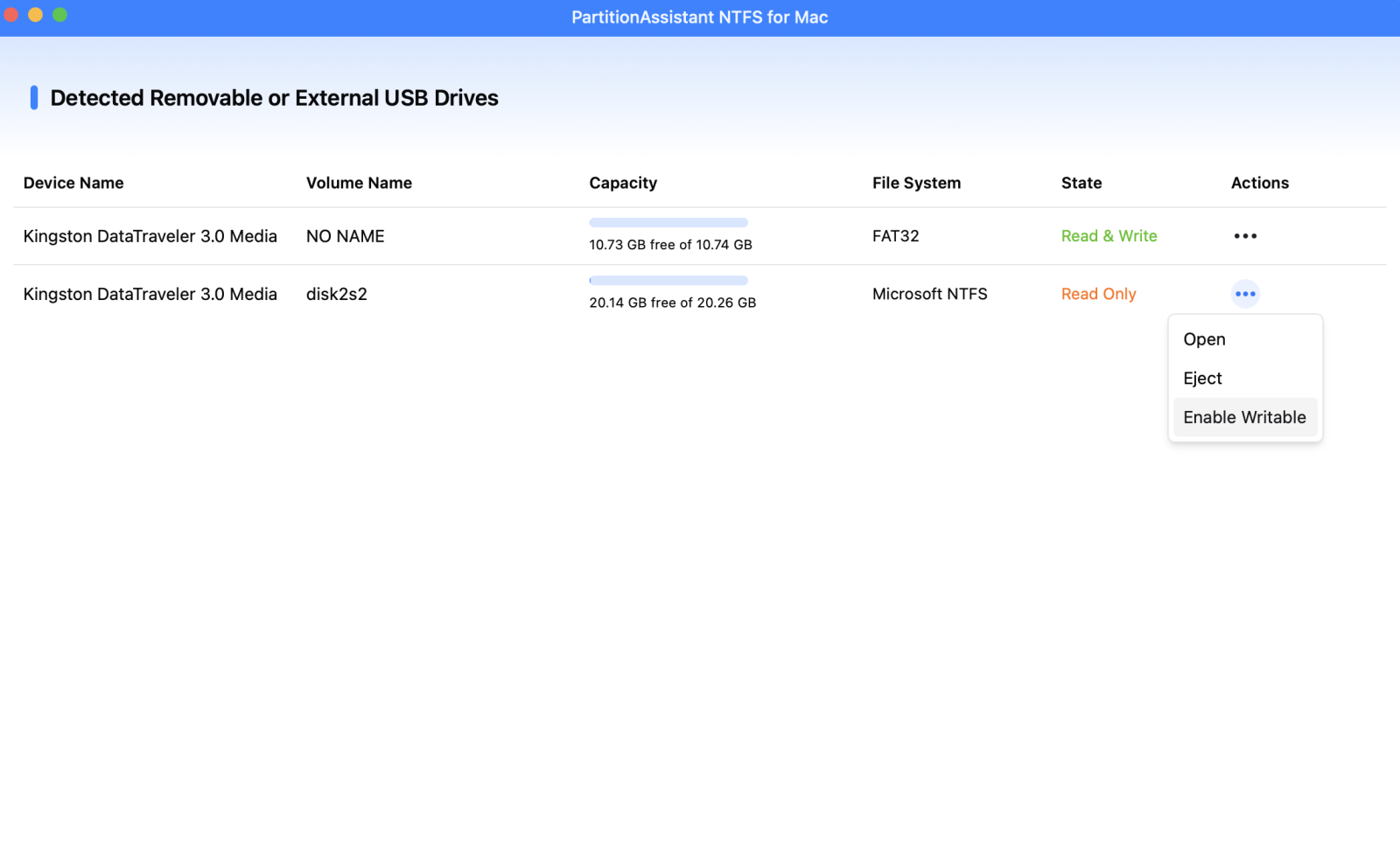

Step 2. Select the drive you want to operate and click "Open". Now you can write files on your Mac and click "Paste Item" to copy the files to your drive.
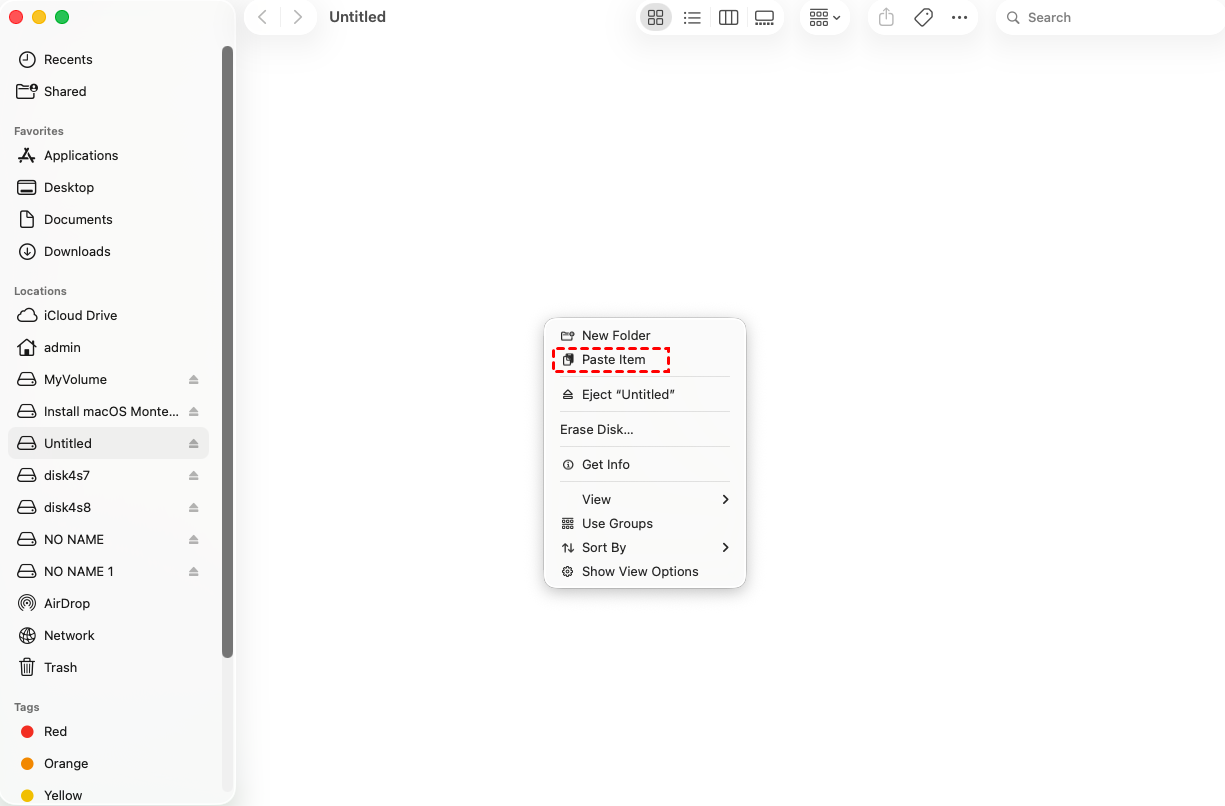
Step 3. You can also copy, delete, and rename files on the external hard drive.

Step 4. Once all tasks are finished, click Eject to safely remove the Sabrent external hard drive from your Mac.
Conclusion
In conclusion, a Sabrent external hard drive not showing up on Mac is usually caused by connection issues, mounting problems, disk errors, or incompatible file systems. By checking the physical connection, mounting the drive, repairing it with First Aid, or reformatting when necessary, most problems can be resolved quickly. If the drive is NTFS-formatted, using an NTFS for Mac tool can restore full read-write access and ensure smooth file management on macOS.
