
 PartitionAssistant NTFS for Mac
Why Does Read Only File System Show on Mac? Fix It Now!
This guide explains why Mac file systems become read-only, covering NTFS formats and disk errors. Get easy solutions to regain full access and fix permissions on internal and external hard drives.

By Irene / Updated on January 12, 2026


User case: Read-only file system on Mac
How to change a read-only file system to a writable file system on Mac Monterey? I'm trying to manage system files in MacOS Monterey, I'm getting an error message saying the destination folder is a Read-only file system. Is there an easy way to manage system files in MacOS Monterey?
- Question from superuser.com/questions
A read-only file system on a Mac is often part of how macOS is designed, but it can also be caused by settings or drive problems. Understanding the reason helps you choose the right fix.
On newer macOS versions such as Catalina, Big Sur, and later, Apple uses a more secure system structure. The main system files are stored on a separate volume that is set to read-only. Your personal files are kept on another volume. This design protects important system files from being changed, damaged, or attacked by malware. It also prevents apps or users from accidentally modifying critical parts of the system, which improves stability and security.
Read-only access can also appear on external drives or specific folders. A common reason is the drive format. For example, macOS can open NTFS drives from Windows, but it cannot write to them by default, so the drive shows as read-only. In other cases, the issue is permission related. If your account does not have write access, macOS will block changes to that file or folder.
Sometimes, macOS sets a drive to read-only to protect your data. If the system detects file system errors or possible corruption, it may mount the drive in read-only mode to avoid further damage. Sharing and security settings can also limit write access if they are not configured correctly.
In short, a read-only file system on Mac is usually caused by macOS security design, drive format limits, permission settings, or drive errors. Each cause has a different solution, such as changing permissions, using compatible formats, or repairing the drive.
How to fix read only file system on Mac?
Fix 1. Change to a compatible file system
If your drive shows as read-only because it uses NTFS, switching to a Mac-compatible solution is the easiest fix. macOS can open NTFS drives but cannot write to them by default, which is why the drive appears read-only.
One simple option is to use a reliable NTFS for Mac tool. PartitionAssistant NTFS for Mac is designed to make NTFS drives work smoothly on macOS. After installation, your Mac can use the NTFS drive like a native disk. You can copy, edit, delete, rename, and move Mac files to external hard drive directly in Finder without extra steps.
This tool focuses on stability and data protection, avoiding risky command-line methods. It works with many types of storage devices, including external hard drives, SSDs, USB drives, and memory cards. It also supports common file systems such as NTFS, FAT32, and exFAT.
In addition, it is fully compatible with modern macOS versions and runs well on both Intel Macs and Apple Silicon models. By using a compatible file system solution, you can remove the read-only limit and use your drive normally on Mac.
Before we start, you need to configure Security Policy in iOS Recovery Mode.
Step 1. Run PartitionAssistant NTFS for Mac and connect your read-only hard drive.
Step 2. The connected, removable, and external drives will be mounted and listed.

Step 3. Select the drive you want to operate and click "Open".
Step 4. Now you can copy files on your Mac and click "Paste Item" to copy the files to your drive.
Step 5. You can also copy, delete, and rename files on the external hard drive.
Step 6. After all operations are complete, please click "Eject" to disconnect the external hard drive from your Mac.
Fix 2. Disable SIP Security on Your Mac
If you are not using NTFS but still get read-only file system, you can disable SIP security. macOS applies built-in security limits to its system applications. To proceed, you must first disable these protections on your Mac. Below are the steps to turn off SIP.
Step 1. Restart your Mac and press and hold Command + R until the Recovery screen appears.
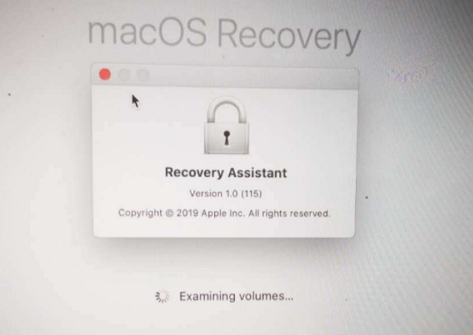
Step 2. Log in with your username and password, then open Disk Utility.
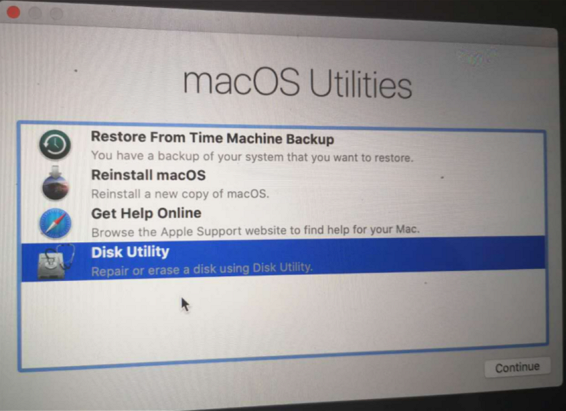
Step 3. From the top menu bar, choose Terminal, then type the command:
liumiaocn:~root# csrutil status
System Integrity Protection Status: disabled
lumiaocn:~ root#
Step 4. Restart your Mac to apply the change.
Note: You do not need to stay in Recovery mode to restart. A normal reboot is enough. After restarting, check the SIP status by running the csrutil command. You should see that System Integrity Protection is disabled.
This completes the SIP configuration using csrutil.
Conclusion
A read-only file system on Mac is usually the result of macOS security design, file system limits, permission settings, or drive protection mechanisms. Newer macOS versions place system files on protected volumes to improve stability and security, while external drives may become read-only due to incompatible formats or detected errors.
By identifying the exact cause, the issue can be resolved through suitable methods such as using a compatible file system solution like running free PartitionAssistant NTFS for Mac or adjusting system security settings. With the right approach, normal read and write access can be restored while keeping data safe and the system stable.
FAQs
🗨️ How do I turn off read only on my Mac?
It depends on the cause. If it is a permission issue, changing the file or folder permission to Read & Write can fix it. If the drive uses NTFS or has system protection enabled, a compatible file system tool or adjusting macOS security settings may be needed.
🗨️ How do I turn off read only file system?
A read-only file system cannot be changed directly. The cause must be addressed first, such as using a Mac-compatible format with PartitionAssistant NTFS for Mac, repairing disk errors, or removing system protection that limits write access.
🗨️ How do I change a read-only file on my Mac?
The file permission can be updated in Get Info if your account has access rights. If the file is on a protected system volume or an unsupported drive format, it will remain read-only until that restriction is resolved.
🗨️ Why is my filesystem read only?
Common reasons include macOS system protection, an unsupported drive format like NTFS, limited user permissions, or disk errors that cause macOS to mount the drive as read-only to protect data.
🗨️ How to fix a read-only system?
The solution depends on the reason. Permission issues can be corrected in settings, NTFS drives require Mac support tools or reformatting, and disk errors may need repair. Once the underlying issue is fixed, normal write access becomes available.
