
 AOMEI Partition Assistant
Fixed: Bootrec is Not Recognized in Windows 11
When attempting to run bootrec in Command Prompt, some users may see a message stating that bootrec is not recognized Windows 11. This guide explains how to resolve the issue.

By Hedy / Updated on September 3, 2025


Why Bootrec is not recognized in Windows 11?
When Windows 11 users try to run the bootrec command in Command Prompt and encounter the message “bootrec is not recognized”,it usually indicates one of several underlying issues. Here are the most common reasons:
☛ Incorrect environment: Bootrec only works in the Windows Recovery Environment (WinRE). If you try running it in a normal Windows Command Prompt, it won’t be recognized.
☛ Wrong command prompt version: Sometimes, users open a third-party terminal or the standard Command Prompt without administrative privileges. Bootrec requires the elevated Command Prompt in WinRE.
☛ Missing or corrupted system files: If critical system files are missing or corrupted, the tool may fail to run.
☛ Using 32-bit vs. 64-bit versions: Running the wrong architecture version of Command Prompt (e.g., 32-bit on a 64-bit system) can occasionally prevent the system from recognizing bootrec.
☛ Issues with Windows Installation Media: If you are using installation media that is damaged or incomplete, the recovery tools, including bootrec, may not load properly.
☛ Path or environment variable problems: In rare cases, the system path to recovery tools may be broken, causing bootrec to appear unrecognized.
In short, the most common reason is that bootrec is not being run in the proper Windows Recovery Environment with administrative privileges. Ensuring you are in WinRE usually resolves the issue.
How to fix Bootrec is not recognized in Windows 11
When trying to run the bootrec command in Windows 11, some users encounter the frustrating message that it is not recognized. This usually happens due to incorrect environment settings, corrupted system files, or using the wrong Command Prompt. To resolve this, follow these solutions carefully.
Fix 1. Boot into Windows Recovery Environment (WinRE)
Sometimes, the reason bootrec is not recognized is simply because you are not running it in the proper environment. Therefore, follow these steps to boot into WinRE:
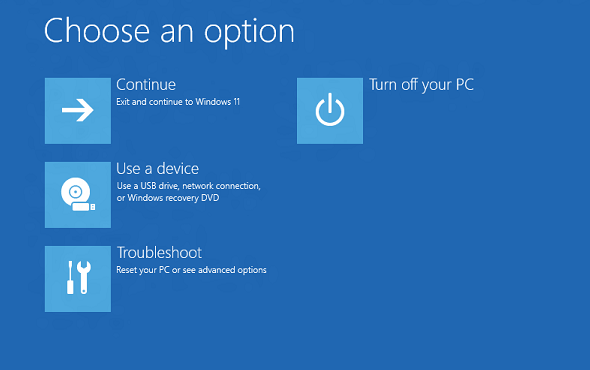
Step 1. Press Shift and click Restart from the Start menu.
Step 2. Choose Troubleshoot, then Advanced options.
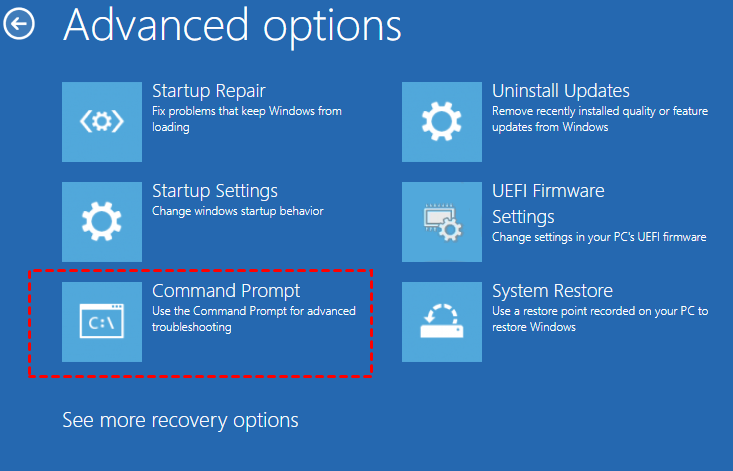
Step 3. Select Command Prompt to open a terminal where you can run bootrec.
Fix 2. Use the correct Command Prompt
Even if you are in WinRE, the bootrec command may not be recognized if the wrong Command Prompt is being used. For instance, some users accidentally open a normal Command Prompt within Windows, which does not have access to the system repair environment. Therefore, carefully follow these steps:
Step 1. In WinRE, select Command Prompt from the Advanced options menu.
Step 2. Ensure the command prompt shows a drive letter corresponding to your system drive (usually C:).
Step 3. Type bootrec /fixmbr or any other bootrec commands as needed.
Fix 3. Use a Windows 11 installation media
If the above methods fail, it is possible that your recovery environment is corrupted or inaccessible. Hence, using a Windows 11 installation media is a reliable alternative. Not only does it allow you to boot into a fully functional recovery environment, but it also provides access to advanced tools for repairing startup issues, scanning disks, and rebuilding the BCD. Follow these instructions carefully:
Step 1. Insert a Windows 11 USB or DVD installation media and boot your PC from it.
Step 2. Select your language preferences and click Next.
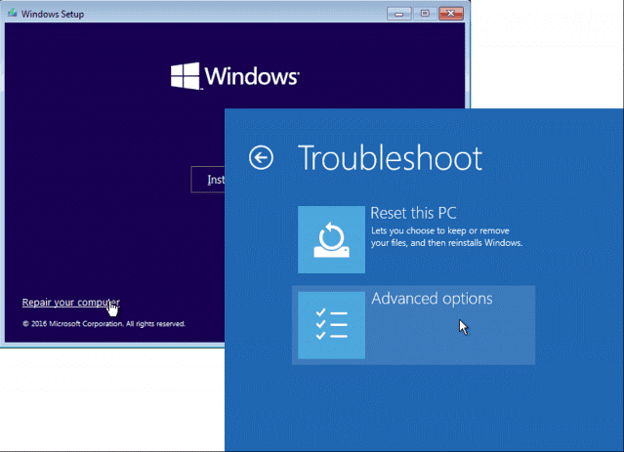
Step 3. Click Repair your computer, then navigate to Troubleshoot > Advanced options > Command Prompt.
Fix 5. Check for disk issues
Another reason why bootrec may not work is due to underlying disk problems. For example, if your hard drive has bad sectors, file system errors, or corrupted partitions, the command might fail or be unrecognized.
Therefore, it is crucial to verify disk health before proceeding. Checking for disk issues not only ensures that bootrec can run but also prevents further data corruption and startup failures. To perform a disk check:
Step 1. In Command Prompt, type chkdsk C: /f /r and press Enter.

Step 2. Wait for the process to complete, as it may take some time depending on disk size.
Step 3. Restart your computer and attempt the bootrec command again.
Fix 6. Rebuild BCD manually (optional)
If none of the above solutions work, the Boot Configuration Data (BCD) may be severely corrupted. Rebuilding it manually is an effective last resort. In addition, manually rebuilding BCD ensures that all boot records and system references are properly configured, which is critical for Windows to start correctly. To rebuild BCD manually:
Step 1. Open Command Prompt in WinRE.
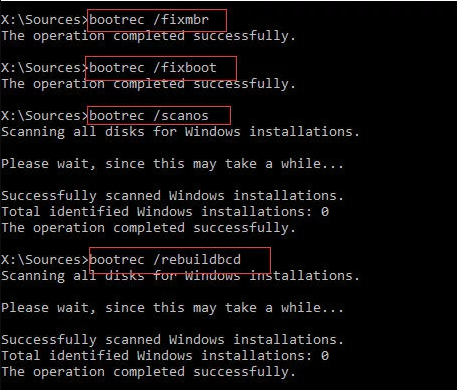
Step 2. Type the following commands one by one and press Enter after each:
bootrec /fixmbr
bootrec /fixboot
bootrec /scanos
bootrec /rebuildbcd
Step 3. Restart your PC after the process completes.
Fix 7. Run boot repair tool
If none of the above fixes work, consider using a third-party boot repair tool. Tools like AOMEI Partition Assistant offer a boot repair feature that automatically scans and fixes startup issues, including corrupted boot files or missing BCD. This option is user-friendly and effective if manual commands fail.
Step 1. Download and install AOMEI Partition Assistant on a working PC and connect a USB drive to it.
Step 2. Launch the software and select Recover > Boot Repair from the top bar.

Step 3. Click the create a bootable disk option to create a WinPE boot USB drive.
Step 4. Connect the newly created drive to the faulty computer and set the USB drive as the primary boot device. This will enable your computer to boot and automatically load the Boot Repair tool to detect all boot issues.
Step 5. Select the repairable boot entries you want to repair and click the Repair button.
Step 6. Once the repair is complete, remove the bootable disk and restart the computer from the original system drive.
Conclusion
In conclusion, the “bootrec is not recognized” error in Windows 11 typically occurs when the command is executed outside the Windows Recovery Environment, in the wrong Command Prompt, or due to corrupted system files and disk issues. By entering WinRE, using proper installation media, checking the disk, or rebuilding the BCD, most problems can be resolved. If manual fixes fail, reliable third-party tools like AOMEI Partition Assistant provide an effective solution.
