
 AOMEI Partition Assistant
3 Ways to Delete Ext4 Partition on Windows11/10
Wondering how to delete an Ext4 partition on Windows 11/10? This guide can meet your need. Follow the detailed steps outlined below to safely remove an Ext4 partition from your system.

By Hedy / Updated on June 20, 2025


What is the Ext4 file system?
The Ext4 (Fourth Extended Filesystem) is a widely used journaling file system for Linux operating systems. It is the successor to Ext3 and was designed to overcome the limitations of previous versions while offering improved performance, scalability, and reliability.
✍ Key features of Ext4:
◆ Backward compatibility: Ext4 is backward-compatible with Ext3 and Ext2, meaning you can mount these file systems with an Ext4 driver without converting them.
◆ Larger volume and file size support: Ext4 can support volumes up to 1 exabyte and individual files up to 16 terabytes, making it suitable for modern large-scale storage needs.
◆ Journaling: Like Ext3, Ext4 uses a journaling feature that keeps a record (or journal) of changes not yet committed to the main file system, reducing the risk of data corruption in case of a crash or power loss.
◆ Extents: Instead of traditional block mapping, Ext4 uses extents, which are ranges of contiguous physical blocks. This improves performance and reduces fragmentation.
◆ Delayed allocation: Ext4 delays the allocation of disk blocks until data is actually written to disk. This helps improve performance and minimizes fragmentation.
◆ Faster file system checks: Ext4 uses checksums in the journal and other techniques to speed up file system consistency checks (fsck).
Multiblock Allocation: This feature allows the file system to allocate multiple blocks in a single operation, improving efficiency during file writes.
How to delete Ext4 partition on Windows 11/10
There are three effective methods to delete an Ext4 partition in Windows 11 or 10. You can use built-in utilities like Disk Management and DiskPart, or opt for a more advanced solution with a dedicated tool such as AOMEI Partition Assistant.
Way 1. Use Disk Management
You can delete an Ext4 partition in Windows using the built-in Disk Management tool. Although the Ext4 partition appears without a drive letter, it can still be removed easily. Follow these steps:
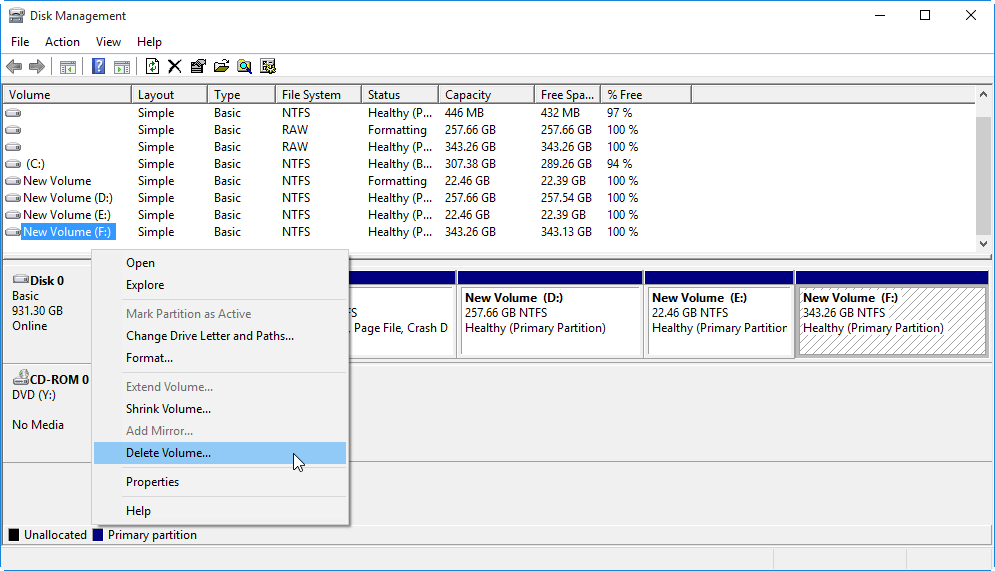
Step 1. Right-click the Start menu and choose Disk Management.
Step 2. Locate the Ext4 partition, right-click it, and select Delete Volume.
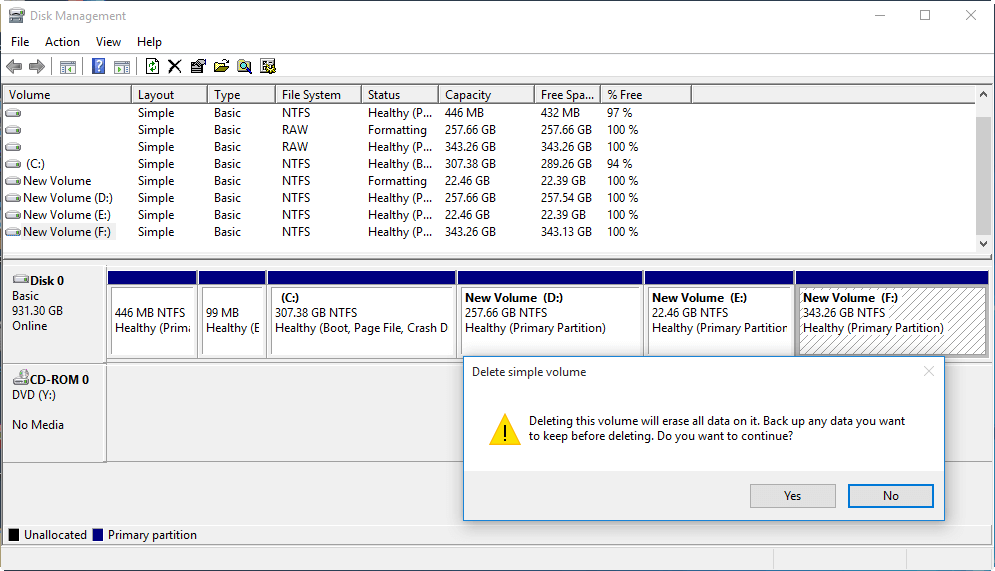
Step 3. When prompted, click Yes to confirm and complete the deletion.
Way 2. Use DiskPart
Another way to delete an Ext4 partition on Windows is by using the built-in DiskPart tool. Here’s how to do it:
Step 1. Press Win + R to open the Run dialog. Type cmd and press Enter to launch Command Prompt.
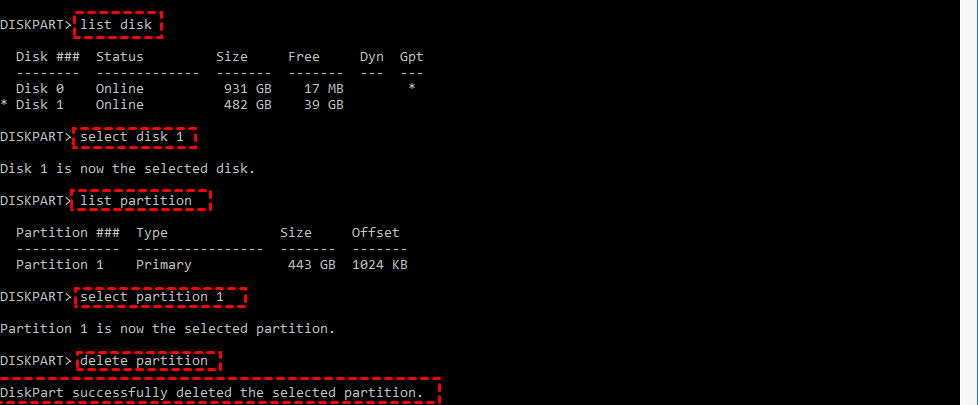
Step 2. Enter the following commands one by one:
diskpart
list disk
select disk 1 (Replace 1 with the number of the disk containing the Ext4 partition)
list partition
select partition 1 (Replace 1 with the number of the Ext4 partition)
delete partition
Step 3. Type exit to close Command Prompt when finished.
This will remove the Ext4 partition from your selected disk.
Way 3. Use AOMEI Partition Assistant
AOMEI Partition Assistant is a robust and professional partition management tool designed to handle a wide range of disk-related tasks with ease. Beyond simply deleting partitions, it allows users to extend, merge, and format partitions, offering far more flexibility than Windows' built-in Disk Management.
In addition to basic partition management, the software supports advanced functions such as cloning entire drives, converting MBR to GPT without risking data loss, recovering lost or deleted data from hard drives, formatting USB drives to FAT32, and creating customized partition structures. It’s an all-in-one solution for managing storage efficiently and safely.
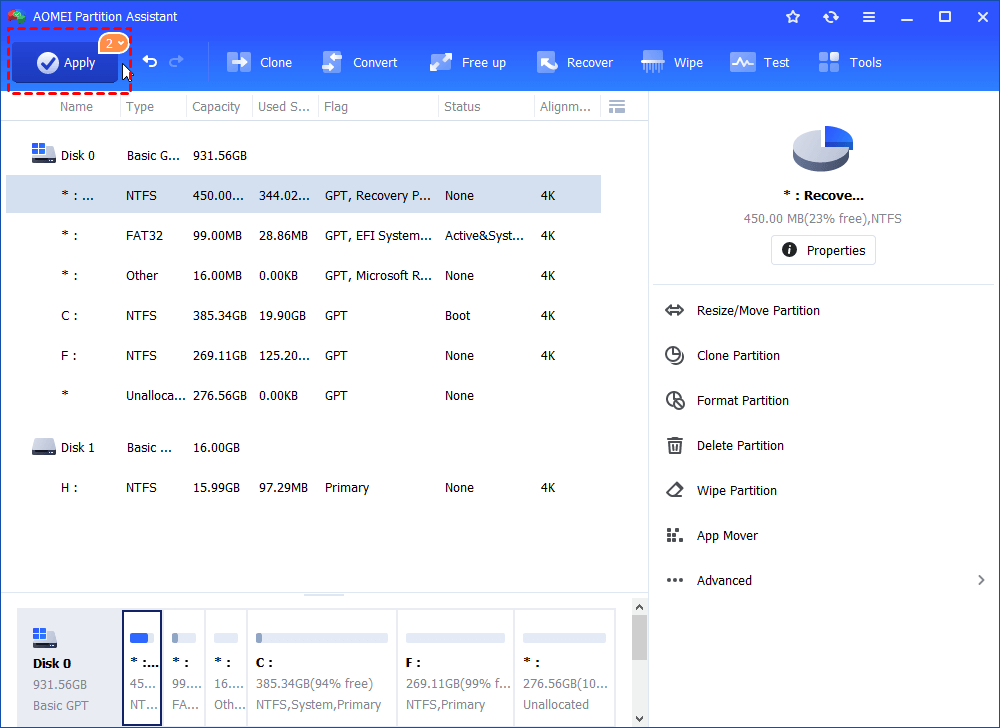
Step 1. Install and open AOMEI Partition Assistant. You can see all disks and partitions on your computer, right-click the target partitio,n and click “Delete Partition”.

Step 2. Choose "Delete partition quickly (delete partition without wiping data)" and click "OK" in the popped-up window.
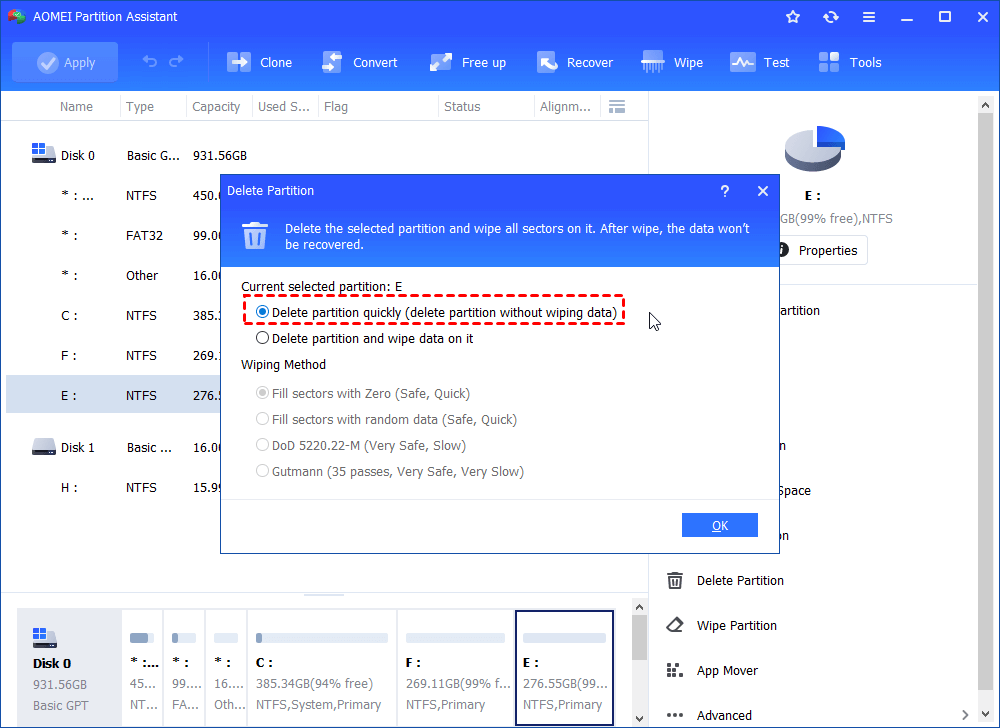
Step 3. Click “Apply” and “Proceed” to confirm the whole operation.
Conclusion
The Ext4 file system is a high-performance, reliable journaling system widely used in Linux. To delete an Ext4 partition on Windows 11/10, you can use three methods: Disk Management, DiskPart, or AOMEI Partition Assistant. Disk Management and DiskPart are built-in tools that allow you to remove the partition manually. For more advanced features and flexibility, AOMEI Partition Assistant is highly recommended—it simplifies partition deletion and offers additional tools like data recovery, disk cloning, and conversion between MBR and GPT without data loss.
