
 AOMEI Partition Assistant
How Do I Open a VHD File in Windows [Full Guide]
How do I open a VHD file in Windows PCs? Check out this guide to discover three effective methods for opening a VHD file on your Windows computer.

By Hedy / Updated on February 11, 2026


VHD files, short for Virtual Hard Disk, are like digital replicas of physical hard drives. Think of them as portable drives stored inside a single file. But how do you open a VHD file when it’s sitting there on your computer? Whether you’re trying to recover data, explore old backups, or just curious, understanding VHD files is the first step to unlocking their contents.
Overview of VHD files
A Virtual Hard Disk (VHD) file is a type of disk image format used to represent a physical hard drive in a virtual environment. It is essentially a file that acts like a physical hard disk, allowing you to store files and data within it, while the file itself is contained within your system.
✍ Key characteristics of VHD files:
★ Virtualization: VHDs are commonly used in virtualization platforms like Microsoft Hyper-V, VirtualBox, and VMware to create virtual machines (VMs). These virtual machines use VHD files as their storage devices.
★ File structure: A VHD file can contain operating systems, applications, and data, functioning just like a regular hard drive. You can mount it to a host machine and access it as if it were a physical drive.
✍ Use cases:
Virtual machine storage: Virtual machines use VHDs as their primary storage medium. The VM interacts with the VHD like it would with a physical hard drive, including booting an OS from it.
★ Data recovery: VHD files can be used to store backups of systems or data, enabling recovery by mounting the VHD and extracting files or restoring a system to its previous state.
★ Testing and development: Developers can use VHD files to create isolated environments for testing software or new configurations without affecting the host operating system.
✍ Types of VHD:
★ Fixed-size VHD: A fixed-size VHD has a predefined size and does not grow or shrink. It's created by allocating the full size of the virtual disk upfront.
★ Dynamically expanding VHD: This type of VHD grows in size as data is added, starting small and expanding up to a predefined maximum size.
★ Differencing VHD: This type stores changes made to a parent VHD, allowing for efficient disk space usage in scenarios like snapshots or incremental backups.
★ Compatibility: VHD files are supported by a variety of systems, including Windows, Linux, and other platforms that use virtualization tools. VHDX is an updated version of VHD, offering more advanced features like larger disk sizes and better data integrity.
★ Mounting and access: In Windows, VHD files can be mounted using built-in tools like Disk Management or via command-line utilities such as diskpart. Once mounted, the VHD behaves like a physical disk, accessible through File Explorer or other applications.
In essence, VHDs provide a flexible and efficient way to simulate physical storage devices within virtual environments, making them indispensable for virtualization, backup, and data management tasks.
How do I open a VHDfile?
To open a VHD (Virtual Hard Disk) file, you can use several methods depending on your preference and tools available. Here are three ways to do it:
Way 1. Using Windows Disk Management
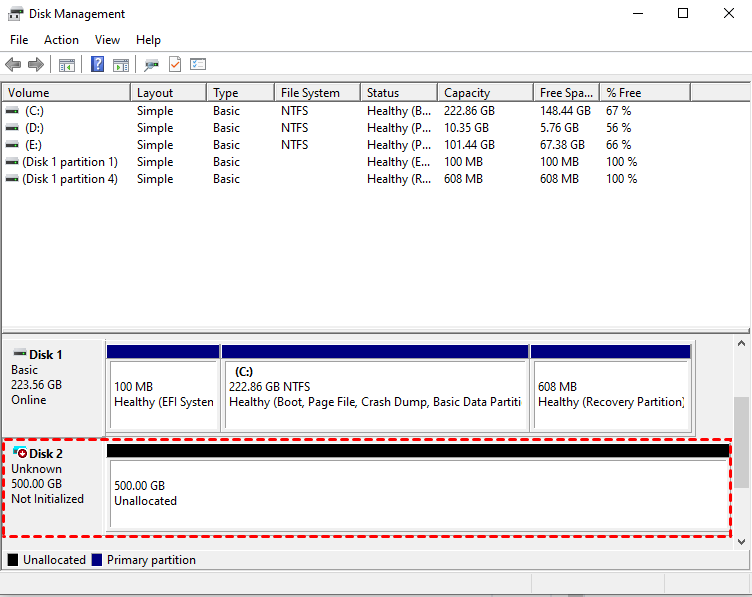
Windows provides a built-in tool called Disk Management to manage drives, including VHD files.
Step 1. Right-click on the Start menu and select Disk Management.
Step 2. In the Disk Management window, click on Action in the menu bar and choose Attach VHD.
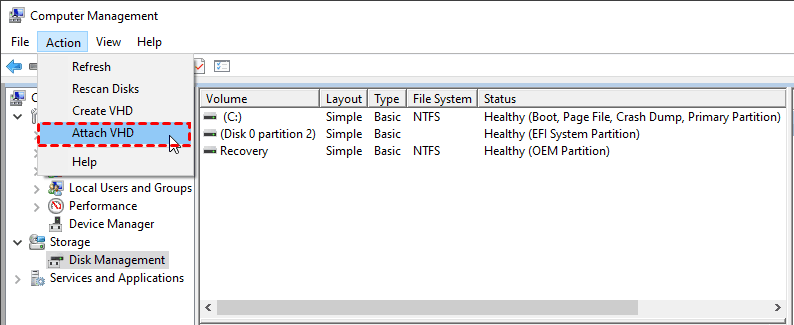
Step 3. Browse to the location of your VHD file, select it, and click OK.
Step 4. The VHD will appear as a new drive under "Disk" in Disk Management, and it will be accessible from File Explorer.
Way 2. Using DiskPart command line
DiskPart is a powerful command-line tool in Windows to manage disks, partitions, and volumes, including VHD files.
Step 1. Type cmd in the Start menu search bar and select Command Prompt (Admin) to run it as administrator.
Step 2. In the Command Prompt, type diskpart and press Enter.
Step 3. Type the following command and press Enter:
attach vdisk file="C:\path\to\your.vhd"
Replace "C:\path\to\your.vhd" with the actual path to your VHD file.
Step 4. Once attached, the VHD will appear as a new disk in Disk Management and File Explorer.
Way 3. Using third-party software
There are several third-party tools that provide an easier interface to manage and mount VHD files. One popular option is AOMEI Partition Assistant. AOMEI Partition Assistant is an all-in-one disk management utility designed to handle both physical disks and virtual disks. Unlike Disk Management, it can directly read and manage the contents of a VHD without complicated steps or command lines.
Step 1. Open the “Virtual Disk” tab and choose “Attach VHD”.
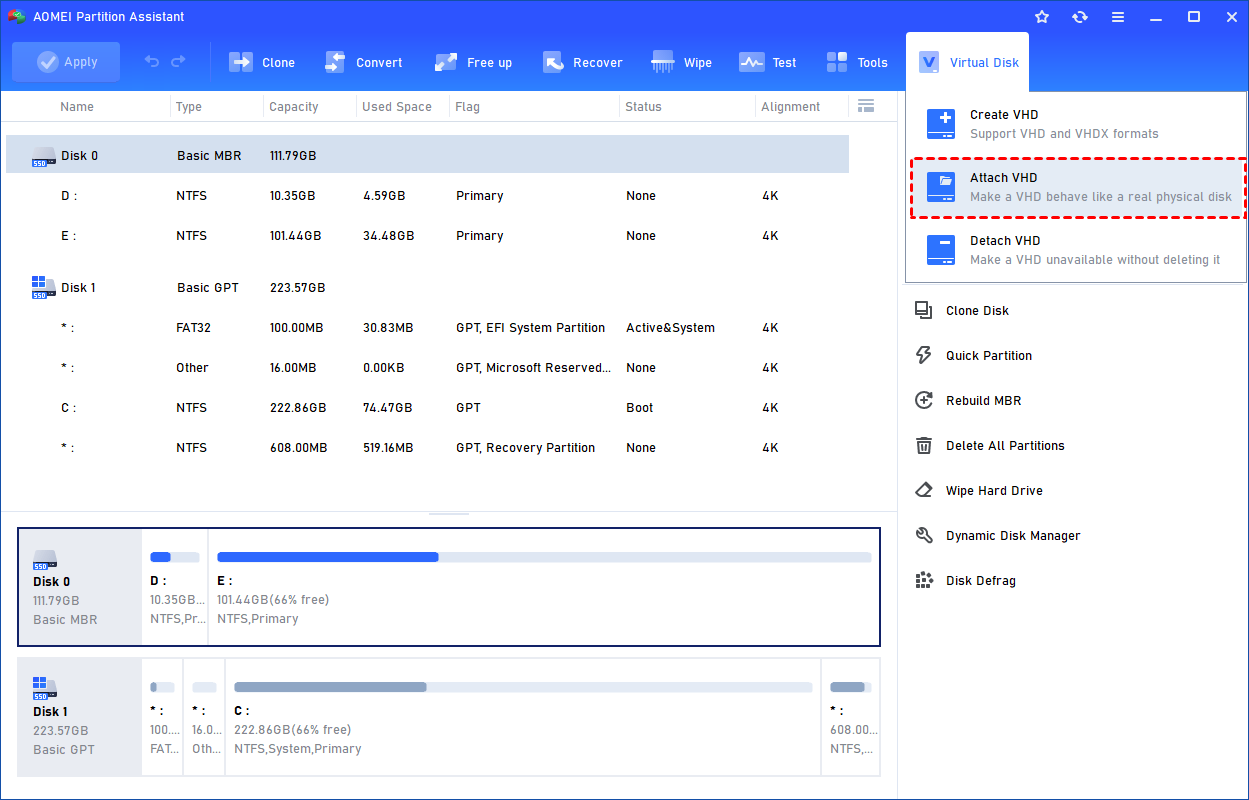
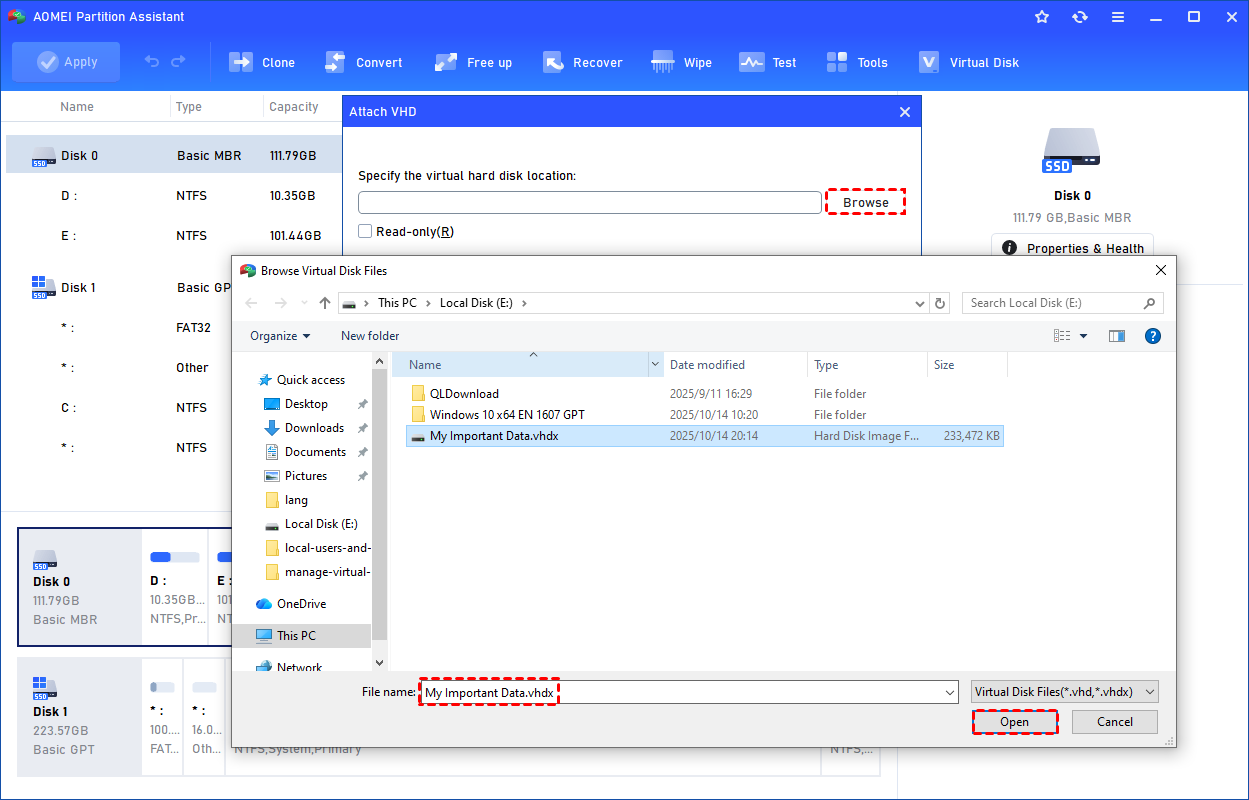
Step 2. Click “Browse” to find the stored .vhd or .vhdx file. Select the target file and press “Open”.
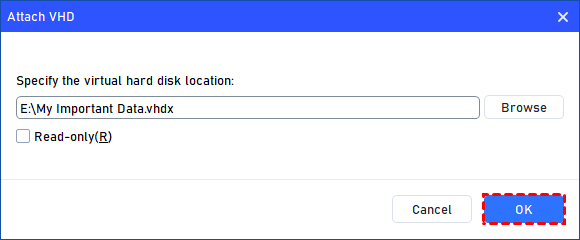
Step 3. After confirming the selected virtual disk, click “OK” to begin the attachment.
Step 4. When the operation completes, the VHD will appear as successfully mounted.
FAQs
✏ Can I open a VHD without a virtual machine?
Yes. Windows can mount a VHD/VHDX directly using Disk Management, DiskPart, or third-party tools. Once attached, it appears like a normal drive so you can browse and copy files without running a VM.
✏ Is it safe to edit files inside a VHD?
Generally yes, as long as the VHD is mounted read-write and not used by a running VM simultaneously. Always back up first—improper shutdowns or forced removal while writing can damage the virtual disk structure.
✏ Why does Windows ask to initialize the disk?
Windows cannot read the partition table. The VHD may be unformatted, corrupted, using an unsupported layout, or not fully attached. Initializing would create a new partition table and erase existing data if it actually exists.
✏ Can I boot Windows directly from a VHD?
Yes. Windows Enterprise, Education, and some Pro editions support native VHD boot. After adding a boot entry to BCD, the system can start directly from the VHD without a hypervisor.
✏ What causes a VHD to become corrupted?
Power loss, improper VM shutdown, interrupted disk writes, host storage errors, sudden detachment, file system damage, or insufficient disk space during expansion commonly corrupt a VHD. Frequent forced resets increase the risk significantly.
Conclusion
In conclusion, VHD files act as virtual replicas of physical drives, offering flexible storage for virtualization, backups, and testing environments. Whether using Windows Disk Management, DiskPart, or tools like AOMEI Partition Assistant, mounting a VHD is straightforward and allows full access to its contents. Understanding VHDs and how to open them ensures efficient data management and recovery, making them an essential tool for both casual users and IT professionals.
