
 AOMEI Partition Assistant
[Full Guide] How To Allocate More RAM To An App or Game?
This guide explains simple steps to allocate more RAM to apps or games, helping improve speed and performance. Easy methods anyone can follow for smoother PC use.

By Irene / Updated on September 12, 2025


What is RAM?
RAM, or Random Access Memory, is one of the most important parts of a computer. It works like short-term memory, storing the data and instructions your computer is using right now. This allows the CPU to access information much faster than if it had to read from the hard drive or even an SSD.
When you open a program or file, it is loaded into RAM so the system can work with it quickly. The more RAM your computer has, the more tasks it can handle at the same time without slowing down. For example, simple programs like a word processor don’t need much RAM, but large Excel files, photo editing software, and modern games require a lot more.
RAM comes in sticks, usually in sizes like 4GB, 8GB, or 16GB. Most motherboards use dual-channel memory, so it’s best to install matching pairs for better performance. The maximum amount of RAM you can use depends on your motherboard, though in practice, most users will never need the absolute maximum.
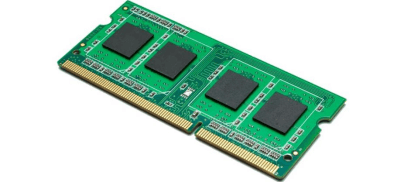
Because RAM is “volatile memory,” its contents are cleared when the computer is turned off. If your system feels slow even after cleaning junk files, it may be because you are running out of RAM or storage space. In that case, upgrading your RAM can make a big difference in speed and performance.
Can You Allocate RAM to an App or Game?
Yes, you can allocate more RAM to certain apps or games to improve their performance, and you can even increase RAM to C drive. This is especially helpful for memory-heavy tasks like gaming, editing large files, or running software that processes a lot of data.
Some programs, like Minecraft, let you adjust RAM settings directly in their options. Other apps may require you to change settings through the operating system or launch parameters. Allocating extra RAM can reduce lag, speed up loading times, and make the experience smoother.
However, it’s important not to assign too much. Your operating system and background tasks also need RAM to run properly. If you allocate too much to one app, your computer may become unstable or even crash. The best approach is to increase RAM where needed but still leave enough available for the rest of your system.
How to allocate more RAM to an App?
With RAM playing such an important role in performance, it is helpful to know how to allocate more memory to specific apps or games. The following methods show how you can do this effectively, step by step.
Way 1. Let Windows Use More RAM Automatically
This method allows Windows to handle RAM usage for better overall performance. By adjusting the visual effects settings, your system can run programs more smoothly.
Step 1. Right-click This PC and select Properties.
Step 2. Click Advanced system settings on the left.
Step 3. Under the Performance section, click Settings.
Step 4. In the Visual Effects tab, choose Adjust for best performance.
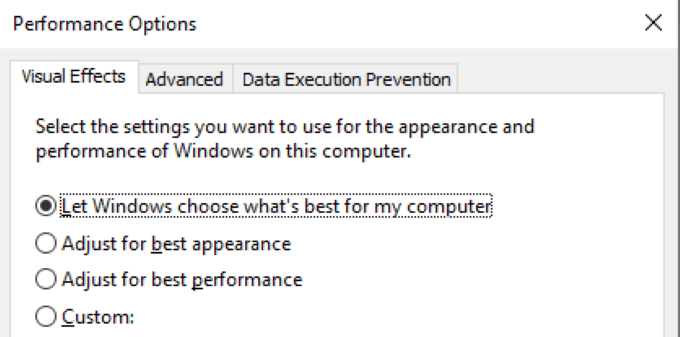
Step 5. Click Apply and restart your computer.
Way 2. Prioritize RAM for a Specific App
If you want one program to run faster while others are open, you can increase its priority through Task Manager.
Step 1. Press Ctrl + Shift + Esc to open Task Manager.
Step 2. Right-click the app you want to boost and select Go to details.
Step 3. In the Details tab, right-click the process and choose Set priority.

Step 4. Select High or Realtime for better performance.
⚠️ Note: Setting a program to Realtime may cause instability, so use it carefully.
Way 3. Allocate RAM Inside the App (Example: Minecraft)
Some apps and games let you manually set how much RAM they use. This is common in Minecraft, especially when running mods. If you want to allocate more RAM to Minecraft. Here are the steps.
Step 1. Open the Minecraft Launcher.
Step 2. Go to the Installations tab.
Step 3. Click New or edit an existing installation.
Step 4. Select More Options.
Step 5. In the JVM Arguments box, find the text -Xmx2G.
Step 6. Change it to -Xmx4G (or another number), where the value is the amount of RAM you want to allocate.
How to ensure apps or games run more smoothly?
RAM is temporary memory that the CPU uses to quickly access and process data while programs are running, while storage permanently keeps files, programs, and the operating system even when the computer is turned off. Since both RAM and storage affect performance, adding more storage or upgrading to a faster disk can also help your PC, apps, or games run more smoothly.
If cleaning junk files still does not free enough space on your disk, especially the C drive, the best solution is to upgrade to a new hard drive. You may have noticed a “Low Disk Space” warning on your computer, which indicates it is time for an upgrade.
We recommend using an SSD instead of an HDD because SSDs are faster, more reliable, and better for modern computers. You can also upgrade an old or small SSD to a newer, larger one.
There is no need to worry about losing your data or reinstalling Windows. With AOMEI Partition Assistant, you can use the Disk Clone feature to copy your entire system, including the operating system, settings, and all files, from your old drive to the new one. After the cloning process is complete, you can start your PC directly from the new disk without any additional setup.
 AOMEI Partition Assistant
The Best Windows Disk Partition Manager and PC Optimizer
After your install or connect new disk to your computer, we can start.
Step 1. Open the installed AOMEI Partition Assistant Professional, click "Clone" in the main interface, and select "Clone Disk".

Step 2. Choose the hard disk that you need to clone as the source disk like SSD and click "Next".

Step 3. Select the destination disk to store the data on the source disk, and then click "Next".

Step 4. Then, you can check the source and destination disk in the next window or change to "Sector to Sector clone", and click the "Confirm" button to continue if there is no problem.

Here, you can also click the "Settings" button to adjust the partition size on the destination disk or tick "4k alignment" to Optimize the performance of SSD if the target disk is an SSD drive.

Tip: If you want to clone Windows to a smaller drive, the "Clone without resizing partitions" button will be greyed out. Then, a Note about how to boot OS from the destination disk will pop up. Read and keep it in mind.
Step 5. After returning to the main interface, check the pending operation and click "Apply" and "Proceed" to commit the operation.

If your current hard disk has more than one partition that has sufficient space, you can also try the "Allocate Free Space" function to share some space to the C drive or use "App Mover" to move some large programs from C drive to another partition.
Conclusion
Knowing how to allocate more RAM to an app can improve your computer’s speed and make programs or games run more smoothly. Allocating RAM correctly reduces lag, speeds up loading, and keeps your system stable while leaving memory for Windows and background tasks. Upgrading your storage can further boost performance. Replacing an old HDD with a faster or larger SSD, or using AOMEI Partition Assistant to clone your disk, lets you keep all files and settings while increasing speed. By combining RAM allocation with storage upgrades, your PC, apps, and games can run faster, smoother, and more reliably.
