
 AOMEI Partition Assistant
What Are Windows 10 End of Support Consequences?
This article provides an overview of what may occur after Windows 10 support ends in October 2025, the possible risks involved, and options that may help keep devices protected.

By Irene / Updated on November 21, 2025


What are Windows 10 end of support consequences?
After Windows 10 support ends on October 14, 2025, users will face several key consequences. The most serious problems involve security, compatibility, and the loss of official support. These changes affect both home users and businesses and will gradually make Windows 10 less safe and less reliable.
1. Security and Data Risks
Once updates stop, Windows 10 becomes more exposed to cyber threats.
-
No security patches: New vulnerabilities stay unpatched and can be easily exploited.
-
Higher attack risks: Malware, ransomware, and scams target outdated systems.
-
Data exposure: Personal and business data face higher chances of theft or damage.
2. Software and Hardware Compatibility Issues
As the system ages, more apps and devices will stop working properly.
-
App problems: New applications or updates may no longer support Windows 10.
-
Driver issues: Printers, scanners, and other devices may stop getting driver updates.
-
Office support ends: Office 2016, Office 2019, 2021, and 2024 will not be supported on Windows 10.
3. Loss of Technical Support and Higher Costs
Without official support, solving issues becomes harder and more expensive.
-
No Microsoft support: You will not receive help for system errors or bugs.
-
More repair costs: Fixing problems on your own may take more time and money.
-
ESU program ends soon: Paid Extended Security Updates last only until October 13, 2026.
4. Business Compliance and Legal Risks
Businesses face extra challenges when using an unsupported OS.
-
Compliance failures: Using Windows 10 may break industry rules and data protection standards.
-
Legal penalties: Fines or sanctions may apply if outdated systems cause a breach.
-
Reputation damage: Security incidents can reduce customer trust and harm the brand.
5. Reduced Support for New Software and Devices
Over time, fewer tools will work with Windows 10.
-
Software drop-off: Developers will shift focus to newer Windows versions.
-
Hardware limits: New peripherals may not offer Windows 10 drivers.
-
Graphics example: Nvidia will offer full driver support only until October 2026, with older GPUs moving to security-only updates after 2025.
Overall, running Windows 10 after October 2025 leads to growing security threats, shrinking compatibility, and higher long-term risks. As updates stop and more software moves on, the system becomes less stable, less safe, and harder to maintain.
What can you do after Windows 10 end of support in October 2025
1. Enable Windows 10 BitLocker to ensure security
After Windows 10 support ends, data protection becomes more important. However, Windows 10 Home cannot use full BitLocker. If you see messages like “This feature is not available in your edition of Windows” or “The volume does not support BitLocker encryption,” it means your system does not support this feature.
Instead of paying for an upgrade to Windows 10 Pro, Education, or Enterprise, you can use AOMEI Partition Assistant to access BitLocker functions on Windows 10 Home. It lets you enable drive encryption, back up your recovery key, change your password, and lock or unlock encrypted drives. This provides full BitLocker-style protection without upgrading the entire system.
 AOMEI Partition Assistant
The Best Windows Disk Partition Manager and PC Optimizer
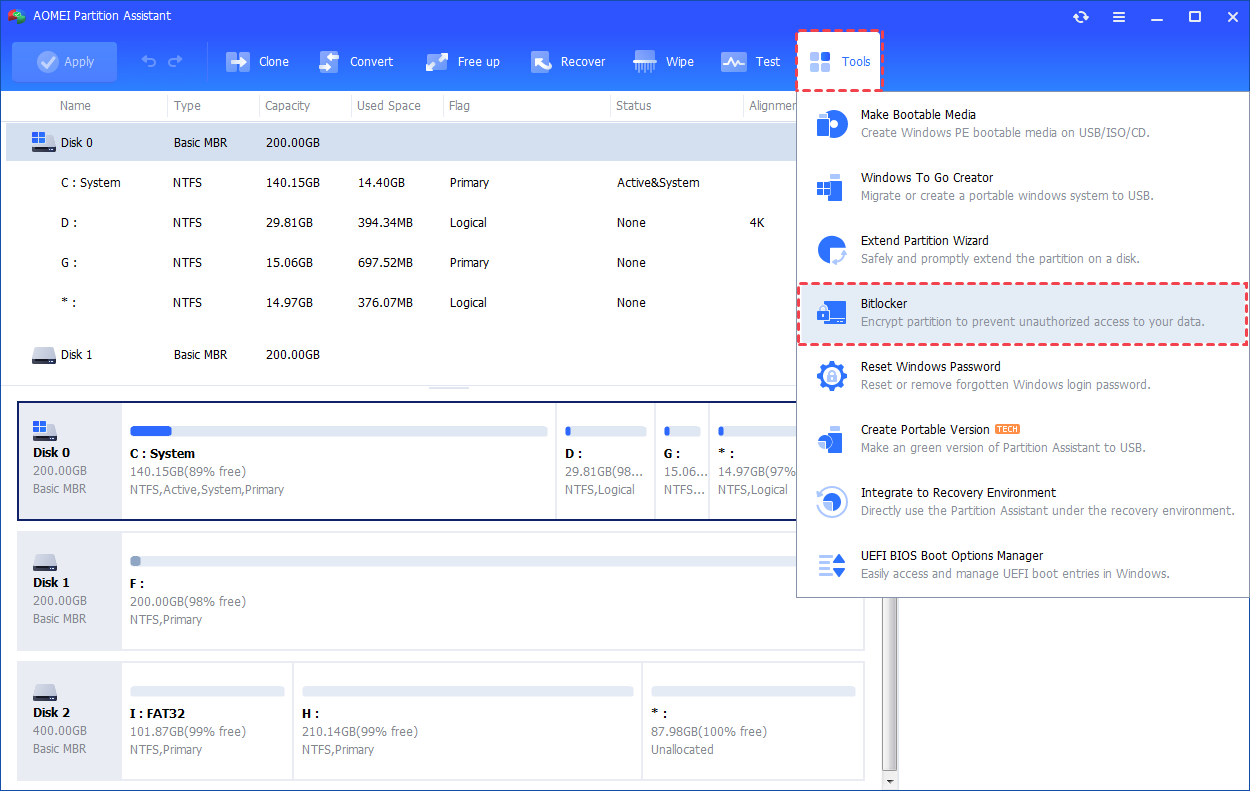
Step 1. Install and open AOMEI Partition Assistant. Go to the "Tools" section and choose "BitLocker".
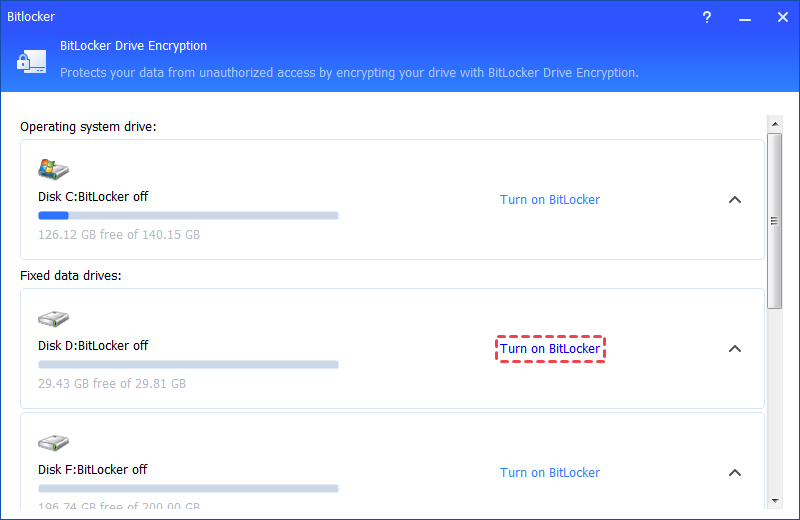
Step 2. Pick the drive partition you wish to encrypt and tap on "Turn on BitLocker".
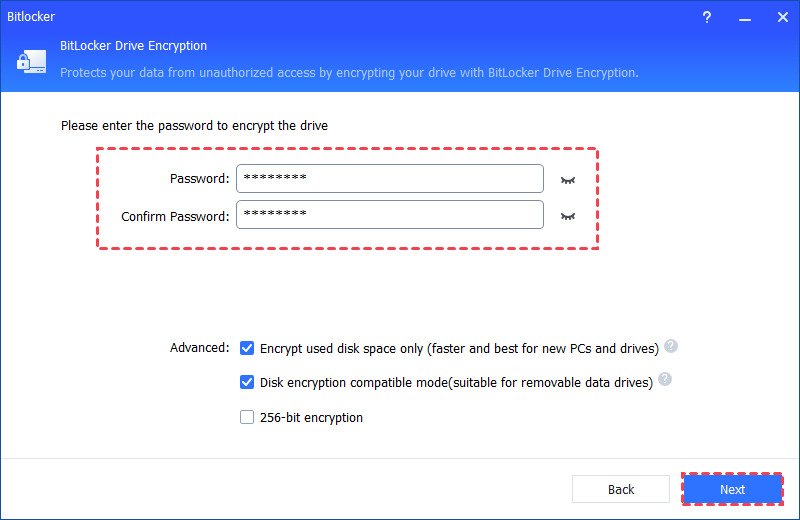
Step 3. Create a password, verify it, and press "Next" to proceed.
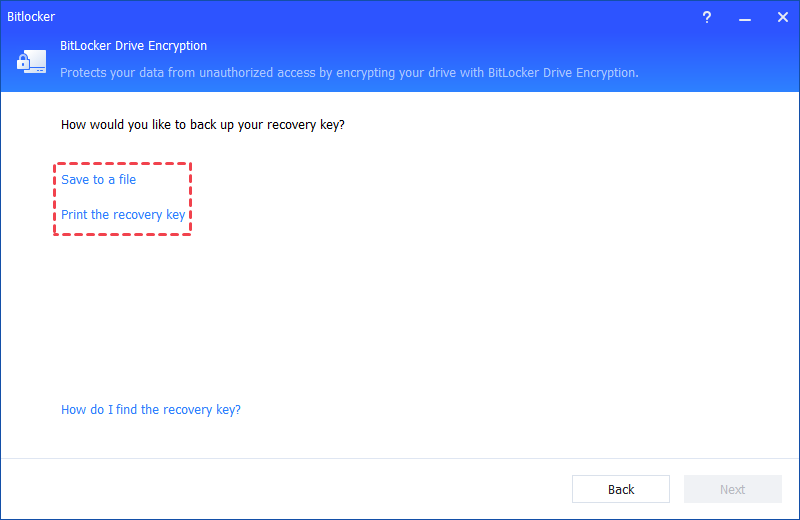
Step 4. Decide how to back up your recovery key: either "Save to a file" or "Print the recovery key". Then, click Next to start the encryption process.
2. Upgrade your disk for Windows 10 running
After Windows 10 reaches the end of support, keeping your system stable and responsive becomes more important. BitLocker can help protect your data, but it does not affect system performance. To maintain smooth operation, the part that truly makes a difference is upgrading your storage drive.
Older HDDs slow down easily because they rely on moving parts. Modern SSDs read and write data much faster and offer better reliability. Even users who already have an SSD may benefit from switching to a larger or newer model, which provides more space for system updates, applications, and daily files, allowing Windows 10 to run more efficiently.
If you plan to replace your disk, cloning your current drive is the safest way to keep everything as it is. AOMEI Partition Assistant can copy your system, programs, and data to the new SSD without reinstalling Windows. Before starting, it is important to back up your system, save any important files from the target SSD, and ensure the new drive is detected by your computer.
Upgrading to a faster and more advanced SSD helps your Windows 10 device stay smooth and responsive even after support ends.
AOMEI Partition AssistantThe Best Windows Disk Partition Manager and PC Optimizer
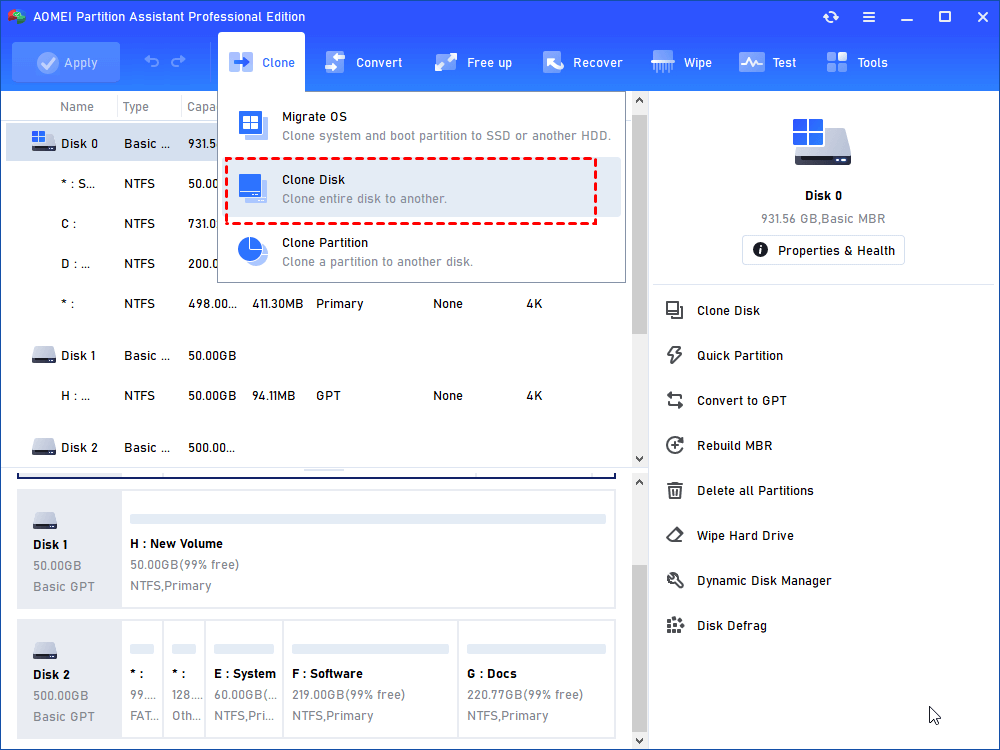
Step 1. In the main interface of AOMEI Partition Assistant, please click “Clone” and then “Clone Disk”.
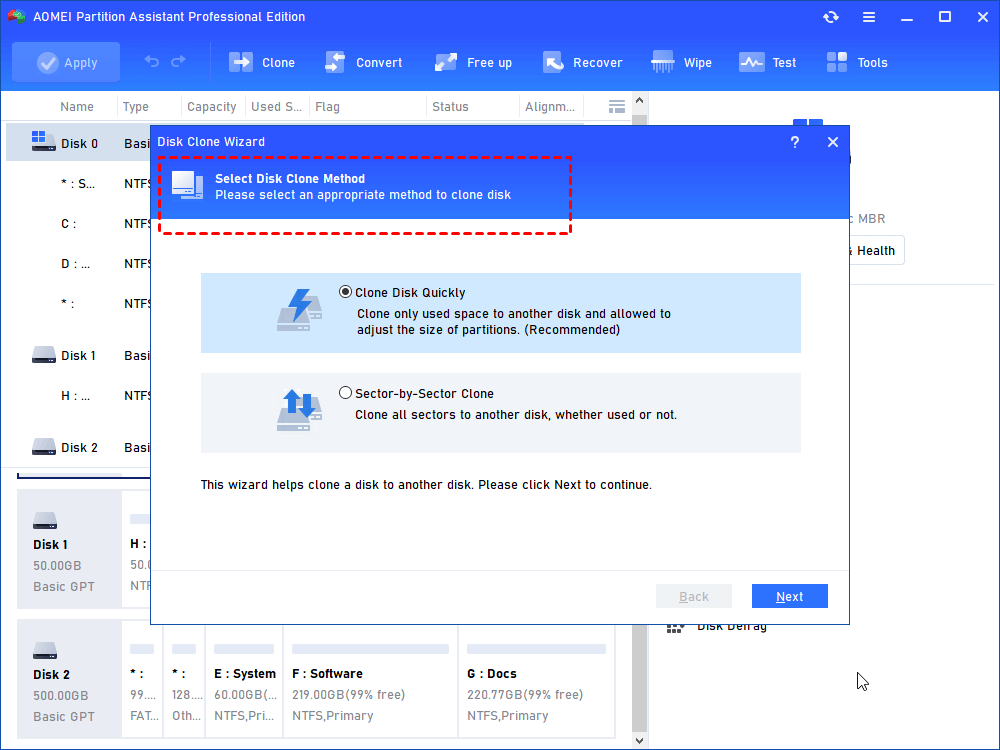
Step 2. Select a copying method you need from "Clone Disk Quickly" and "Sector-by-Sector Clone". Here we select “Clone Disk Quickly” as an example.
▶ Notes:
👌 “Clone Disk Quickly” only copies the used sectors to the destination location, allowing users to clone the larger disk to a smaller disk.
👌 “Sector-by-Sector Clone” will copy all sectors to the target disk, so the destination disk must be equal to or larger than the source disk.
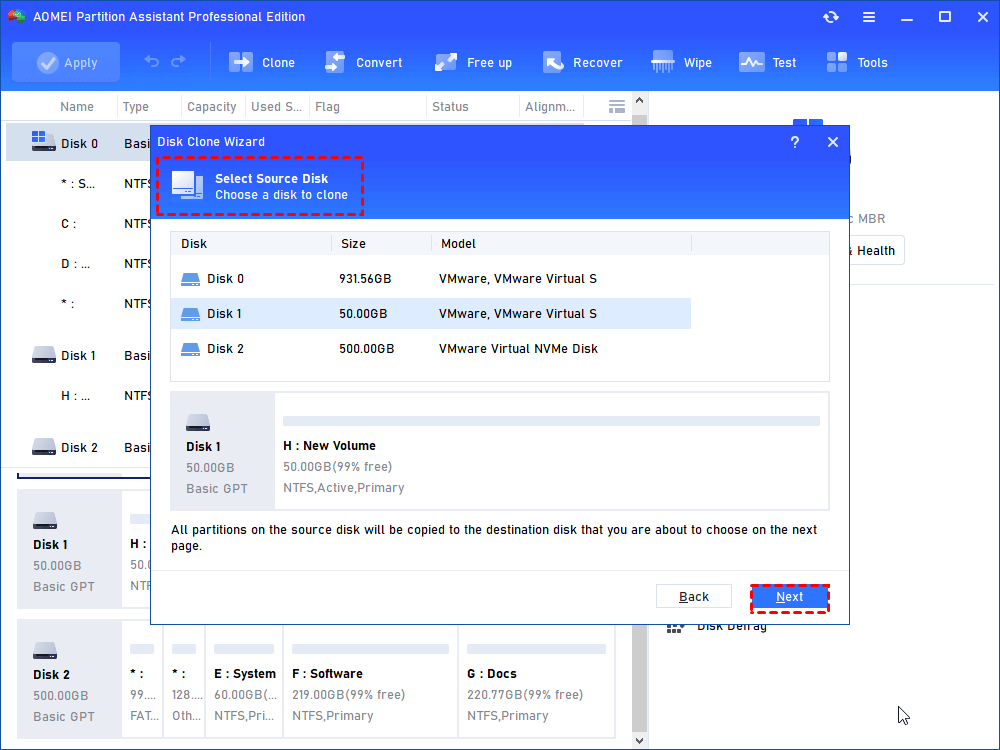
Step 3. Select the Windows system disk as the source disk and hit on “Next”.
Step 4. Then select the SSD drive as the destination disk and click “Next”.

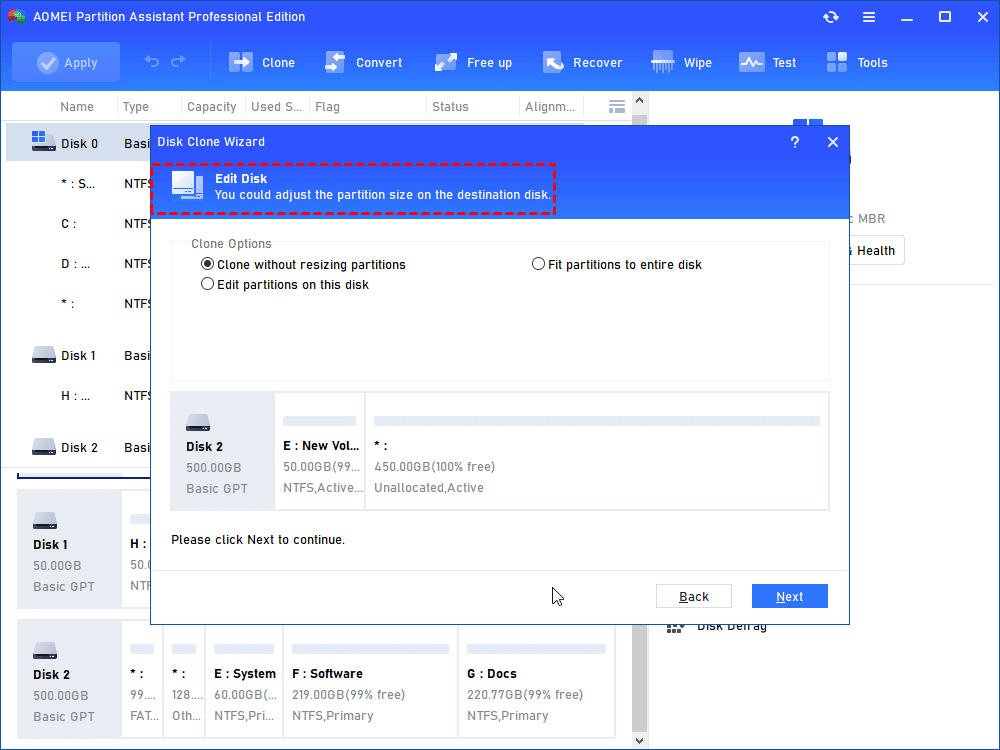
Step 5. Now, you can also resize partitions just being created on the SSD drive.
Step 6. Read the subsequent boot note, click “Finish” and then click “Apply” to execute the pending operation.
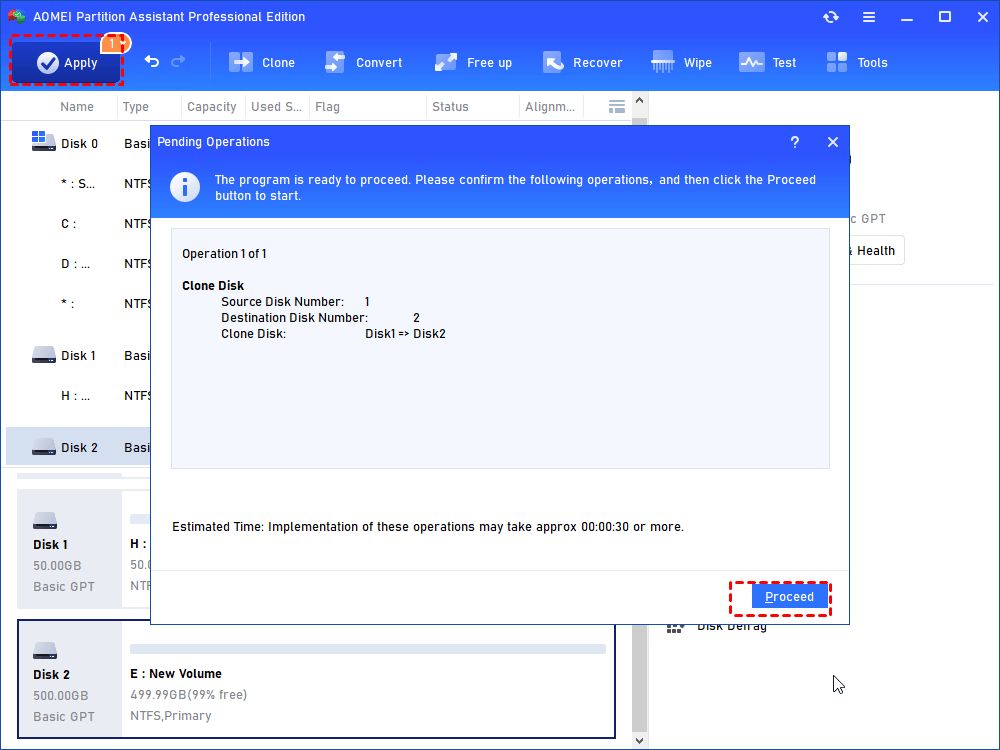
Tip: If you want to move OS only, you can choose the “Migrate OS to SSD” feature.
Conclusion
Windows 10 end of support consequences make the system less secure, less compatible, and harder to maintain over time. As updates stop and more apps move on, risks continue to increase for both home users and businesses. By using BitLocker-style protection and upgrading to a faster SSD with AOMEI Partition Assistant, you can reduce many of these problems and keep your Windows 10 device running more safely and smoothly after 2025.
AOMEI Partition AssistantThe Best Windows Disk Partition Manager and PC Optimizer
