
 AOMEI Partition Assistant
Will Windows 10 Stop Working? Should I Upgrade to Windows 11?
This article explains will Windows 10 stop working, windows 10 end of life, and windows 10 security updates ending. It also covers the windows 10 esu program and upgrading from Windows 10 to Windows 11.

By Irene / Updated on November 17, 2025


Will Windows 10 stop working after October 2025?
Some people see that Windows 10 is end of support in October 2025 and wonder whether Windows 10 will stop working. Windows 10 will not stop working. Your PC will still start and run normally, and you can continue using your apps and files. What ends is Microsoft’s support, which means no more security updates or fixes. Because of this, Windows 10 may become less secure over time as new threats will not be patched.
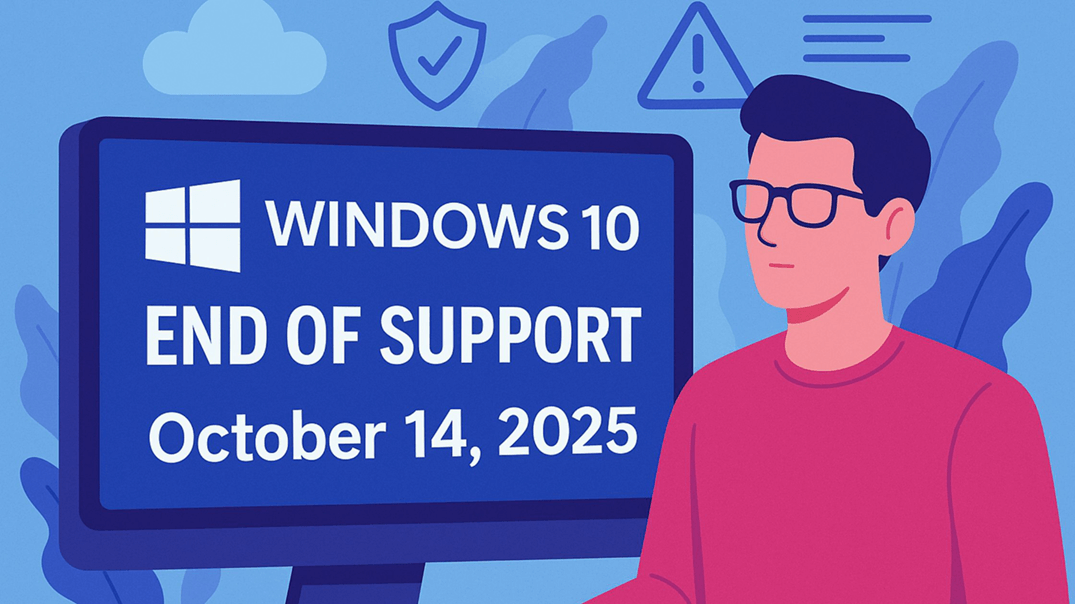
Many users may choose to upgrade to Windows 11 for better protection and newer features. If your device does not meet the Windows 11 requirements, you can continue using Windows 10 with extra precautions, such as enabling BitLocker and avoiding risky downloads. You may also consider joining the paid Extended Security Updates (ESU) program for limited additional protection.
In short, Windows 10 will continue to run after support ends, but it will gradually become more vulnerable. Upgrading or strengthening your security settings can help you stay safer while using Windows 10.
What to do after Windows 10 end of life?
If you want full protection, the safest option is to upgrade from Windows 10 to Windows 11. If you choose not to update and do nothing, your PC will face higher risks. Without security patches, Windows 10 becomes easier for malware, ransomware, and other attacks to break in, especially when you browse the internet or install new apps.
If you still plan to use Windows 10 after October 2025, turning on drive encryption can help keep your data safe. BitLocker protects your files by encrypting your entire drive, so even though Windows 10 no longer gets updates, your data stays unreadable to anyone who tries to access it without permission. This is useful if your device is lost, stolen, or opened by someone else. While BitLocker cannot fix Windows security flaws, it adds an important layer of protection for your personal files.
If you are using Windows 10 Pro, Enterprise, and Education, you can turn BitLocker on or off through “Settings”, and you must remember the password because it will be required when changing or disabling encryption.
However, after support ends, Windows 10 Home users cannot use BitLocker. In this case, AOMEI Partition Assistant is a good alternative because it offers a similar encryption feature for all Windows 10 editions. With it, you can encrypt your system drive and keep your files secure even after Windows 10 reaches end of life.
 AOMEI Partition Assistant
The Best Windows Disk Partition Manager and PC Optimizer
Step 1. Install and open AOMEI Partition Assistant. Go to the "Tools" section and choose "BitLocker".
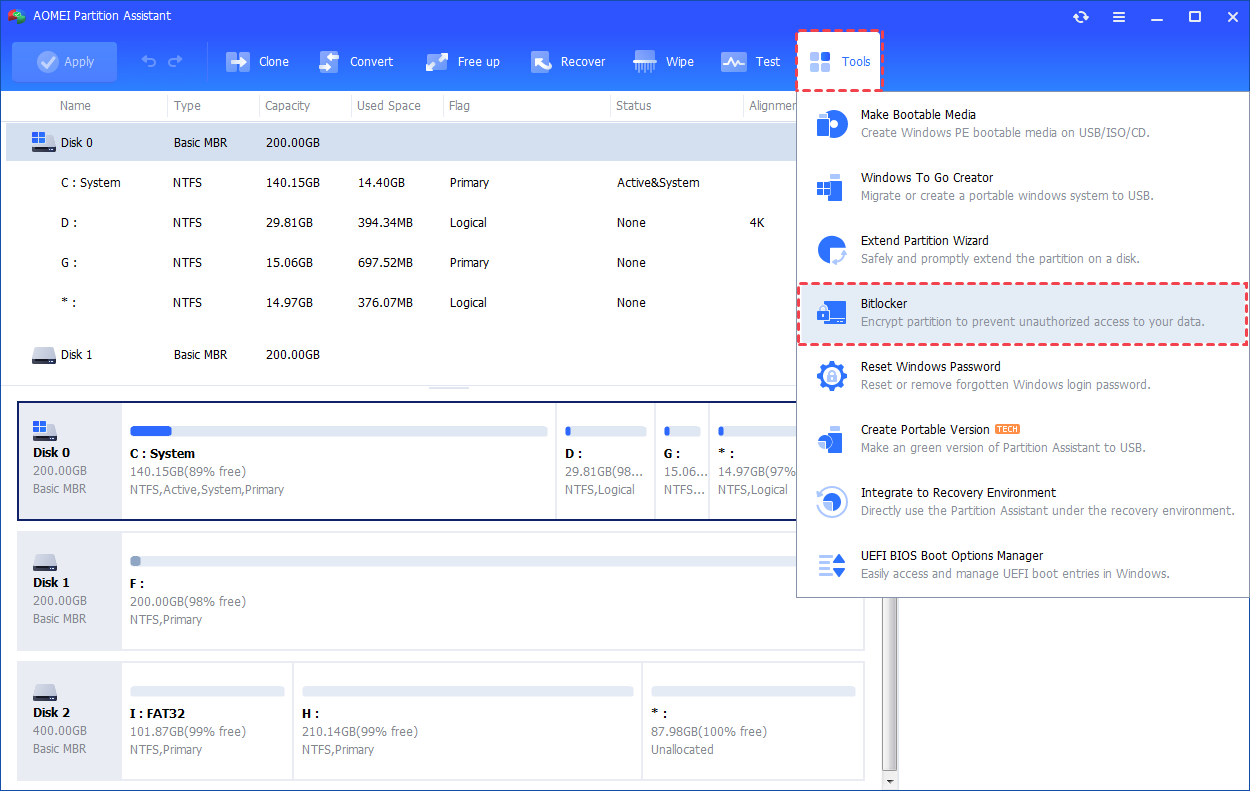
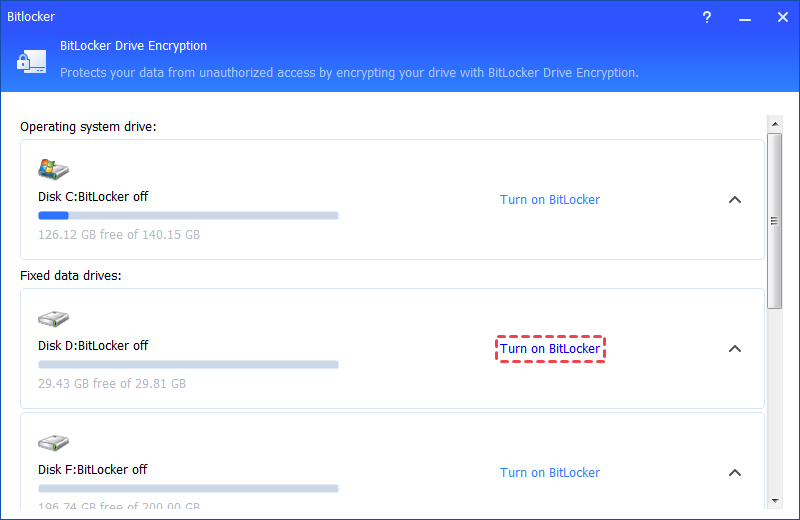
Step 2. Pick the drive partition you wish to encrypt and tap on "Turn on BitLocker".
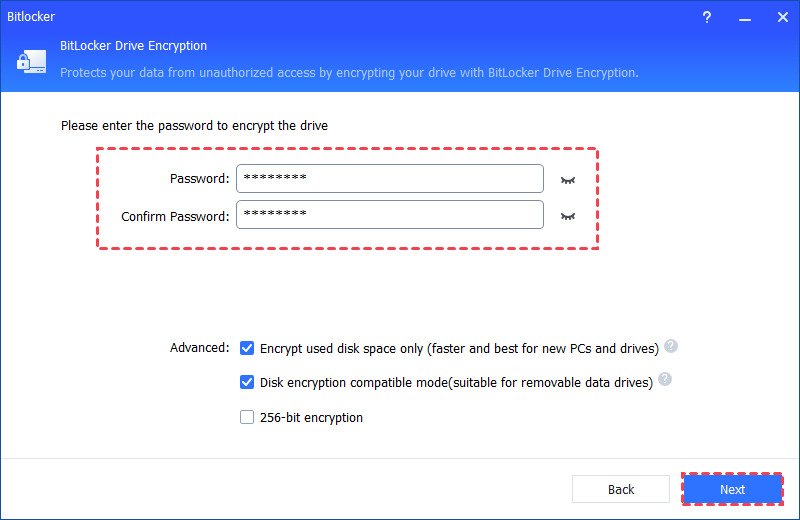
Step 3. Create a password, verify it, and press "Next" to proceed.
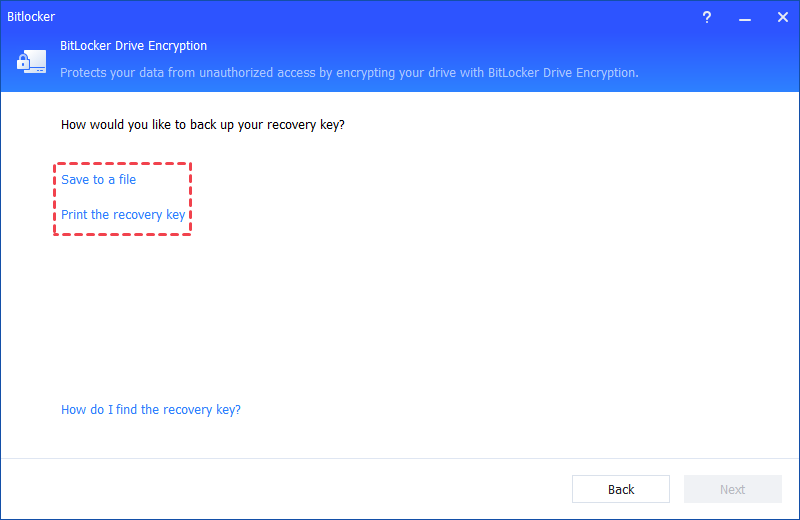
Step 4. Decide how to back up your recovery key: either "Save to a file" or "Print the recovery key". Then, click Next to start the encryption process.
Further reading: How to keep Windows 10 performance?
After you turn on BitLocker, your PC may need more resources to handle encryption. To keep Windows 10 running smoothly, upgrading your storage drive is one of the most effective ways to improve speed and overall performance.
Your computer uses RAM for short-term tasks and a storage drive to save files, programs, and the operating system. There are two common types of storage: HDD and SSD. HDDs use spinning metal disks, so they are slower, make noise, and are no longer ideal for today’s performance needs. SSDs, on the other hand, store data on chips with no moving parts. This makes them much faster, quieter, and more reliable. Because of this, many users replace their HDD with an SSD to get better performance. If you are using SSD, it is also a good idea to upgrade to a larger and better one for further using.
If you decide to upgrade your disk, the safest way is to clone your current drive so you do not need to reinstall Windows or your apps. AOMEI Partition Assistant can help with this. Its Disk Clone Wizard lets you copy your entire hard drive to a new SSD and even adjust the partition size during the process.
AOMEI Partition AssistantThe Best Windows Disk Partition Manager and PC Optimizer
Here is what you need to prepare before cloning:
✔️ Back up important files of the SSD because the cloning process will erase everything on it.
✔️ Connect the SSD to your PC and make sure the system recognizes it.
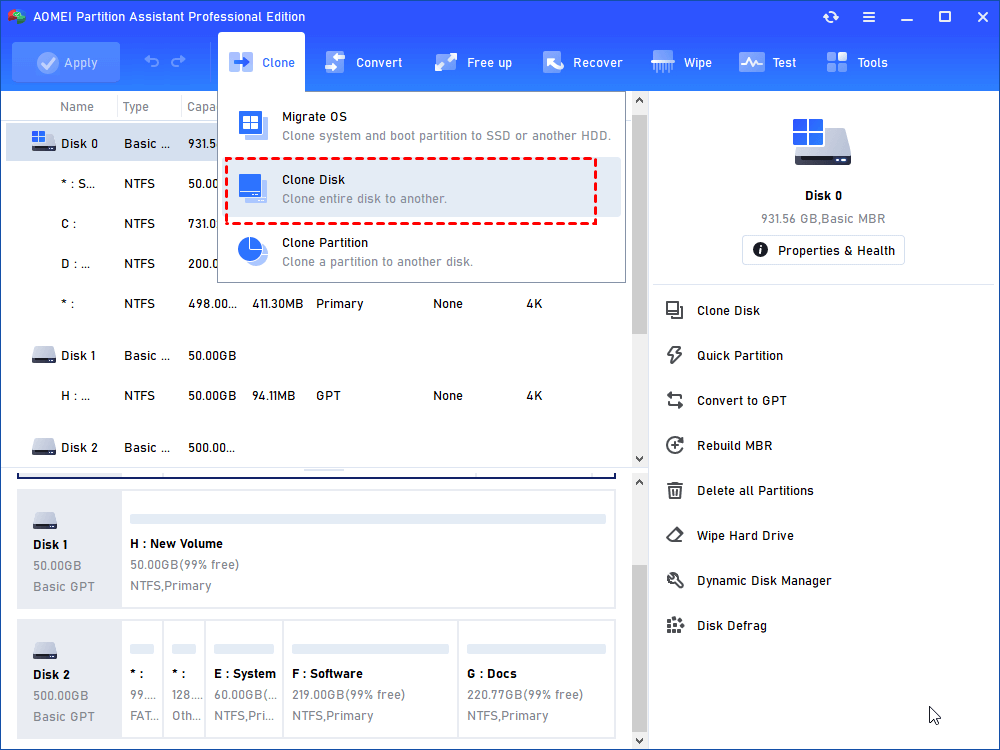
Step 1. In the main interface of AOMEI Partition Assistant Professional, please click “Clone” and then “Clone Disk”.
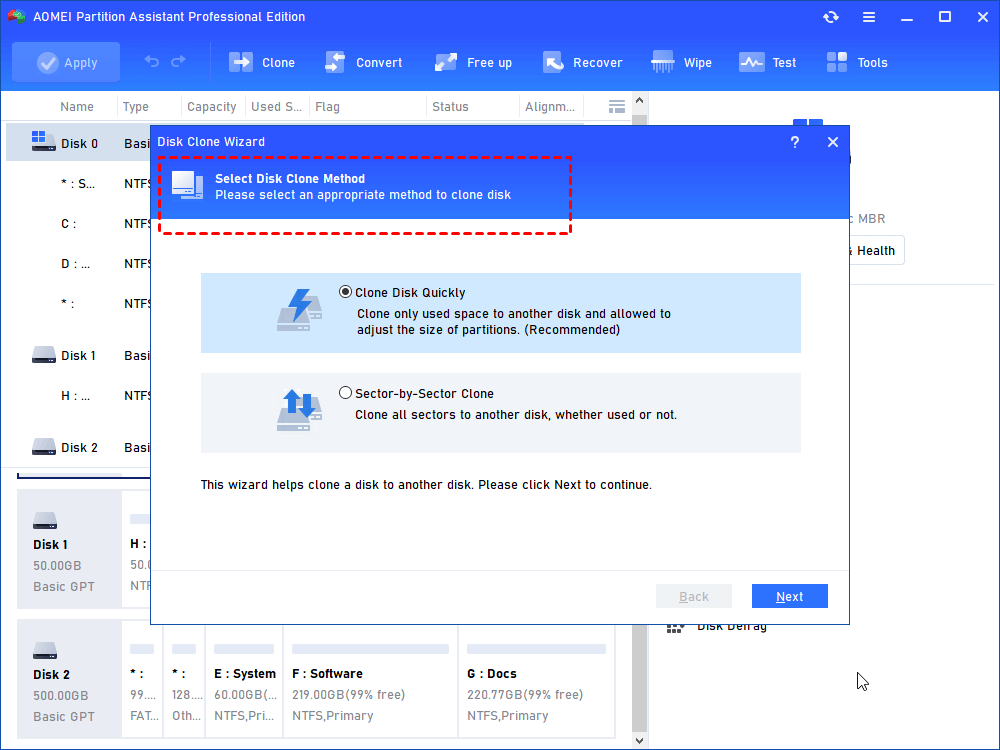
Step 2. Select a copying method you need from "Clone Disk Quickly" and "Sector-by-Sector Clone". Here we select “Clone Disk Quickly” as an example.
▶ Notes:
👌 “Clone Disk Quickly” only copies the used sectors to the destination location, allowing users to clone the larger disk to a smaller disk.
👌 “Sector-by-Sector Clone” will copy all sectors to the target disk, so the destination disk must be equal to or larger than the source disk.
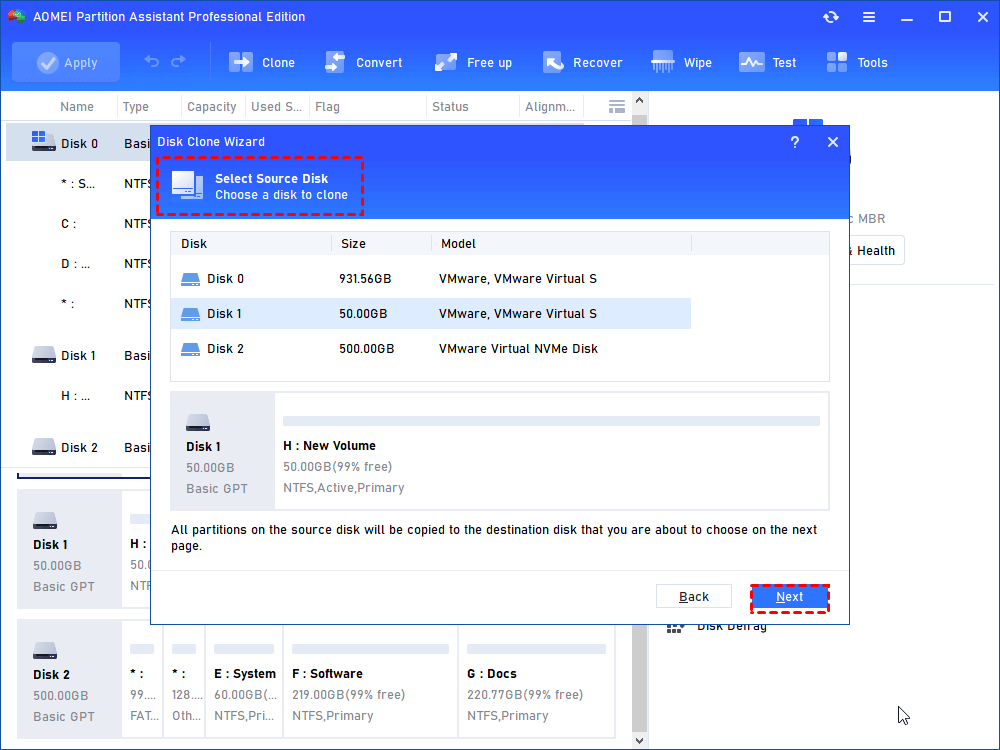
Step 3. Select the Windows system disk as the source disk and hit on “Next”.
Step 4. Then select the SSD drive as the destination disk and click “Next”.

Step 5. Now, you can also resize partitions just being created on the SSD drive.
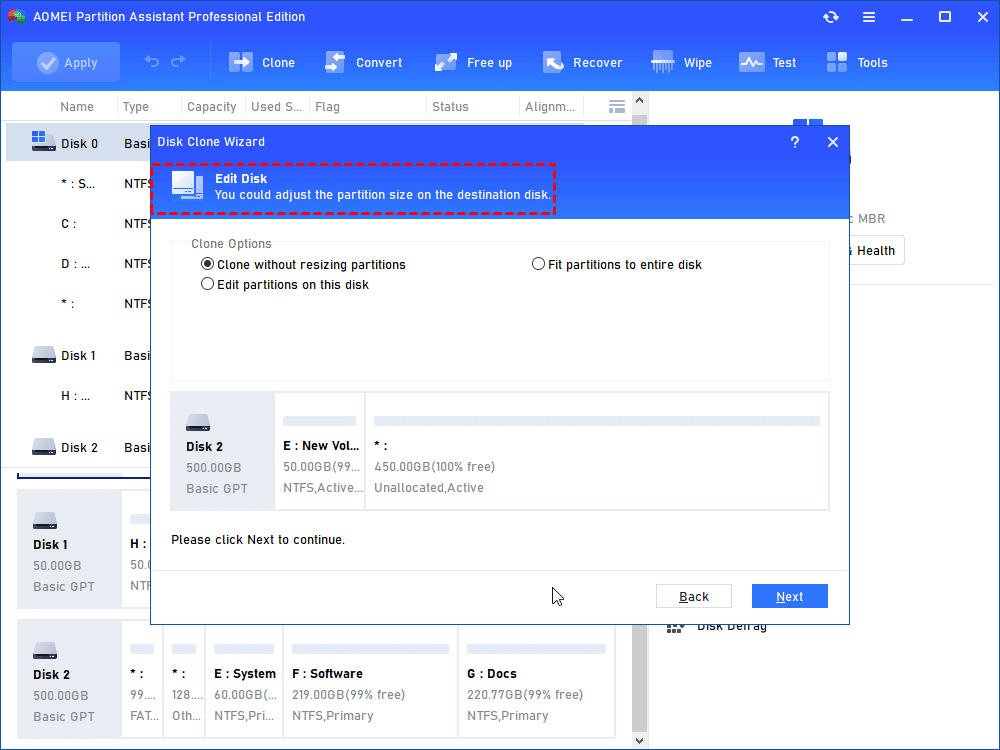
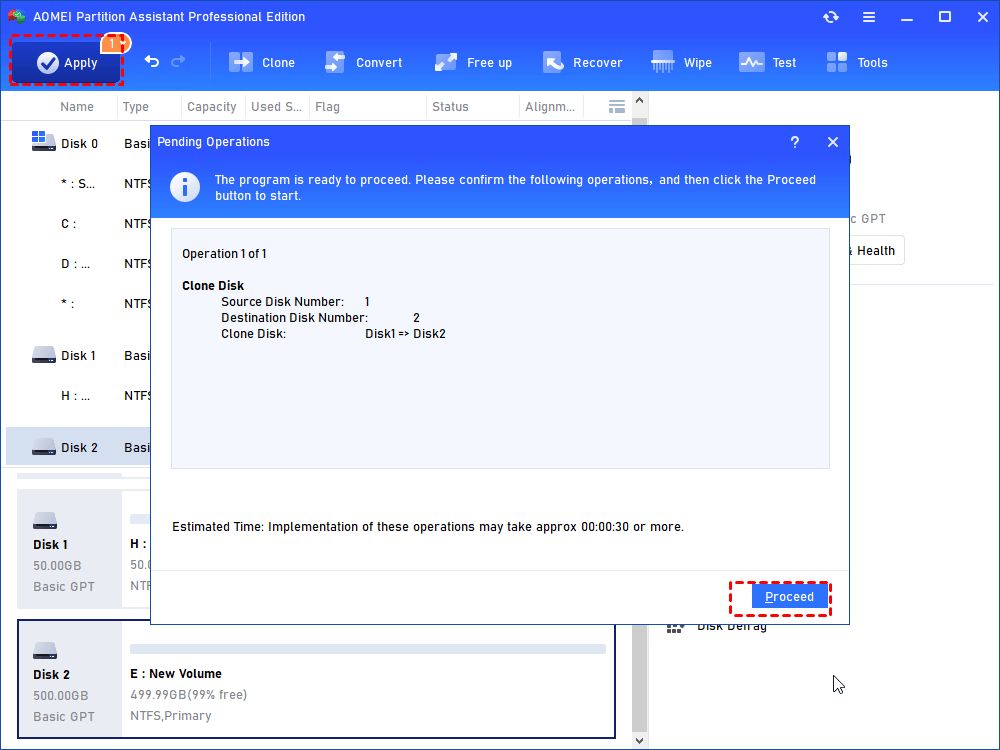
Step 6. Read the subsequent boot note, click “Finish” and then click “Apply” to execute the pending operation.
Tip: If you want to move OS only, you can choose the “Migrate OS to SSD” feature.
Conclusion
Windows 10 will not stop working after support ends, but it will become less secure over time. If you want the best protection and performance, upgrading to Windows 11 or switching to a faster SSD is the safest choice. If you prefer to stay with Windows 10, using tools like BitLocker or AOMEI Partition Assistant can help protect your data and keep your system running smoothly. Taking these steps ensures you can continue using Windows 10 with greater confidence and safety.
AOMEI Partition AssistantThe Best Windows Disk Partition Manager and PC Optimizer
