
 PartitionAssistant Recovery


6 Ways to Fix Windows 10 Stop Code PFN List Corrupt
Windows 10 and 11 are powerful and reliable operating systems, but sometimes they encounter errors like the Stop Code: PFN_LIST_CORRUPT. Here are 6 effective solutions to help you resolve this issue and get your system running smoothly again.

By Hedy / Updated on January 12, 2026


What is PFN_LIST_CORRUPT in Windows 10?
PFN_LIST_CORRUPT is a Windows 10 Blue Screen of Death (BSOD) error that indicates a serious problem with the system’s memory management.
PFN stands for Page Frame Number. Windows uses the PFN list to track physical memory pages. When this list becomes damaged or inconsistent, Windows cannot manage memory correctly, so it stops the system to prevent further damage.
⭐ Faulty or failing RAM
⭐ Corrupted or incompatible device drivers
⭐ Disk errors or corrupted system files
⭐ Overclocking or unstable hardware settings
⭐ Malware or third-party software conflicts
When Windows detects PFN list corruption, it immediately triggers a BSOD and restarts the computer. You may see stop codes like PFN_LIST_CORRUPT or related memory management errors.
How to fix Windows 10 stop code PFN_LIST_CORRUPT
Below are clear, step-by-step solutions to fix the Windows 10 stop code PFN_LIST_CORRUPT error. Follow them in order for best results.
Fix 1. Update device drivers
Outdated or incompatible drivers—especially graphics, storage, or network drivers—are a common cause of PFN_LIST_CORRUPT. Updating them ensures proper communication between hardware and Windows.
Step 1. Press Win + X → select Device Manager.
Step 2. Expand categories like Display adapters, Disk drives, and Network adapters.
Step 3. Right-click a device → choose Update driver.
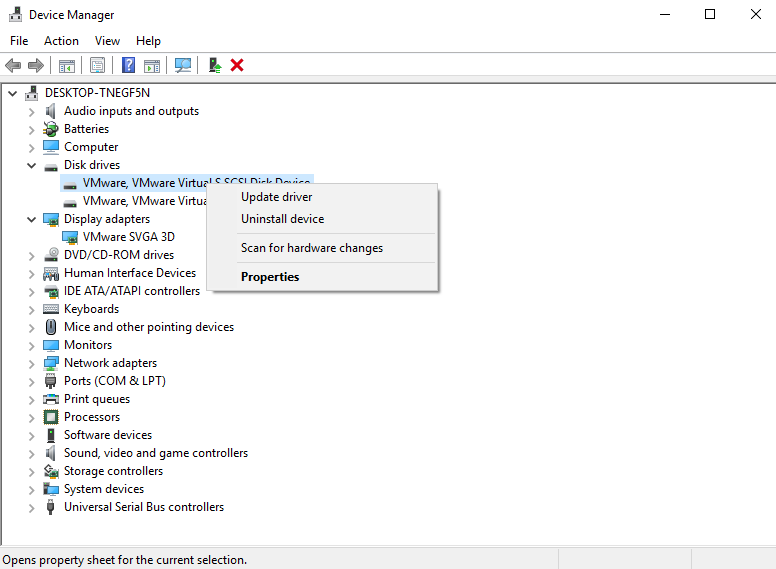
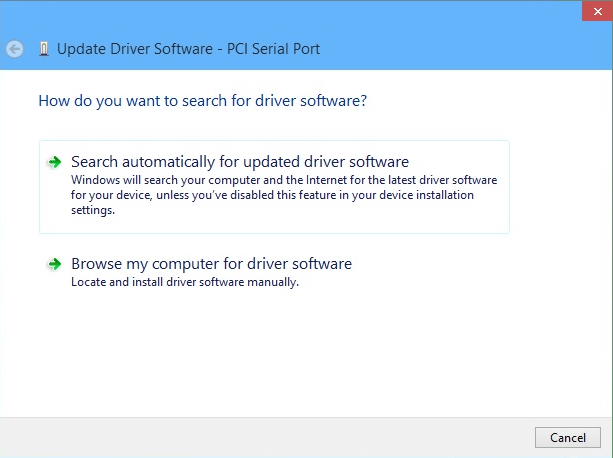
Step 4. Select Search automatically for drivers software.
Step 5. Restart your PC after updates finish.
Fix 2. Run Windows Memory Diagnostic
This error often relates to faulty RAM. Windows Memory Diagnostic checks your memory for hardware issues.
Step 1. Press Win + R, type mdsched.exe, press Enter.
Step 2. Choose Restart now and check for problems(recommended).

Step 3. Your PC will reboot and scan memory automatically.
Step 4. After logging back in, review results in Event Viewer.
Fix 3. Check disk for errors
Disk errors or bad sectors can corrupt system data and trigger blue screen errors.
Step 1. Press Win + S, type cmd.
Step 2. Right-click Command Prompt → Run as administrator.
Step 3. Enter the command:
chkdsk C: /f /r

Step 4. Press Y when prompted and restart your PC. Let the scan complete during reboot.
Fix 4. Repair corrupted system files
Corrupted Windows system files can directly cause PFN_LIST_CORRUPT. Use built-in repair tools to fix them.
Step 1. Open Command Prompt as administrator.
Step 2. Run sfc /scannow and wait for the scan to finish.

Step 3. If issues persist, run:
Dism /Online /Cleanup-Image /CheckHealth
Dism /Online /Cleanup-Image /ScanHealth
Dism /Online /Cleanup-Image /RestoreHealth

Step 4. Restart your computer.
Fix 5. Uninstall problematic software
Some third-party antivirus tools, disk utilities, or overclocking software may conflict with Windows memory management.
Step 1. Press Win + I → go to Apps.
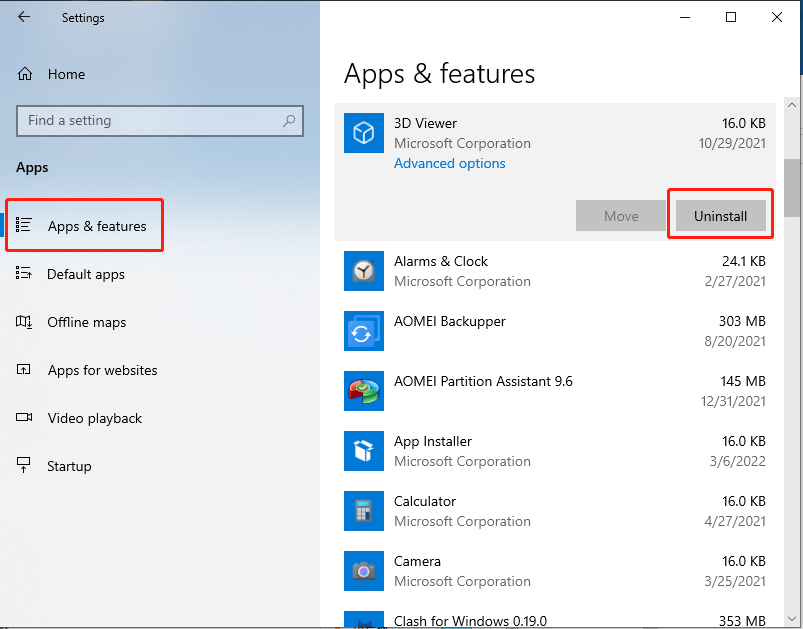
Step 2. Select Apps & features.
Step 3. Identify recently installed or suspicious programs.
Step 4. Click Uninstall and follow on-screen instructions.
Step 5. Restart your PC.
Fix 6. Reset Virtual memory settings
Incorrect virtual memory (pagefile) settings can trigger memory-related stop codes.
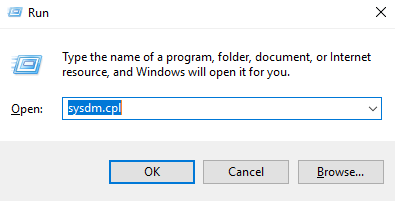
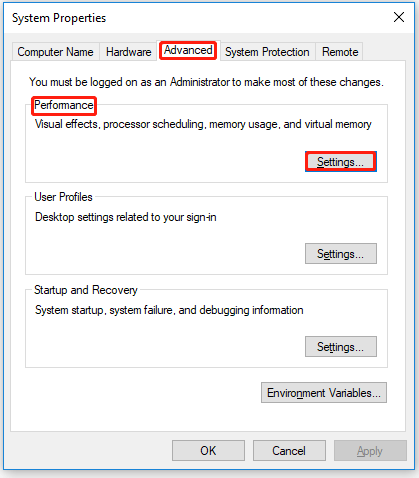
Step 1. Press Win + R, type sysdm.cpl, press Enter.
Step 2. Go to Advanced tab → click Settings under Performance.
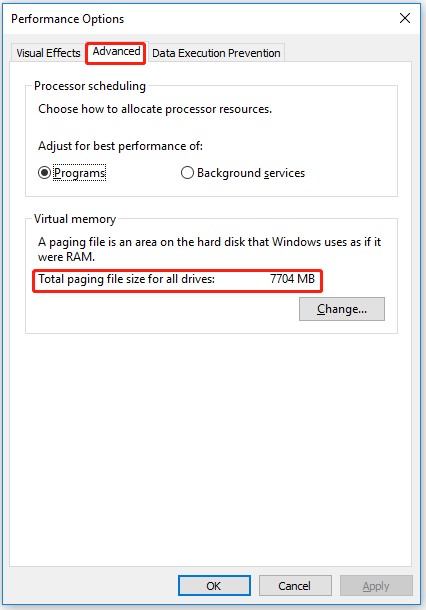
Step 3. Open Advanced tab → click Change under Virtual memory.
Step 4. Check Automatically manage paging file size for all drives.
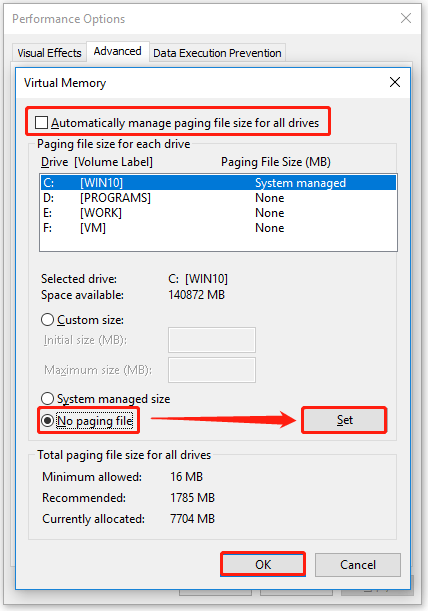
Step 5. Click OK, apply changes, and restart.
How to recover from Windows 10 stop code PFN_LIST_CORRUPT
When Windows 10 encounters the PFN_LIST_CORRUPT stop code, the system may crash repeatedly, fail to boot, or even cause unexpected data loss. In such situations, PartitionAssistant Recovery provides a practical and reliable way to recover important files before performing deeper system repairs or reinstalling Windows.
PartitionAssistant Recovery is designed to retrieve lost, deleted, or inaccessible files caused by system crashes, blue screen errors, disk corruption, or accidental operations. It supports Windows 10 and works even when data becomes unavailable after serious system errors like PFN_LIST_CORRUPT.
PartitionAssistant Recovery helps by:
🟢 Recovering files after system crashes caused by BSOD errors
🟢 Accessing data from corrupted or inaccessible partitions
🟢 Supporting recovery after forced restarts or boot failures
🟢 Protecting personal files before system repair or reinstallation
Step 1. Install and open PartitionAssistant Recovery. Select the specific disk or partition where your data was lost, then click “Scan” to start the process.

Step 2. The tool will begin with a Quick Scan to locate recently deleted files rapidly. Afterward, it performs a Deep Scan to uncover any additional lost data that may not appear in the initial scan.

Step 3. When the scan finishes, all deleted files, emptied recycle bin contents, and other missing items will be displayed. Browse through the results, select the files you want to recover, and click “Recover.”

Step 4. Pick a folder or directory where your recovered files will be saved. Avoid saving them to the same disk to prevent overwriting lost data.

Step 5. Wait for the recovery process to finish. Once done, your selected files will be restored to the chosen location.
Conclusion
When PFN_LIST_CORRUPT causes repeated crashes or boot failures, important files may become inaccessible. Before reinstalling Windows or performing major repairs, using PartitionAssistant Recovery helps safely recover personal data from corrupted or unbootable partitions, minimizing data loss and protecting critical files during system troubleshooting.
