
 PartitionAssistant NTFS for Mac
How to Make Apple Mac Computers Are Both Compatible with NTFS Format
How to make Apple Mac computers are both compatible with NTFS format? This guide offers detailed steps to get it done.

By Hedy / Updated on March 31, 2026


What is NTFS and why does it matter?
NTFS, which stands for New Technology File System, is a proprietary file system developed by Microsoft for Windows operating systems. It’s the standard file system for Windows since Windows NT and is still widely used in modern Windows PCs. Here's why NTFS matters:
1. Better file management: NTFS organizes data efficiently on storage devices, supporting large volumes and files (up to 16 EB theoretically). Unlike older systems like FAT32, NTFS can handle very large files, which is essential for modern applications, databases, and media files.
2. Advanced features: NTFS offers features that FAT32 or exFAT do not:
● File permissions and security: You can set read/write permissions per user or group.
● Encryption: NTFS supports encryption via EFS (Encrypting File System) to protect sensitive data.
● Compression: Save space by compressing files on the fly.
● Journaling: Keeps track of changes to prevent corruption in case of sudden power loss.
● Disk quotas: Manage how much space users can consume on a drive.
3. Reliability: NTFS is more resilient than older systems because of its journaling and error recovery capabilities. This reduces the chance of data loss and corruption, making it ideal for mission-critical data.
4. Compatibility considerations: NTFS is fully supported on Windows, but macOS can only read NTFS by default—it cannot write without special drivers or software like PartitionAssistant NTFS for Mac. Linux also requires additional drivers to write to NTFS. This is why NTFS matters when sharing drives between different operating systems: without proper software, you may face read-only access.
Can Macs write to NTFS drives?
By default, Macs cannot fully write to NTFS (New Technology File System) drives. NTFS is a proprietary file system developed by Microsoft for Windows, optimized for performance, security, and reliability on Windows PCs. macOS includes built-in support for reading NTFS drives, so you can access, view, and copy files from an NTFS-formatted drive without issue. However, native write support is disabled, meaning you cannot modify, delete, or save new files to an NTFS drive directly on a Mac.
This limitation is due to macOS prioritizing compatibility with its native file systems, like APFS and HFS+, while only providing read-only access to NTFS to prevent data corruption. Attempting to force-write to an NTFS drive through unsupported methods can risk file system corruption or data loss.
This read-only restriction affects external drives, USB sticks, and external hard drives formatted as NTFS. For Mac users who regularly need to interact with NTFS drives, it can be frustrating because the drive can be accessed but not updated. Understanding this limitation is important for cross-platform workflows between macOS and Windows, as it dictates how you manage files, backups, and data transfer between operating systems.
How to enable full NTFS support on Mac
If you want full read-write access to NTFS drives on a Mac, third-party software is the most practical solution. Tools like NTFS drivers bridge the compatibility gap, allowing macOS to interact with NTFS drives as if they were native.
These tools work by adding a custom driver layer that enables write functionality. Once installed, your NTFS drive behaves like any other writable disk. You can edit files, create folders, and transfer data seamlessly.
Many modern NTFS tools are optimized for Apple Silicon chips and the latest macOS versions, ensuring smooth performance even on newer Macs.
PartitionAssistant NTFS for Mac is a utility that integrates NTFS write capability into macOS. It allows Mac users to seamlessly interact with Windows-formatted drives without reformatting or data loss.
This is especially useful if you:
▶ Use external drives between macOS and Windows
▶ Work with NTFS USB drives or external HDDs
▶ Want to avoid converting NTFS to exFAT or APFS
Step 1. Run PartitionAssistant NTFS for Mac and connect your read-only NTFS drive.
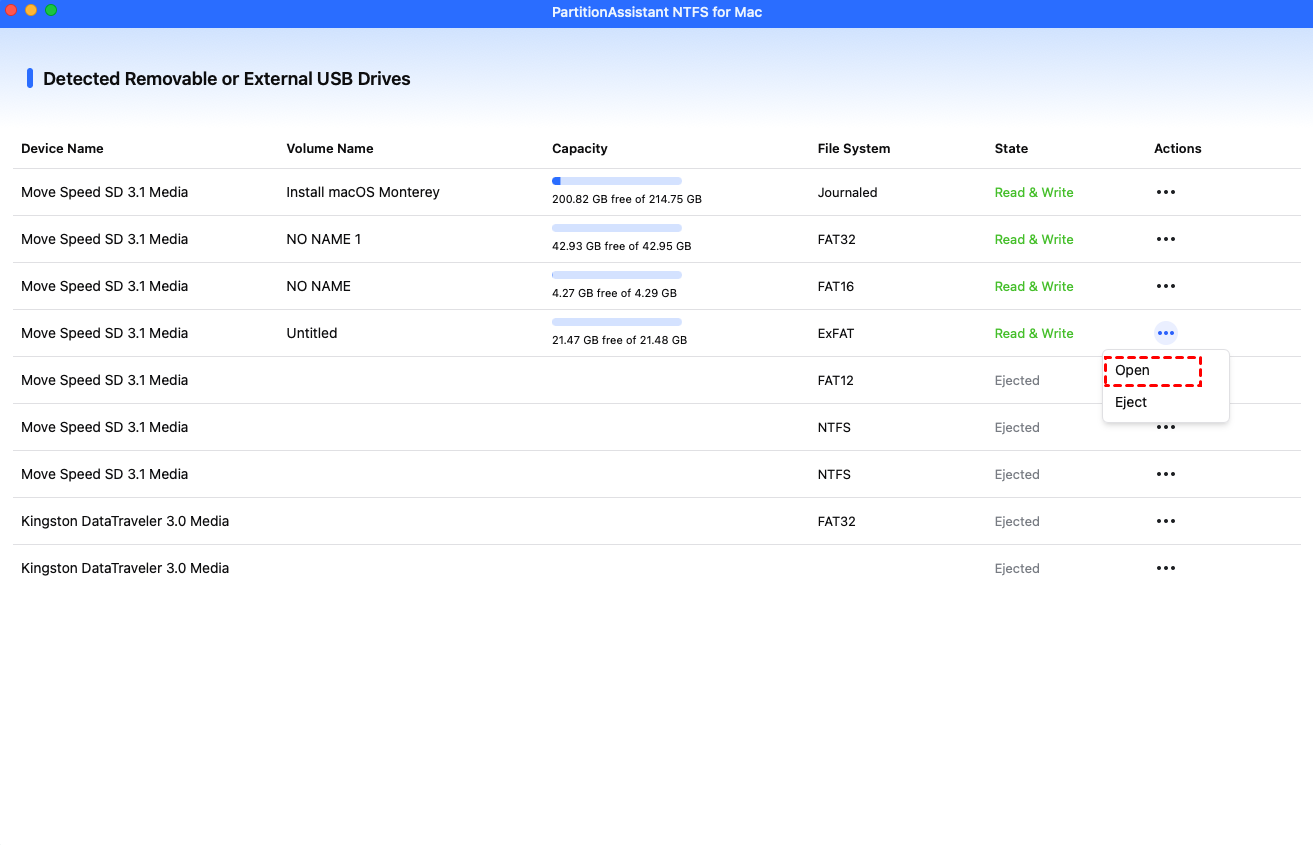
Step 2. The connected, removable, and external drives will be mounted and listed.

Step 3. Select the drive you want to operate and click "Open".
Step 4. Now you can copy files on your Mac and click "Paste Item" to copy the files to the NTFS drive.
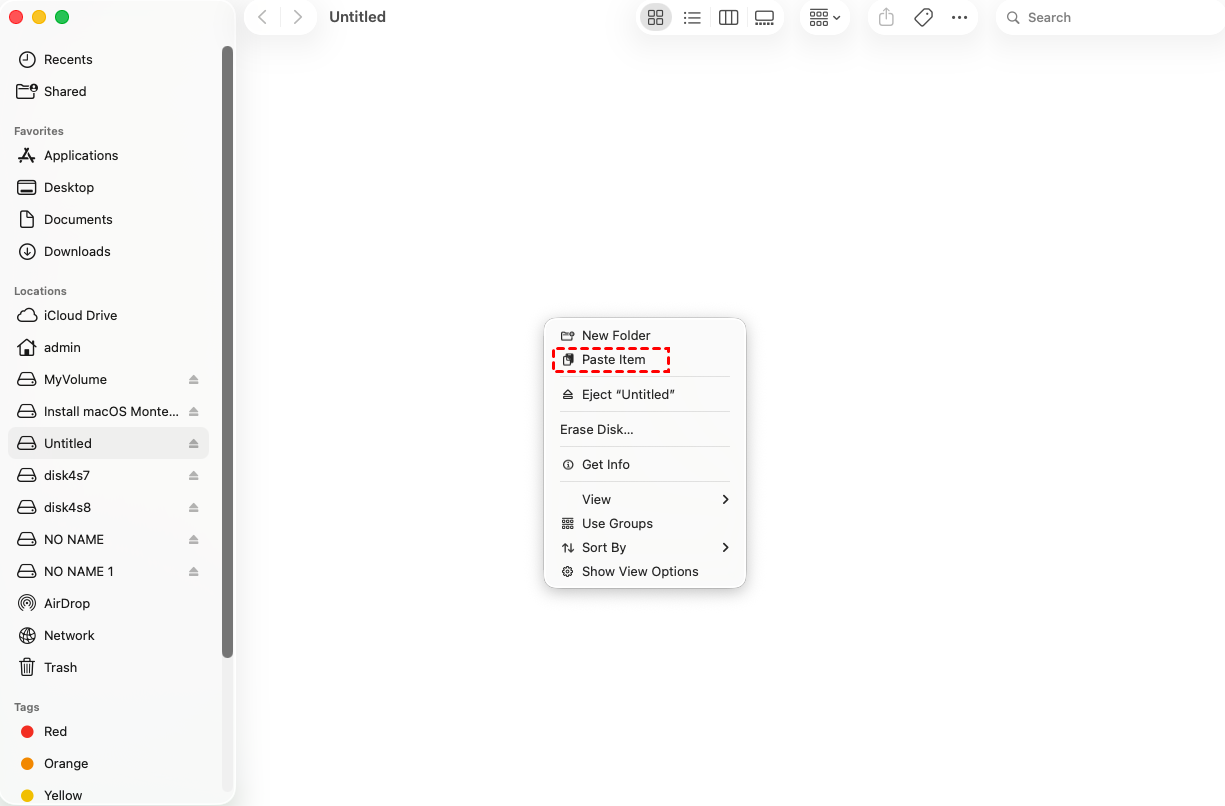
Step 5. You can also copy, delete, and rename files on the NTFS drive.

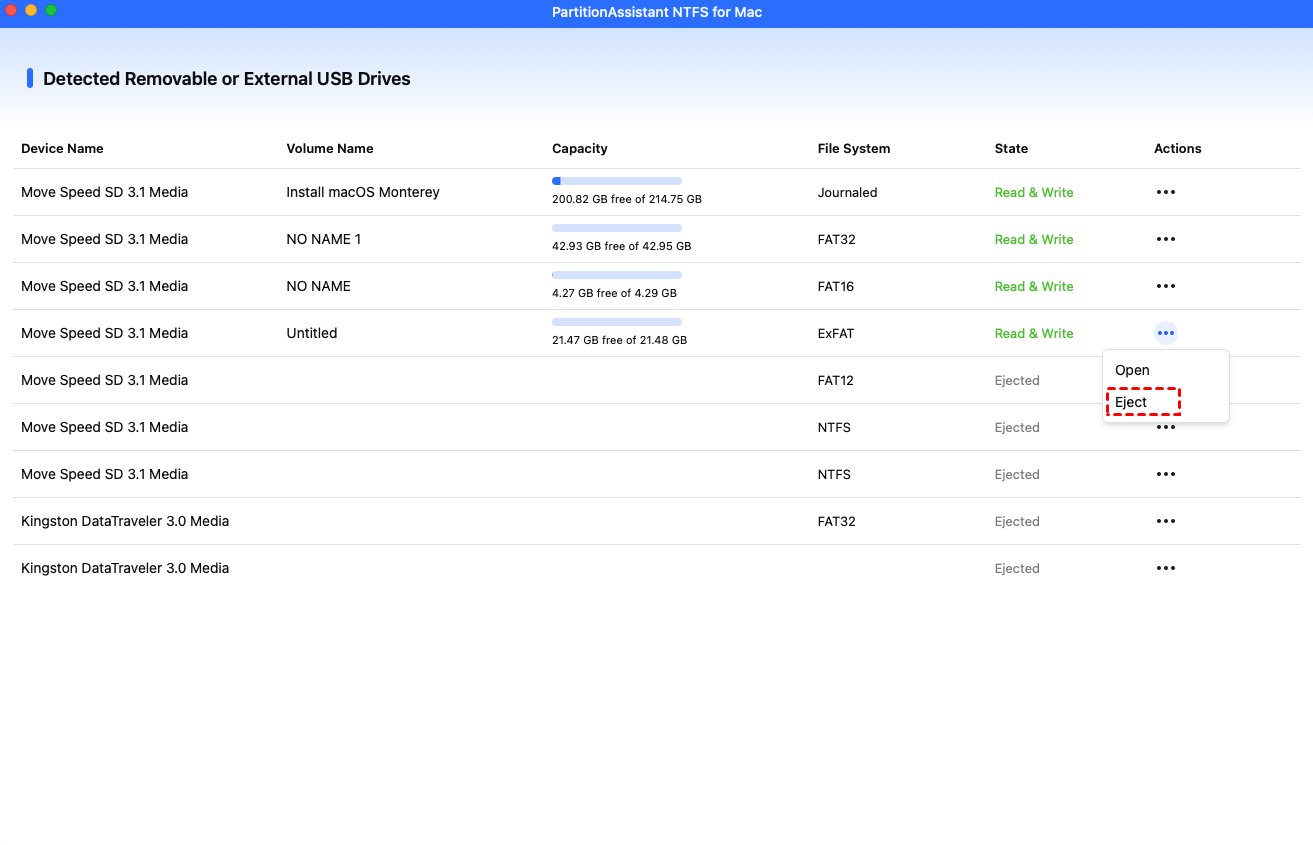
Step 6. After all operations are complete, please click "Eject" to disconnect the NTFS drive from your Mac.
FAQs
◉ Can Mac fully support NTFS without software?
Macs can read NTFS drives natively but cannot write to them without third-party software or workarounds. Full NTFS read/write support is not built into macOS by default.
◉ Is it safe to use NTFS drives on Mac?
Reading NTFS on a Mac is safe, but attempting native write operations without proper software can corrupt data. Using dedicated NTFS drivers ensures safe read/write access.
◉ What is the best format for Mac and Windows compatibility?
exFAT is the ideal choice. It works seamlessly for both macOS and Windows, supports large files, and avoids NTFS’s write restrictions on Mac.
◉ Why does macOS block NTFS write access?
Apple includes NTFS read-only support for compatibility, but write access is disabled to prevent potential data corruption, as NTFS is a proprietary Windows file system.
◉ Should I reformat my NTFS drive for Mac?
Reformatting is only necessary if you need native write access without third-party software. Otherwise, using NTFS drivers or exFAT keeps the drive compatible and safe.
Conclusion
NTFS is a powerful and reliable file system widely used on Windows, offering advanced features like security, encryption, and large file support. However, macOS only provides read-only access to NTFS by default, limiting cross-platform use. To enable full read-write functionality without reformatting, using tools like PartitionAssistant NTFS for Mac is the most efficient and secure solution for seamless data sharing between Windows and macOS.
