
 AOMEI Partition Assistant
[Quick Solve] Why PC Keeps Crashing While Gaming?
PC keeps crashing while gaming? Check is quick guide to solve games crashing in Windows system. In this post, we’ll discuss why PC keeps crashing while gaming and how to fix it.

By Lucas / Updated on March 25, 2026


Video games are generally high-octane and require a significant amount of power in the form of RAM, graphics, and other components. In this context, defects in the CPU or GPU are evident, either as a cause or a consequence of this condition. This article will provide you with an understanding of the reasons for the computer's frequent crashes during game play, as well as the numerous solutions available to resolve the issue.
Why PC keeps crashing while gaming?
When individuals encounter sudden PC crashes or Steam applications that fail to launch, they frequently encounter specific issues. Identify the primary causes of the situation before initiating the repair procedures.
1. Overheating
Gaming can push your CPU and GPU to their limits, generating significant heat. If the cooling system is insufficient, components can overheat, causing the PC to shut down or crash to prevent hardware damage.
2. Power Supply Issues
Gaming rigs often require high power consumption. An underpowered or faulty power supply unit (PSU) may fail to deliver the necessary power, leading to system instability or crashes under heavy load.
3. Hardware Failure
Faulty hardware components, such as a failing GPU, CPU, or RAM, can cause intermittent crashes during resource-intensive activities like gaming.
4. Hard Drive or SSD Problems
A failing hard drive or SSD can cause data read/write errors, which may result in crashes when the system attempts to load game assets or save progress.
5. Insufficient RAM or VRAM
Modern games have high memory requirements. If your system runs out of available RAM or VRAM, it can lead to crashes or freezes.
And some small issues may also cause PC crashed while gaming:
Outdated or corrupted drivers
Conflicting software or background processes
External devices like controllers, headsets, or USB drives might have faulty drivers
Some games may have bugs or poor optimization
…
8 Ways to fix PC crashed while gaming
Now, let’s see how to solve PC keeps crashing while gaming.
Way 1. Ensure your PC meet the game’s system requirements
If the computer crashes when playing games, check if your computer is capable of running this game. Go to the game’s office website to see the minimum and recommended requirements of the game.
Step 1. Press the Windows key + R to open the Run box.
Step 2. Type “dxdiag” and press Enter to open DirectX Diagnostic Tool.
Step 3. Under the System tab, you can find the Operating System version, the Processor name and frequency, the Memory size, and the DirectX Version.
Step 4. Under the Display tab, you can find the Name and VRAM of the graphics card. This information can help you determine whether your computer meets the gaming requirements.
Way 2. Install recent drivers
The computer frequently crashes while playing games as a result of antiquated or detected video drivers in the system. It is advisable to upgrade the video driver function directly on a Windows device each time to prevent the resulting systemic issues.
Step 1. Go to Device Manager from the Start menu and choose Display Adapters.
Step 2. Right-click on top of it and choose Update Driver.
Step 3. Follow the other given instructions to complete the latest driver installation process.

Way 3. Set computer resources aside for the game first
Sometimes, computer crashes are caused by internally available software kinds in the system, which may react to the new game software.
Furthermore, some applications operate in backup mode, which may cause crashes while playing games. These include too many open tabs in online browsers, startup software running in the background, and so on. It would be helpful if you turned them off to restore normal system functionality.
Step 1. Right-click on the top of the Taskbar and choose Task Manager. Or, you can use the Ctrl + Shift + Esc combination to access it directly.
Step 2. Hover over Startup until all apps appear in the list. Disable the ones with large memory and the ones you don't require.
Way 4. Upgrade old HDD to SSD
If a PC keeps crashing during gaming due to an HDD's limitations, upgrading to an SSD can be a transformative solution. HDDs rely on mechanical parts, making them more prone to wear, heat, and slower response times, which can cause read/write errors and game crashes. In contrast, SSDs, with no moving parts, offer greater reliability and durability. They deliver significantly faster data read/write speeds, reducing game loading times and minimizing stuttering or lag.
AOMEI Partition Assistant can help you easily and safely finish this work. It provides complete disk copying with no data loss and is compatible with most Windows versions. It supports both sector-by-sector and fast cloning modes. If you want to use a smaller SSD, the latter mode allows you to quickly clone larger disks to smaller ones.
 100% Secure
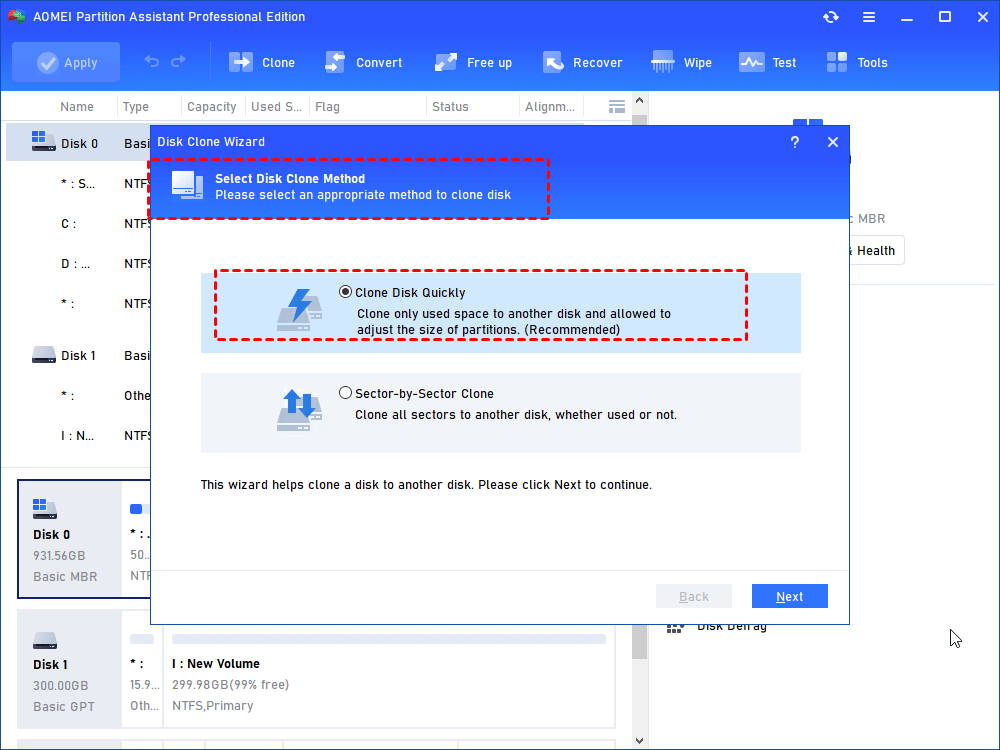
Step 1. Run AOMEI Partition Assistant Professional, go to Clone > Clone Disk and choose one way to clone disk. The first option "Clone Disk Quickly" is recommended.
Step 2. Select your system disk as the source disk.

Step 3. Choose the SSD as your destination disk and check Optimize the performance of SSD… to align SSD partition.
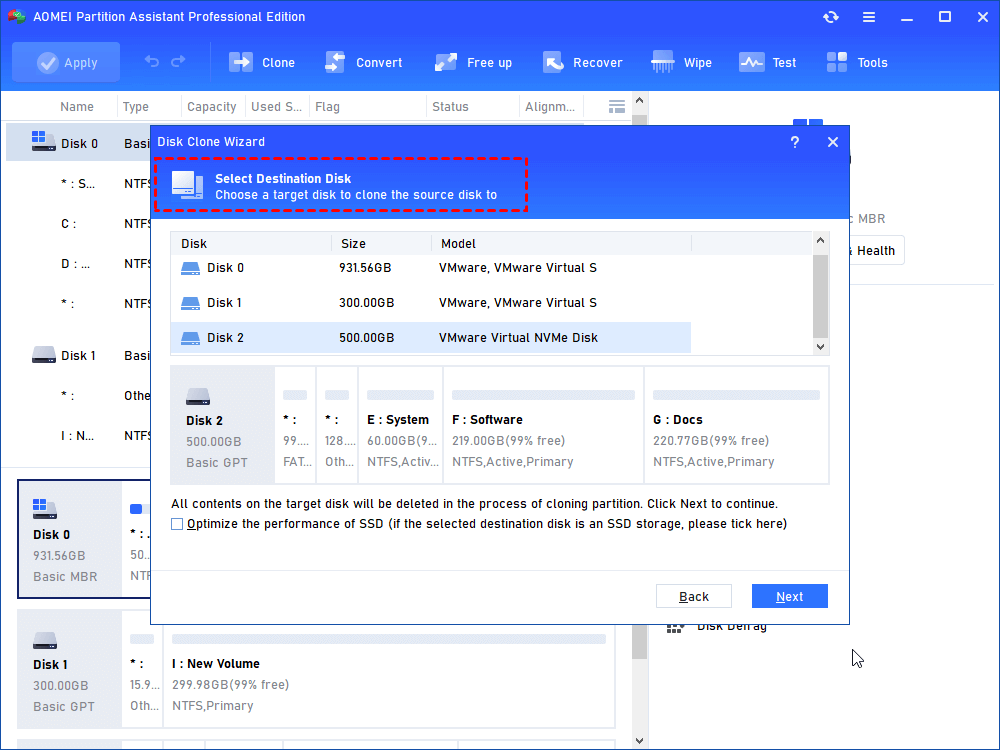
PS.: If there are files on the destination disk, it will prompt you that all data on this selected destination disk will be wiped out…, click Yes after confirmation. Then, click Next.
Step 4. Here you can edit partitions.

PS.: If you clone hard drive to a smaller SSD, the first option "Clone without resizing partitions" will be disabled.
Step 5. A Note about how to boot the operating system from the destination disk shows up. Remember it and click Finish.
Step 6. In the main interface, click Apply and Proceed to perform HDD to SSD clone operation.
Step 7. After that, replace the hard drive with a cloned SSD or change boot order in BIOS to boot from the SSD.
Notes:
● This cloning tool supports you to migrate OS between MBR and GPT disks or clone MBR to GPT SSD / GPT to MBR SSD. However, you need to change boot mode after migration or clone.
● AOMEI Partition Assistant is far more than a cloning tool for Windows. It allows you to convert HDD to GPT, recover deleted partition and so on.
Way 5. Check hardware
In certain circumstances, the primary reason the game does not run properly has nothing to do with the program. Damage to physical components might also create an error. So, check if you've attached the components correctly, such as the motherboard, using the directions on the manufacturer's website as a reference. Replace any hardware parts that are very old or damaged.
Way 6. Scan for malware and viruses
As previously discussed, background antivirus software might cause the computer to crash while playing games. However, the game software you install on your PC may introduce viruses or malware, which may create this problem.
It is critical to scan for viruses and malware with a reliable viral threat prevention scanner, such as Windows Defender.
Step 1. Access the Taskbar and find Windows Defender. Select the "Virus & Threat Protection" option under it.
Step 2. Tap Advanced Scan and choose the offline scan option as a focus point.
Way 7. Run memory check
Step 1. Tap on Win + R keys to access the Run dialog box.
Step 2. Type in the term "mdsched.exe" and hit Enter.
Step 3. Tap the recommended Restart now button that mentions the current checking progress. If you want the software to check for errors later, you can select that too.
Step 4. After the device restart, you will see information about the checking progress and the total passes to run over the internal memory card. Check if the scan shows any existing errors here.
Bonus tips: Run boot repair when PC can’t start up
If you can’t boot your PC successfully after your game crashed, you may need boot repair. You can go to Auto repair on Windows.
Or, if you have another working PC and an empty USB, you can also try “Boot Repair” function from AOMEI Partition Assistant.
Conclusion
Now you know how to resolve the PC keeps crashing while gaming error. Overall, a variety of factors, such as underlying viruses and power supply faults, interfere with the gaming process in the PC and lead it to shut down.
If you just need to upgrade your hard drive to improve computer performance, AOMEI Partition Assistant will assist in cloning your old disk to an SSD without data loss. Also, if you need other functions like extend partitions, clean disk files, etc, you can check edition page to find your best disk management plan.
100% Secure
