
 AOMEI Partition Assistant
How to Clone HDD To SSD in Windows 10 With OEM Partitions?
This post explains how to clone HDD to SSD in Windows 10 while keeping OEM partitions. It shows clear steps to easily clone OEM recovery partition.

By Irene / Updated on August 18, 2025


Can you move Windows 10 OEM partition to SSD?
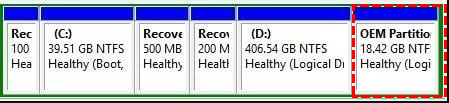
OEM stands for Original Equipment Manufacturer. OEM Windows usually comes pre-installed on new computers and has a license tied to the first device it is activated on. While the license cannot transfer to another computer, you can still clone HDD to SSD in Windows 10 with OEM partitions on the same machine without issues. Recovery partitions play an important role: the Windows recovery partition (about 450MB) lets you access WinRE to fix or restore your system, while the OEM recovery partition (7–20GB), created by brands like HP or Dell, stores factory settings, drivers, and software for system reset. So, it is generally not suggested to reset or delete OEM partitions.
But can you move the Windows 10 OEM partition to an SSD? The answer is yes. Moving your OEM Windows 10 to an SSD is completely possible. When you clone HDD to SSD in Windows 10 with OEM partitions, you will keep all recovery features, system files, and factory settings intact. At the same time, you gain faster boot times, quicker app loading, improved durability, silent operation, and better overall performance compared to a traditional HDD. In the next part, we will share detailed steps about how to clone OEM partition in Windows 10.
How to clone HDD to SSD with Windows 10 OEM partitions?
With AOMEI Partition Assistant, you can easily migrate Windows OS and clone HDD to SSD with OEM partitions. Its disk and partition clone wizards make the process simple in Windows 11/10/8/7 while keeping your recovery options safe. To move the recovery partition smoothly, AOMEI Partition Assistant is highly recommended because it offers several advantages.
SSD optimization: Aligns SSD partitions to improve read and write speed.
Flexible cloning: Allows cloning a larger drive to a smaller SSD, as long as the SSD has enough space for the used data.
You can even download the demo version to try copying your recovery partition to a new SSD with this guide.
 AOMEI Partition Assistant
The Best Windows Disk Partition Manager and PC Optimizer
First, install AOMEI Partition Assistant on your Windows computer. Connect the SSD you prepared before to the computer. Then, you can follow the steps to do it.
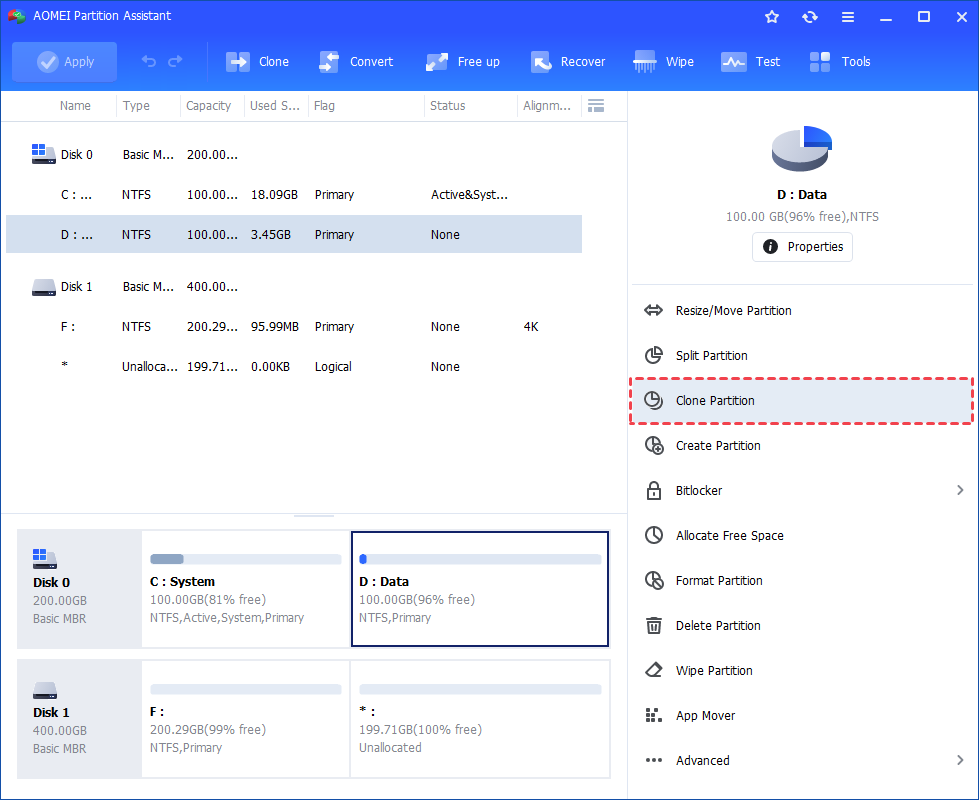
Step 1. Install and launch AOMEI Partition Assistant, right-click the partition you want to clone and select the "Clone Partition" tool to run partition clone. (You can also click the "Clone" main tab and select "Clone Partition".)
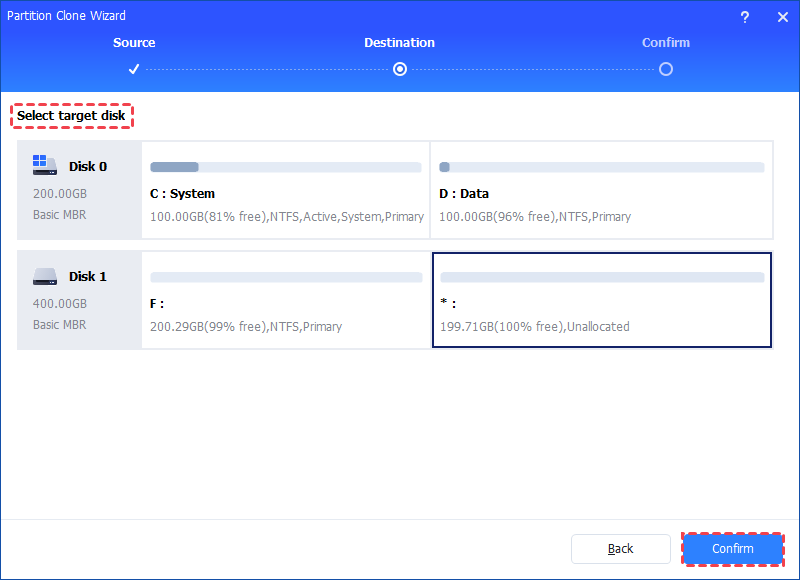
Step 2. In next window, select the destination partition or unallocated space to hold your source partition, and then click "Confirm".
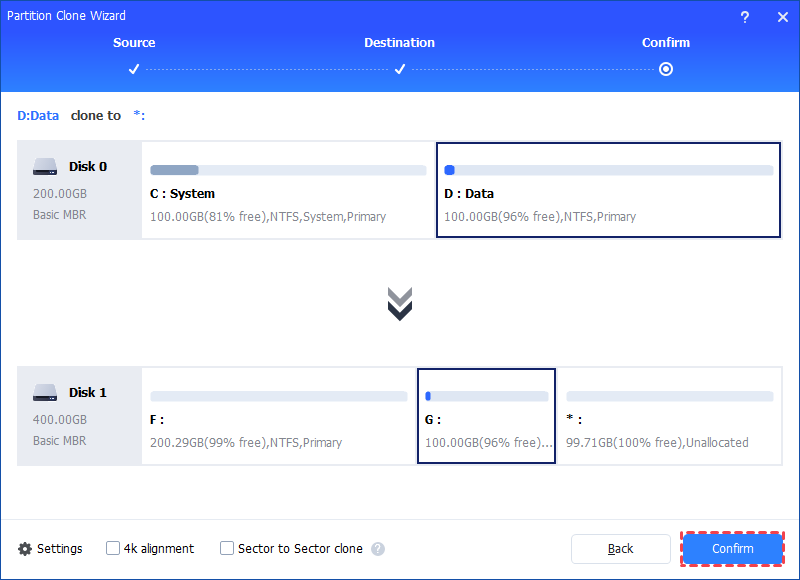
Step 3. Then, you will enter the Confirm interface where you can check the source and destination clone location. After all is set, you can click the "Confirm" button to continue.
Notes:
- There is a "4k alignment" option. If you want to copy a partition onto a SSD (Solid State Drive), ticking this option will optimize the read and write speed on this partition. It can also extend the life of the SSD.
- If you select the "Sector-by-Sector Clone" mode, the unallocated space must be equal or larger than source partition. If you tick the option, it will be unable to resize the destination partition.
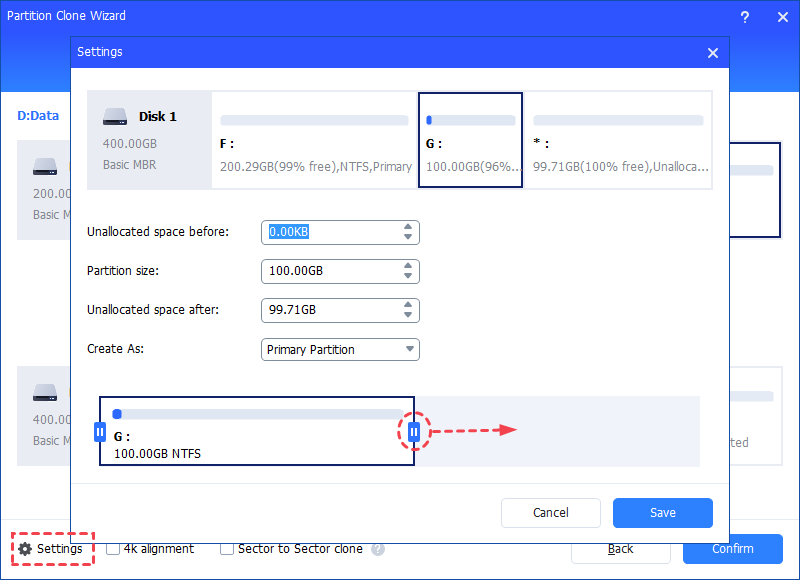
Step 4. In the next window, you can click the "Settings" button to adjust the target partition size. As you can see from the screenshot, you could adjust the size of source partition in order to fit the target partition as per your need, or directly skip the step and click "Save".
Step 5. You can preview the partition copy operating by viewing the "Pending Operations". To commit the "Pending Operations", please click "Apply" and "Proceed".
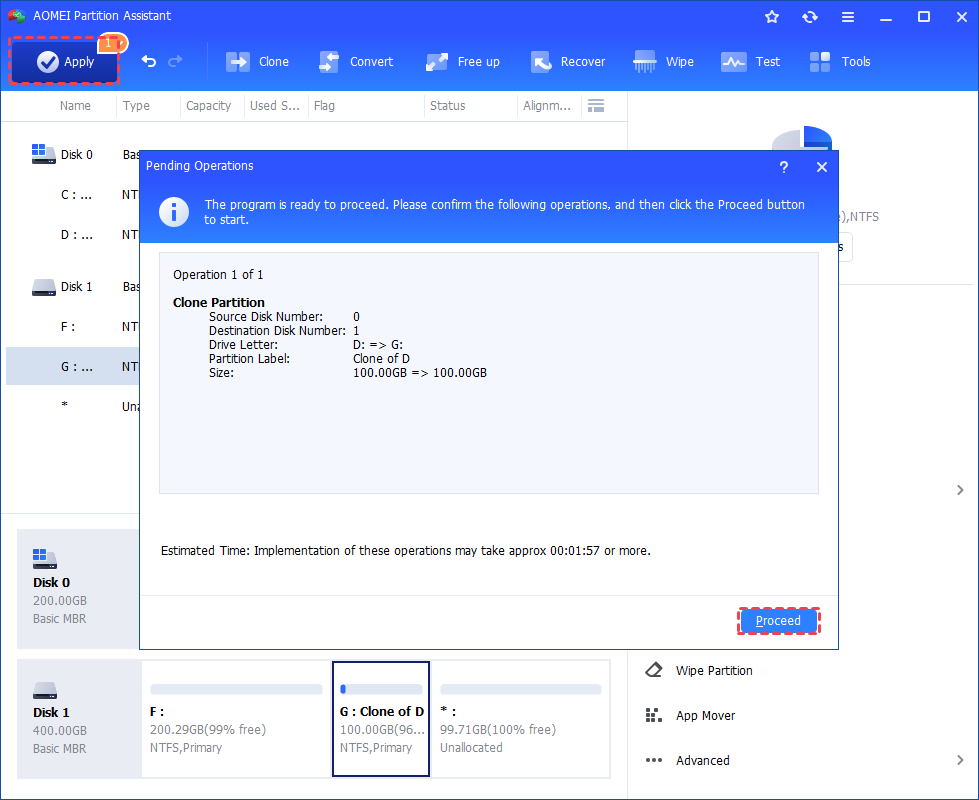
The cloning process will start and you can check the cloning process. Once the process is completed successfully, you will get a congratulation window. Finally, you can check the partition layout on the destination disk will be identical to the source partition.
Further reading: How to move Windows 10 from HDD to SSD?
If you want to upgrade to a faster or larger SSD, clear hard drive space, or move the entire system with all apps and settings intact, you may choose to migrate the OS instead of just cloning the OEM partition.
However, Windows 10 does not have a built-in tool to directly move the operating system to another drive. Luckily, AOMEI Partition Assistant is a reliable and easy-to-use disk management tool that can help with this task. It is well-known for handling operations like resizing, merging, splitting, and formatting partitions.
One of its most useful features is “Migrate OS to SSD/HDD”, which allows you to transfer all system files, boot files, and configurations from your HDD to an SSD. This ensures that your computer can boot normally from the new SSD without reinstalling Windows or your applications. Even OEM partitions can be moved along with the system, so recovery options remain available after migration.
AOMEI Partition AssistantThe Best Windows Disk Partition Manager and PC Optimizer
Note: all data on the destination SSD drive will be erased during the OEM Windows migration process, so please make a backup in advance.
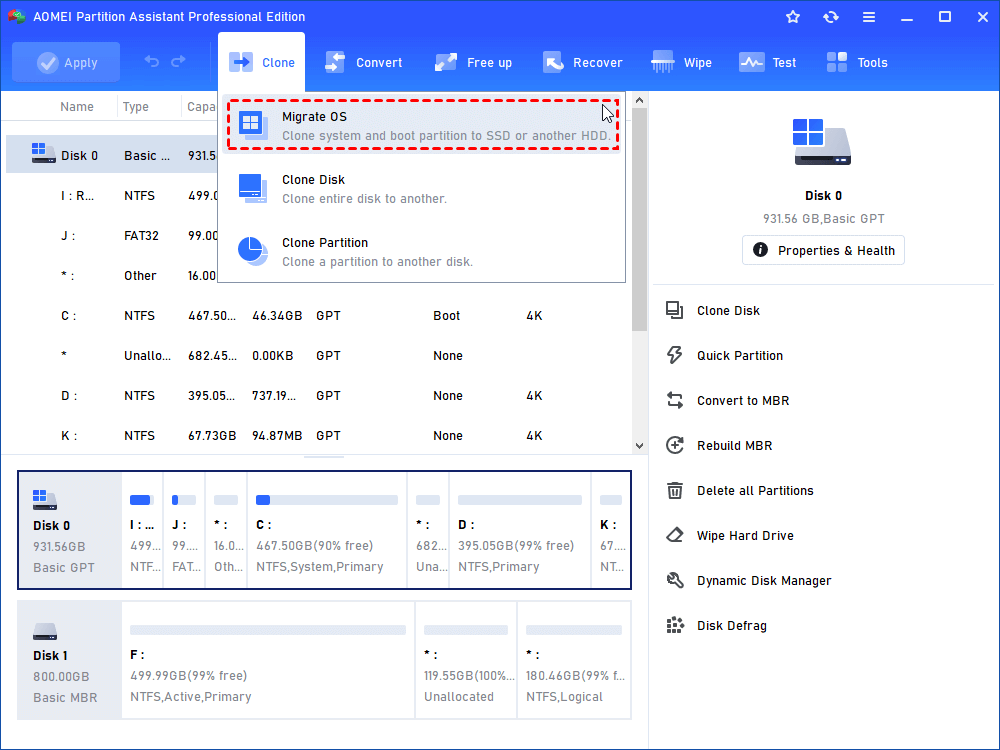
Step 1. Launch the software. Click "Clone" > “Migrate OS” on the main interface.
Step 2. Then, read the tip and click Next.
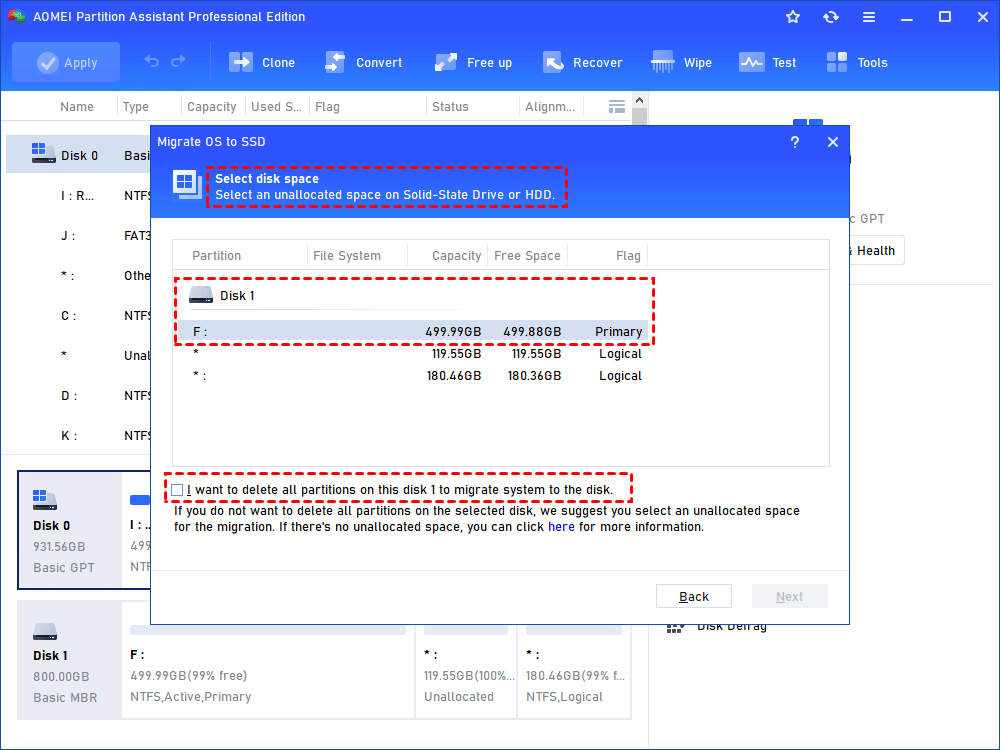
Step 3. Select an unallocated space on SSD disk 3 as the destination location. Then click "Next".
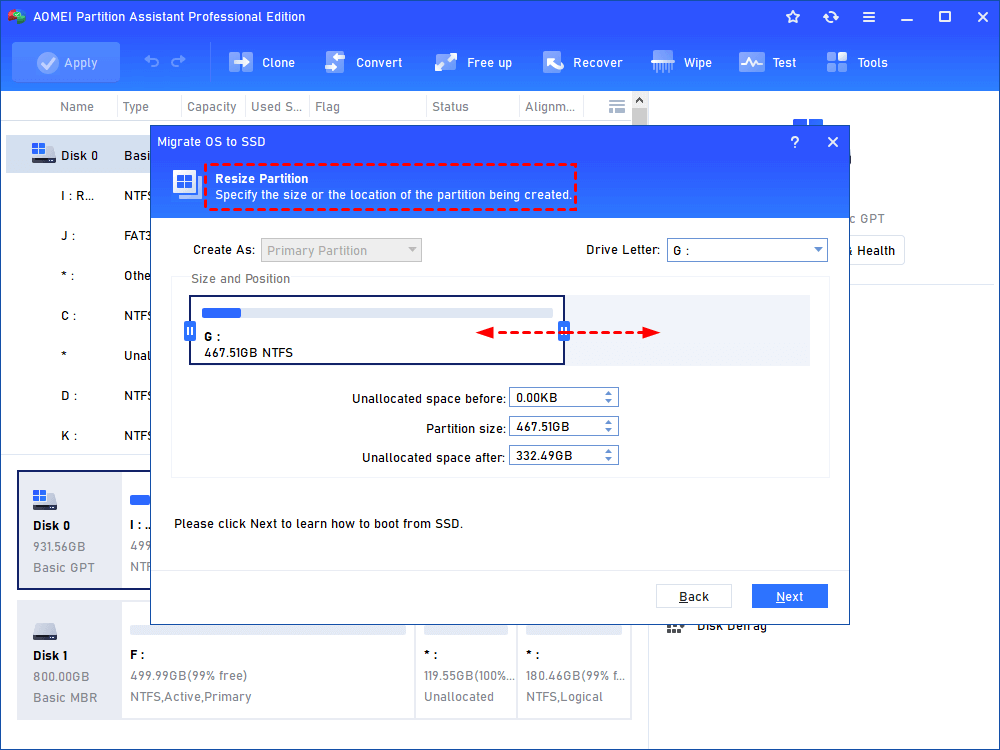
Step 4. Specify the size or the location of the partition being created and assign Drive Letter. Then click "Next".
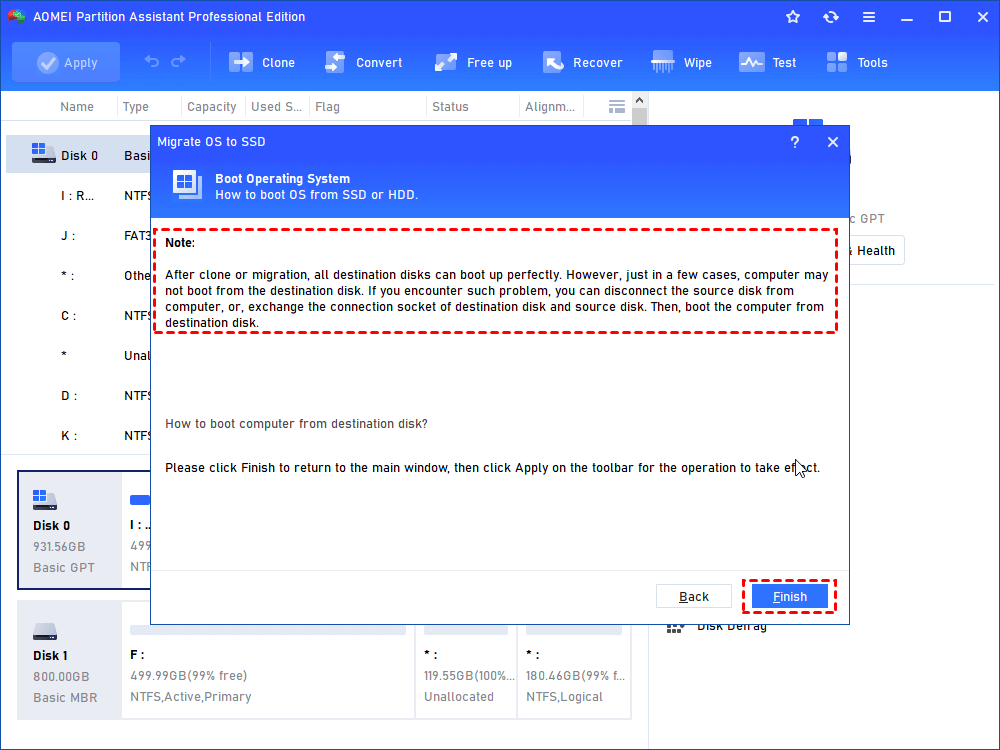
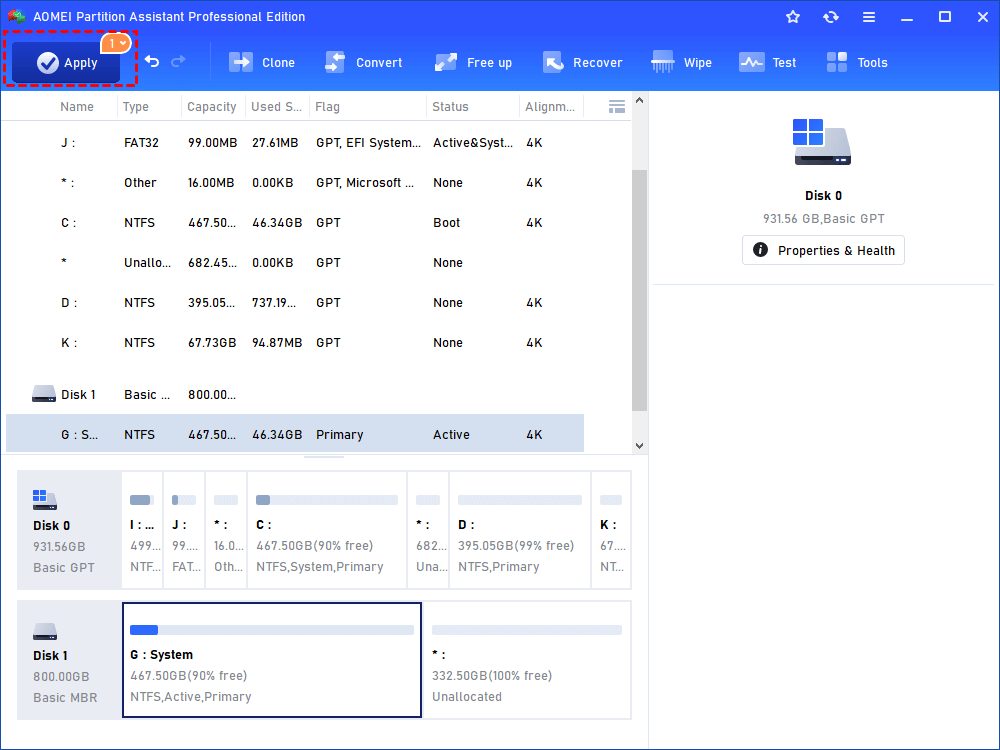
Step 5. Then click “Apply” in the upper left corner to make the operation take effect.
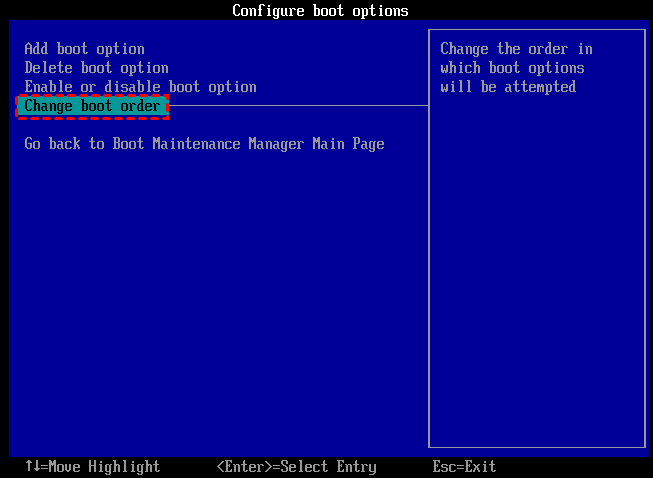
The program will run under AOMEI Partition Assistant PreOS Mode, so your computer needs to be restarted to complete these operations in the PreOS Mode. After it is done, you can restart your PC, enter BIOS to change boot order (set the SSD as the first boot device) and boot the computer from SSD drive then.
Conclusion
Cloning HDD to SSD in Windows 10 with OEM partitions is safe and practical, allowing you to keep all recovery features, system files, and factory settings intact. Using tools like AOMEI Partition Assistant, you can easily clone partitions or migrate the entire OS, ensuring faster boot times, improved performance, and reliable SSD operation. Whether you choose to clone only the OEM partition or migrate the full system, preparing your SSD and following the right steps ensures a smooth upgrade. Please back up important data before starting to protect against any accidental data loss.
