
 AOMEI Partition Assistant
What is Detach VHD and How to Detach it Step by Step?
What does it mean to detach a VHD, and how can it be done safely? This guide walks you through the entire process, providing clear, step-by-step instructions to detach a VHD without risking data loss.

By Hedy / Updated on February 11, 2026


What is detach VHD?
Detach VHD means disconnecting a Virtual Hard Disk (VHD or VHDX file) from the Windows system so it no longer appears as a usable drive in File Explorer or Disk Management.
A VHD is basically a file that behaves like a real hard drive. When you attach it, Windows mounts the file and assigns it a drive letter, allowing you to access, copy, or edit data inside it. When you detach it, Windows safely unmounts the virtual disk and removes the drive letter — but the VHD file itself remains stored on your physical disk.
Detaching does not delete data. It only stops Windows from using the virtual disk until you attach it again.
Common reasons to detach a VHD:
◆ Prevent accidental file changes
◆ Finish backup or testing tasks
◆ Safely remove a mounted virtual system image
◆ Prepare the file for transfer to another computer
You can detach a VHD using Disk Management, DiskPart, or virtualization tools like Hyper-V.
How to detach VHD
Detaching a VHD (Virtual Hard Disk) simply means unmounting it from Windows so it no longer appears as a drive. The file itself stays safe — you’re only disconnecting access.
Below are the most reliable ways to detach a VHD in Windows 11/10.
Method 1. Detach VHD via Disk Management (recommended)
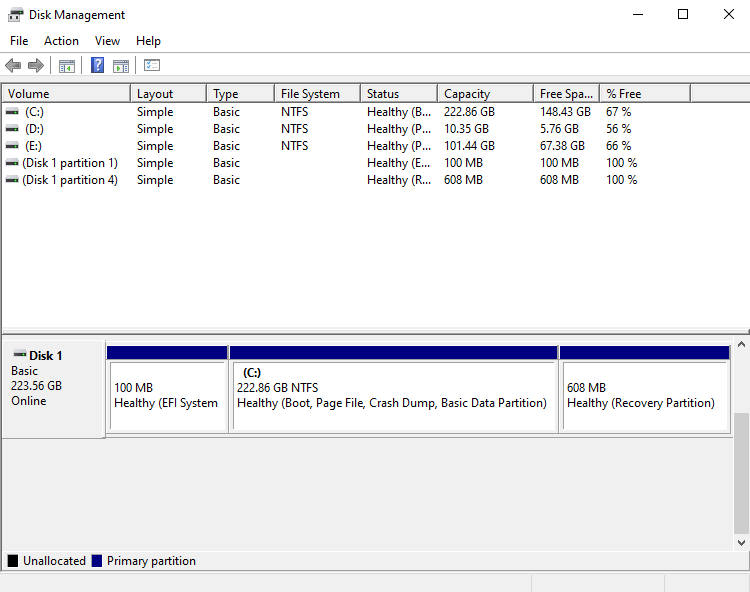
Disk Management is the safest and easiest built-in Windows utility for handling virtual disks. It provides a visual interface, so you can confirm the correct disk before removal. This minimizes mistakes and avoids accidental data loss during the detach process.
Step 1. Press Win + X and choose Disk Management.
Step 2. In the lower panel, locate the disk labeled VHD (it often shows as Disk X – Virtual).
Step 3. Right-click the disk name (left side, not the partition).
Step 4. Select Detach VHD.
(Optional) Uncheck Delete the virtual hard disk file after removing the disk if you want to keep the VHD file. Click OK.
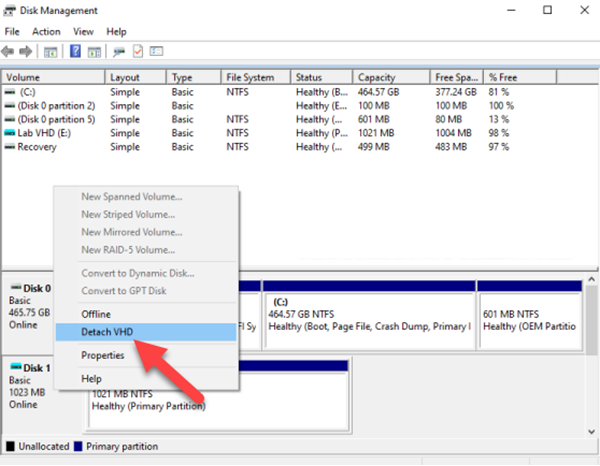
The VHD disappears from File Explorer but the file remains stored on your computer.
Method 2. Detach VHD using Command Prompt (DiskPart)
DiskPart is a powerful command-line disk management tool included in Windows. It’s useful for automation, remote administration, or fixing situations where the graphical interface fails. You must carefully select the correct disk to avoid detaching the wrong device.
Step 1. Type cmd in Start, then run Command Prompt as administrator.
Step 2. Enter the following command one by one in DiskPart environment:
diskpart
list vdisk
select vdisk file="D:\VirtualDisks\test.vhdx"
detach vdisk
exit
The virtual drive is now disconnected instantly.
Method 3. Detach VHD with a third-party tool
Although Windows Disk Management can detach VHDs, it often fails when the disk is locked, missing, or marked read-only.In these cases, a dedicated disk manager like AOMEI Partition Assistant provides a much smoother solution.It is a professional disk & partition management tool for Windows 11/10/8/7 and Windows Server systems.
It allows you to manage physical disks and virtual disks (VHD/VHDX) without complicated commands or risk of data loss. Besides common partition operations, it also works as a virtual disk utility — meaning you can create, mount, explore, and detach VHD files safely even when Windows tools fail.
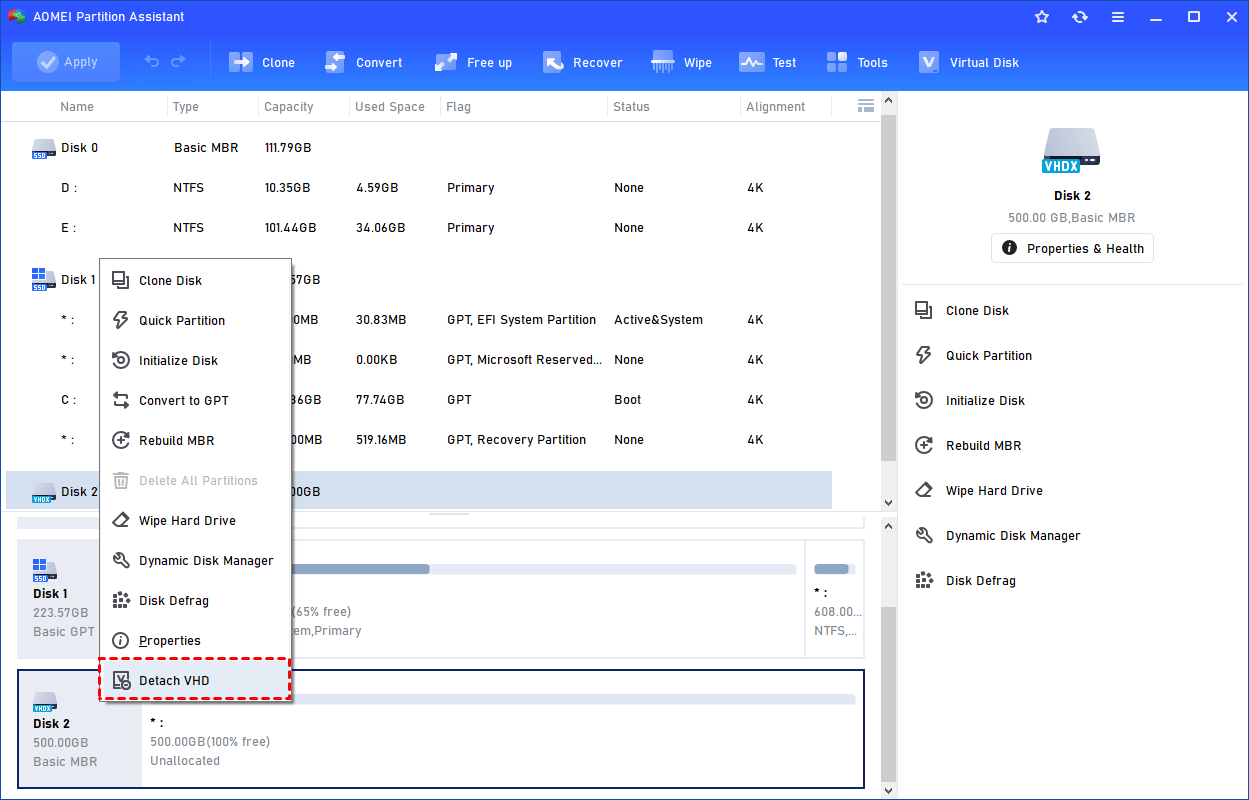
Step 1. In AOMEI Partition Assistant, right-click the mounted VHD and choose “Detach VHD” to disconnect it.
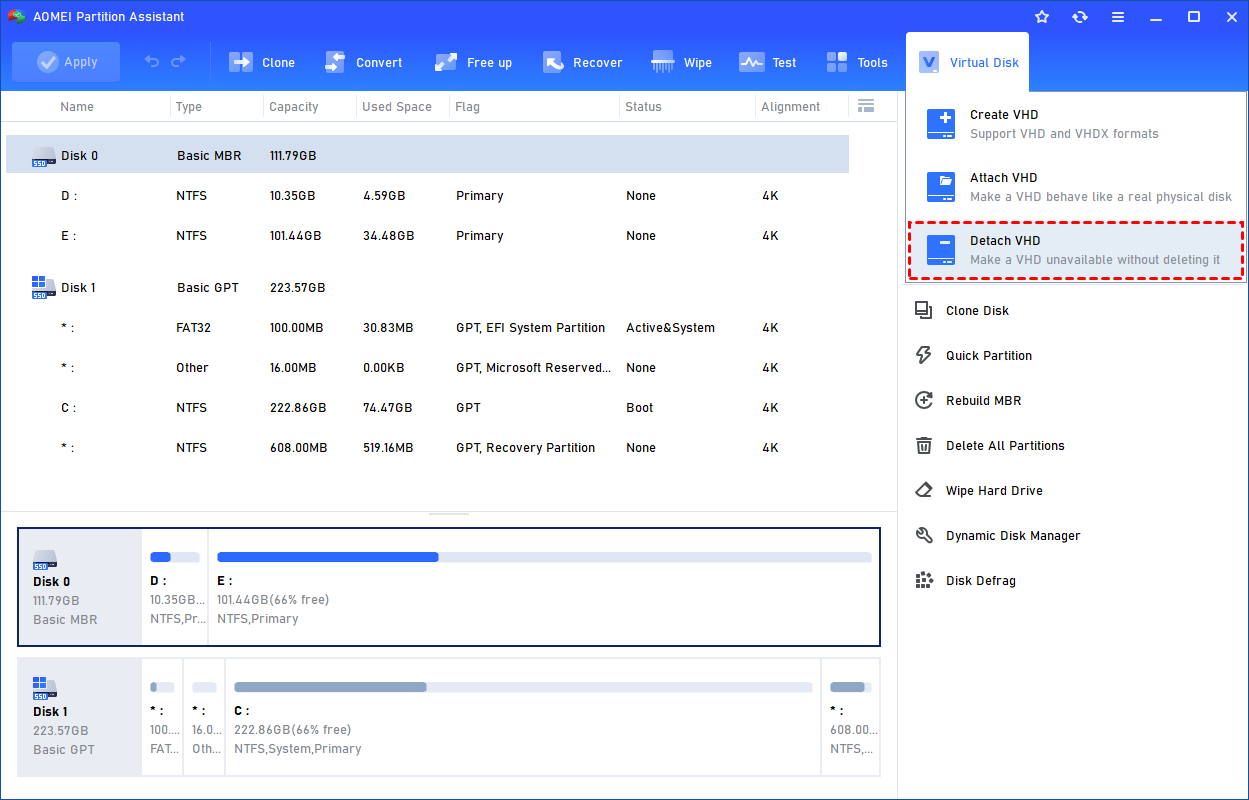
Alternatively, open the “Virtual Disk” tab and click “Detach VHD”.
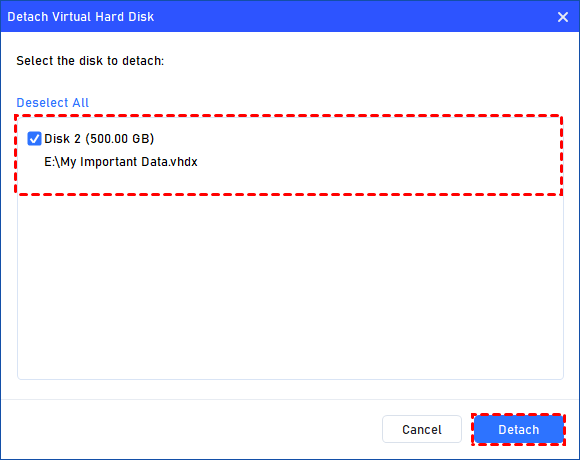
Step 2. Select the virtual disk(s) you want to remove, then press “Detach” to begin the detaching process.
Step 3. After completion, the program will indicate that the VHD(s) have been successfully disconnected.
FAQs
1. Is detaching a VHD safe?
Yes. Detaching only disconnects the virtual disk from the system without deleting data. As long as no files are actively in use, the VHD remains intact and can be reattached later.
2. Can I delete a VHD after detaching?
Yes. After detaching, the VHD is just a normal file on storage. You can safely delete it, but doing so permanently removes all data inside the virtual disk.
3. Why can’t I copy a mounted VHD?
Because Windows locks mounted VHD files to prevent corruption. The system treats it like a live disk, so copying is restricted until you dismount or detach it.
4. Does detaching improve performance?
Slightly. Detaching frees system resources, stops background indexing, and removes disk overhead. The impact is usually minor but noticeable on low-resource or heavily virtualized systems.
5. Can malware access a detached VHD?
Generally no. A detached VHD isn’t mounted, so its filesystem isn’t accessible to normal processes. However, malware could still read the file directly if it has sufficient permissions.
Conclusion
In summary, detaching a VHD safely disconnects a virtual hard disk from Windows without deleting its data, preventing accidental changes and preparing it for backups or transfers. You can detach VHDs via Disk Management, DiskPart, or third-party tools, each offering different levels of convenience and control. This process ensures your virtual drives remain accessible when needed while keeping your system organized and secure.
