
 PartitionAssistant NTFS for Mac
[2026] How To Read and Write NTFS Drive On macOS for Free?
You can learn how to read and write for NTFS drive on Mac with a free tool. This article explores reliable software and manual methods to transfer files across different systems.

By Irene / Updated on January 12, 2026


Need to enable full read and write support for NTFS drive on macOS
By default, macOS can read files from Windows-formatted NTFS drives but cannot write to them. This means you can open and view files on an NTFS drive, but you cannot edit, delete, rename, or copy new files to it. Whether it’s a small USB stick or a large external hard drive, this limitation can make transferring data between Windows and Mac frustrating.
Many users try workarounds like running Windows in a virtual machine, but these solutions are often slow and inconvenient. A more practical option is to use dedicated NTFS support software for Mac. With the right tool, macOS can read and write to NTFS drives seamlessly, making them behave like native Mac drives.
While some NTFS drivers are paid, there are reliable free options in 2026, such as PartitionAssistant NTFS for Mac, which let you manage Windows-formatted drives without spending a dime. These tools allow you to copy, edit, and move files freely, giving your Mac full access to NTFS storage devices. If you want to get more information about the best NTFS for Mac software, you can read this guide as a reference.
How to read and write NTFS drive on macOS for free?
macOS has a built-in limitation with Windows-formatted NTFS drives: files can be viewed but cannot be edited, moved, copied, or deleted. This read-only restriction can make managing data between Mac and Windows less convenient. PartitionAssistant NTFS for Mac offers a reliable and free solution for full read and write access. It allows NTFS drives to operate on macOS similarly to native Mac drives, without relying on Terminal commands to format the disk or force delete files, or even use paid software.
-
One-Click Write Access: Drives can be mounted with full read and write permissions automatically.
-
Broad Compatibility: Works with the latest macOS versions, including Sequoia and Sonoma, and supports both Intel Macs and Apple Silicon (M1, M2, M3).
-
Reliable Performance: Maintains high-speed file transfers and stability, even with large files or demanding tasks.
-
Automatic Drive Management: NTFS drives are detected and mounted with write access without extra configuration.
-
Data Security: Ensures file integrity and preserves drive health for use on Windows systems.
These features demonstrate how a dedicated NTFS solution can remove system limitations. Full read and write access improves workflow efficiency, keeps data secure, and allows seamless file management across platforms.
🌟 Note: Please mount NTFS drives on Mac before making changes to the NTFS hard drive. This ensures that macOS permits full read and write access safely.
Step 1. Install and run PartitionAssistant NTFS for Mac and connect your NTFS hard drive that need full read and write support on Mac. Then the connected, removable, and external drives will be mounted and listed.
Step 2. Select the drive you want to operate and click "Open" if the state is Read & Write. If not, please choose Enable Writable by clicking the three dots.
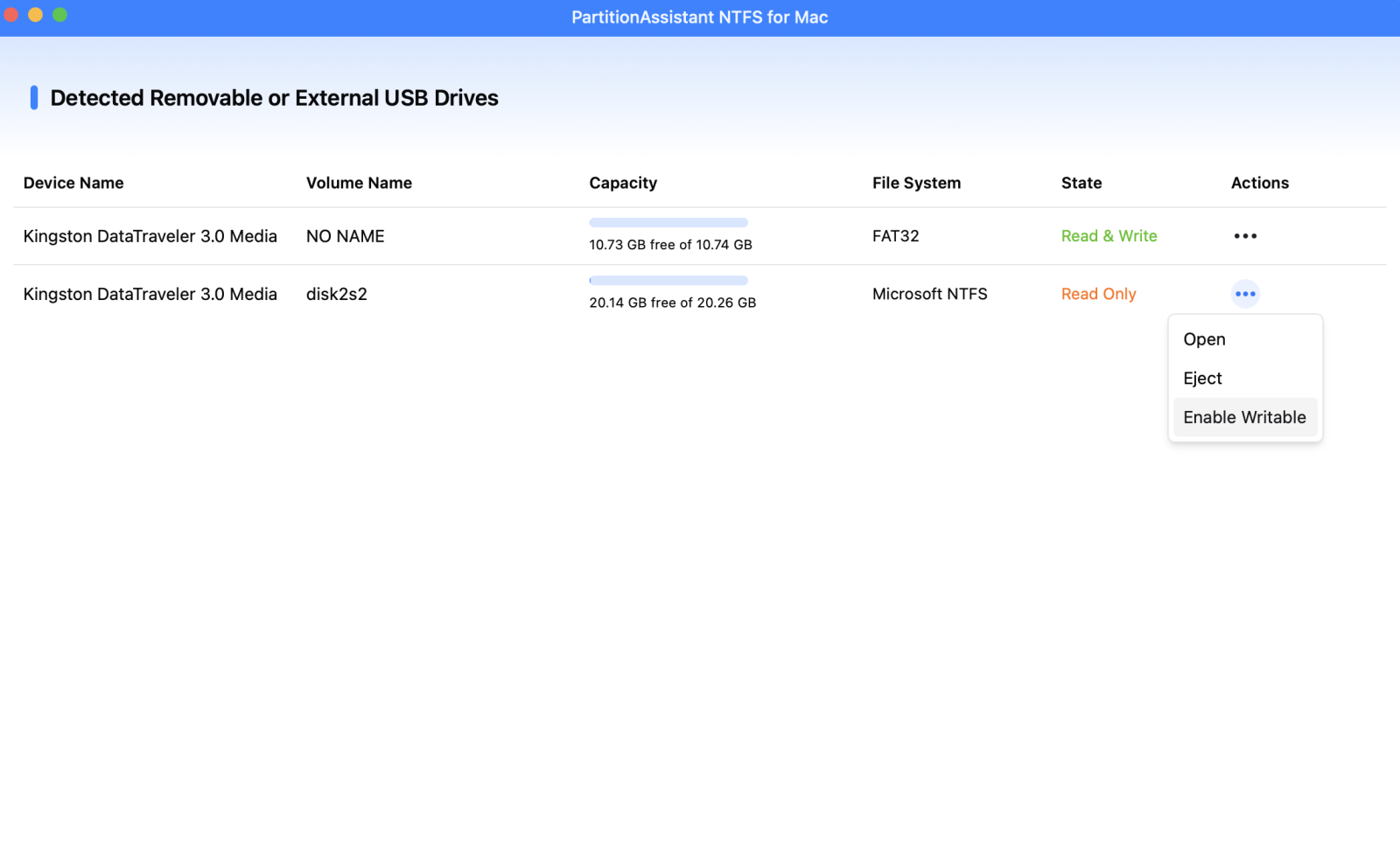
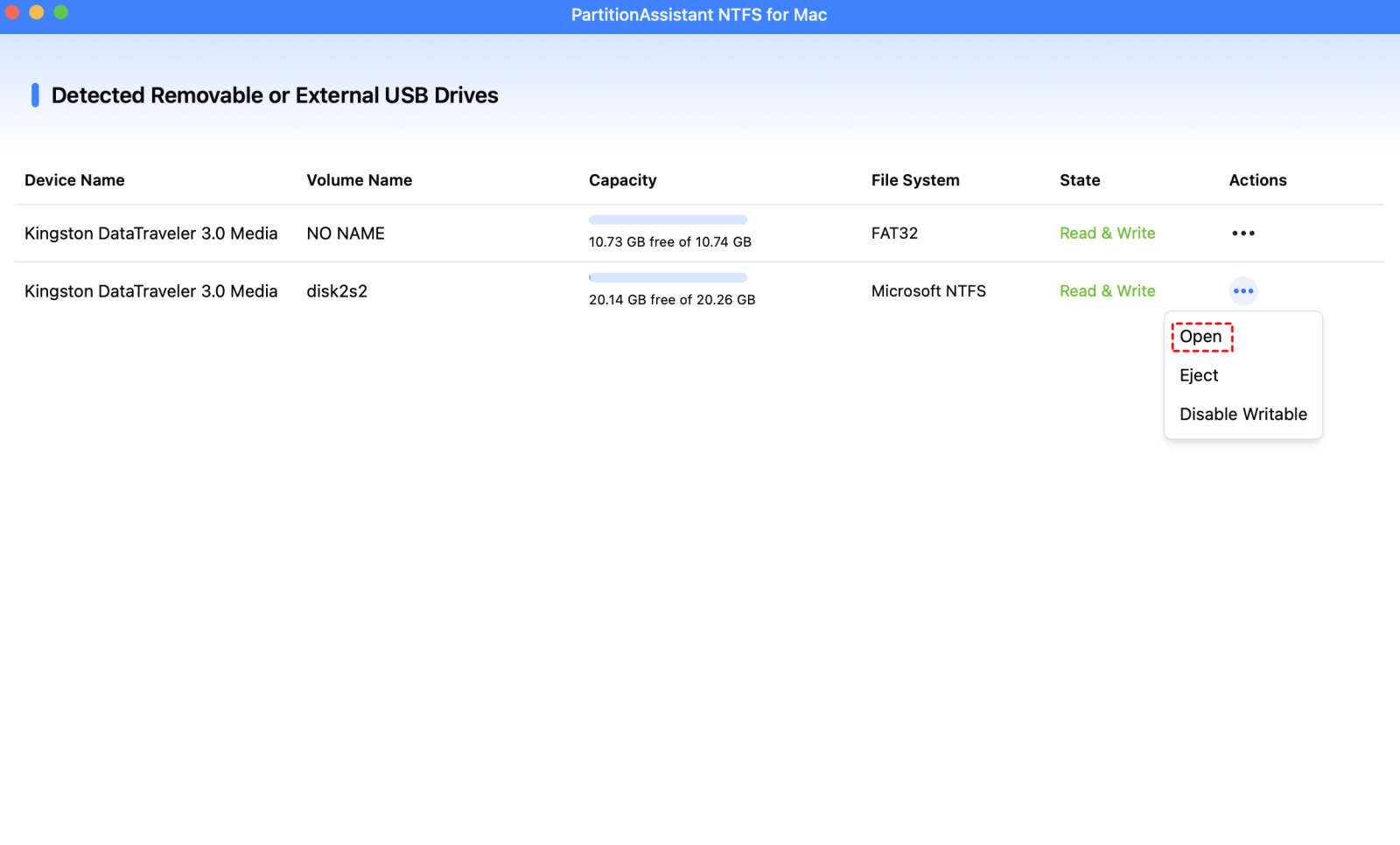
Step 3. You can copy, delete, move, and rename files on the external hard drive after enabling full read and write for NTFS drive on macOS.

Step 4. After all operations are complete, please click "Eject" to disconnect the external hard drive from your Mac.
Conclusion
If you are wondering how to read and write NTFS drive on macOS for free, this article shares the solution. Mac users no longer need to be limited by the read-only restrictions of NTFS drives. With free and reliable software such as PartitionAssistant NTFS for Mac, full read and write access becomes possible, allowing files to be copied, edited, moved, and managed just like native Mac drives. This solution works across the latest macOS versions and supports both Intel and Apple Silicon Macs, providing fast performance and ensuring data remains safe. By using a dedicated NTFS tool, workflow becomes more efficient, cross-platform file management becomes smooth, and Mac users can take full advantage of their Windows-formatted drives without any additional costs.
FAQs
Can a Mac read an NTFS drive?
Yes, macOS can read NTFS drives by default. Files on a Windows-formatted NTFS drive can be opened and viewed on a Mac. However, macOS cannot write to NTFS drives without third-party software, which means editing, copying, moving, or deleting files is not allowed natively.
Why can't I read NTFS on my Mac?
Reading NTFS drives is usually supported, but if your Mac cannot access the files, it may be due to a corrupted drive, outdated macOS, or connection issues. In such cases, checking the drive on a Windows PC or using reliable NTFS support software for Mac can help.
Can Mac read ExFAT or NTFS?
macOS fully supports ExFAT and can both read and write to ExFAT drives. For NTFS drives, Mac can only read files natively. Writing to NTFS requires third-party software like PartitionAssistant NTFS for Mac or other NTFS drivers.
How to grant full disk access to NTFS for Mac
Full disk access allows NTFS software to manage drives properly on macOS. The process usually involves going to System Settings > Privacy & Security > Full Disk Access, then adding your NTFS software to the allowed apps. For detailed instructions, see this guide about how to grant Full Disk Access on Mac.
Which OS supports NTFS?
NTFS is the native file system for Windows. All modern Windows versions, including Windows 7, 8, 10, 11, and Windows Server editions, support NTFS for both reading and writing. macOS and Linux can read NTFS drives by default, but writing requires additional drivers or software.
