
 PartitionAssistant NTFS for Mac
Can macOS High Sierra Write to NTFS? Answers Here!
Finding a reliable NTFS for Mac High Sierra solution in this passage. It answers can macOS High Sierra write to NTFS external drives. This overview details how to enable NTFS write functions work for your drives.

By Irene / Updated on January 15, 2026


When an external storage device formatted with the Microsoft New Technology File System is connected to a computer running macOS High Sierra, the operating system may not function properly. Can macOS High Sierra write to NTFS external drives? No, it cannot. This behavior results from the fact that macOS recognizes the NTFS structure but lacks the necessary and authorized protocols to safely manage the proprietary metadata or commit new data blocks to the volume.
Users typically observe this limitation when they attempt to drag files onto the drive, which triggers a prohibitory symbol, the external hard drive won't mount, or when they find the option to create a new folder is grayed out within the directory. Additionally, the Get Info panel explicitly identifies the volume as read-only because the macOS kernel defaults to a secure state to prevent potential data corruption or volume instability. To bypass these restrictions, users must either employ third-party software extensions or reformat the hardware to a cross platform standard like exFAT which allows for bidirectional data transfer across different operating systems.
How to enable NTFS write support in macOS High Sierra?
While macOS High Sierra is a robust operating system, its native communication with Windows-formatted drives is limited by a strict "Read-Only" barrier. Many users attempt to bypass this using manual Terminal hacks, but these experimental commands often lead to kernel panics or permanent partition corruption. Because High Sierra lacks the proprietary journaling drivers required to safely write to NTFS metadata, attempting to force write support without a dedicated tool can result in your drive becoming unreadable on both Mac and Windows.
To enable write support on macOS High Sierra, PartitionAssistant NTFS for Mac offers a streamlined solution that bypasses the native read-only restriction. Once you download and open the installer, the application handles the complex task of mounting Windows-formatted drives with full write permissions.
During this process, High Sierra requires you to manually approve the software’s system extension within the Security & Privacy section of your System Preferences. After this one-time authorization, the software automatically detects any connected NTFS external drives and grants you the ability to save, edit, and delete files just as you would on a native Mac drive. Using the best disk mounter for Mac ensures your data remains stable while providing the high-speed transfer rates required for large file management.
Step 1. Download and open PartitionAssistant NTFS for Mac. Insert your external hard drive into the Mac. The software will automatically detect and mount the devices. The software will display all of your drives on your Mac.

Step 3. If your external hard drive shows "Read Only", you can change the state manually by clicking"Enable Writable".
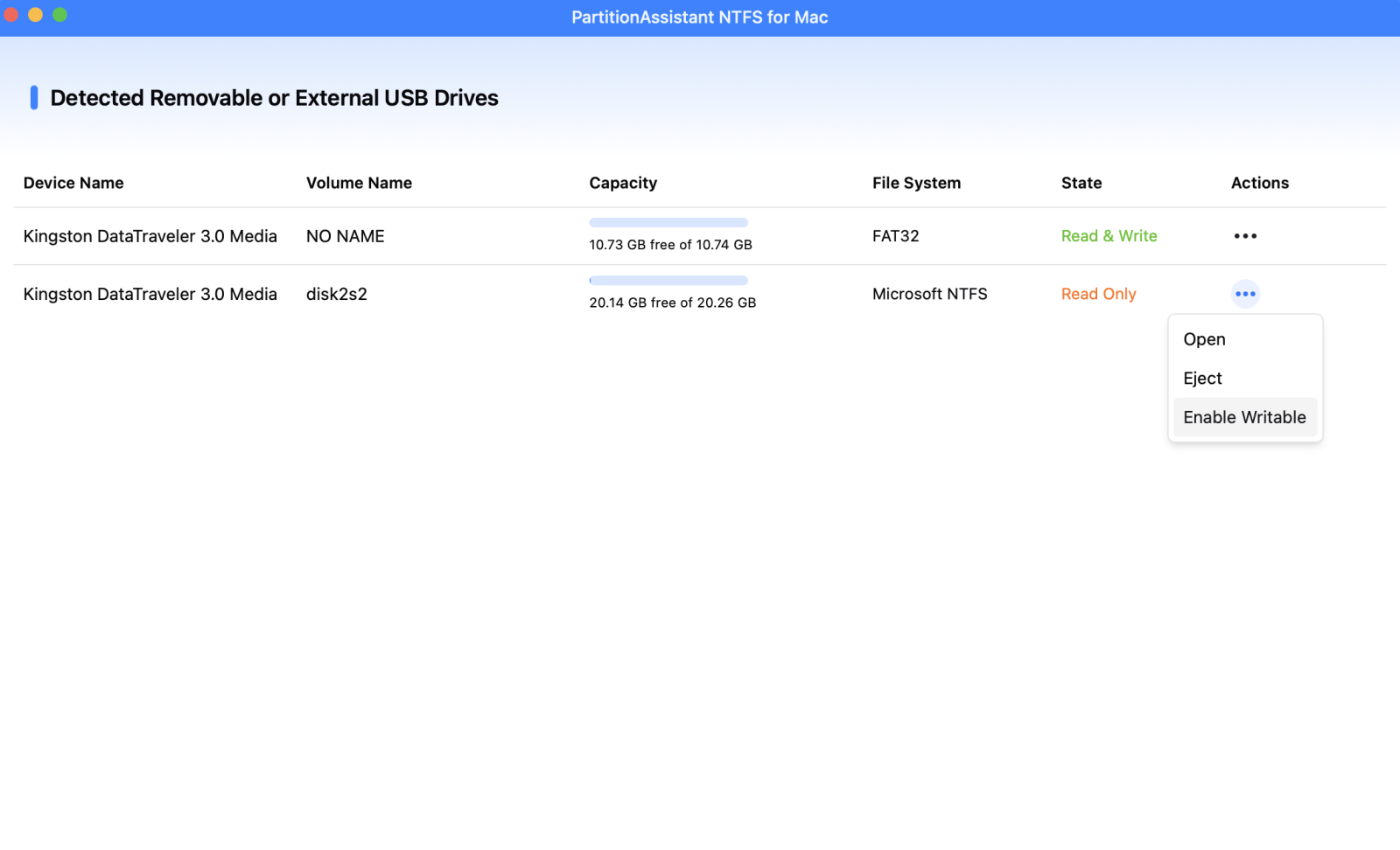
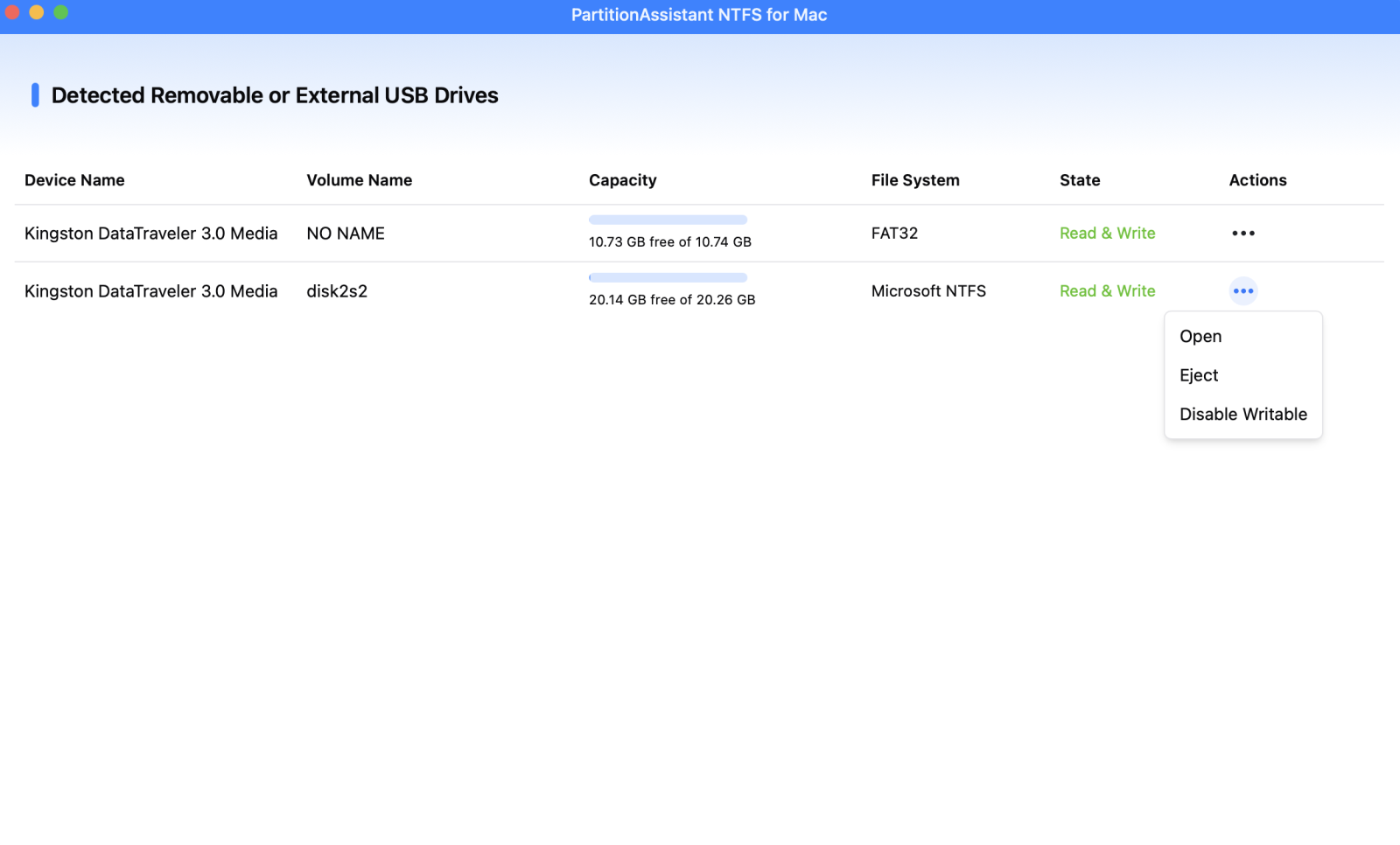
Step 4. You can now write data on your external hard drive on Mac once it is set to Read & Write.
Why macOS High Sierra Limits NTFS Access
High Sierra was a pivotal release, marking the transition from HFS+ to APFS (Apple File System). While Apple optimized High Sierra for modern flash storage, they maintained a conservative stance on Microsoft’s proprietary journaling system.
-
Proprietary Licensing: NTFS is owned by Microsoft; native write support requires complex licensing that Apple chooses not to implement.
-
Journaling Mismatch: NTFS uses a circular log (journal) to track file changes. If a non-native driver writes to this journal incorrectly, it can lead to a B-Tree corruption, rendering the partition unreadable on both Mac and Windows.
Conclusion
Can macOS High Sierra write to NTFS external drives? In summary, macOS High Sierra can read NTFS-formatted drives but cannot write to them natively due to system restrictions and compatibility limitations. Users who need full read-write access can either reformat the drive to a cross-platform file system such as exFAT or use third-party tools like PartitionAssistant NTFS for Mac. By following the proper steps and authorizing the software, you can safely manage your Windows-formatted drives on a Mac without risking data loss or system instability.
FAQs
🗨️ Can macOS write to NTFS?
No, macOS cannot write to NTFS-formatted drives natively. While the system can read files from an NTFS drive, it cannot modify, delete, or add new files without third-party software or drivers.
🗨️ What format is recommended for macOS High Sierra?
For full compatibility, macOS High Sierra works best with APFS (Apple File System) or HFS+. For drives that need to work on both Mac and Windows, exFAT is recommended because it supports read and write access on both platforms.
🗨️ Can Mac read exFAT or NTFS?
Yes, macOS can read both exFAT and NTFS drives. However, while exFAT allows full read-write access, NTFS is limited to read-only unless third-party tools are used.
🗨️ How to transfer data from Mac to an NTFS drive?
To transfer data to an NTFS drive from a Mac, you can either install third-party NTFS drivers or software like PartitionAssistant NTFS for Mac. Alternatively, you can reformat the drive to exFAT for native cross-platform read-write support.
🗨️ What happens if I format my external hard drive to NTFS?
If you format an external drive to NTFS, macOS will recognize it but limit access to read-only. You will not be able to add, delete, or modify files unless you use a third-party NTFS driver or software. Windows systems, however, will have full read-write access.
