
Best Copy Partition/Disk Wizards in AOMEI Partition Assistant
Disk/Partition Copy Wizard provides efficient method to upgrade hard drive and copy partitions/disks to another new partitions/disks for Windows 11/10/8/7/XP/Vista/2000 and Server 2022/2019/2016/2012/2003/2008 32 & 64 bit.
Partition Copy Wizard and Disk Copy Wizard
AOMEI Partition Assistant has built-in "Disk Clone Wizard" and "Partition Clone Wizard". These two wizards provide fast & safe methods to upgrade a hard drive and transfer a large number of applications or data. They can also guide you on how to copy the system partition to another partition with ease on Windows 11/10/8.1/8/7/Vista/XP/2000 and Server 2000/2003/2008/2012/2016/2019/2022 32 & 64 bit.
Partition Copy Wizard and Disk Copy Wizard are built into all AOMEI Partition Assistant Editions: Standard Edition (Free Partition Manager), Professional Edition (Windows Partition Manager), Server Edition (Server Partition Magic Alternative), Unlimited Edition, and Technician Edition. So, you needn’t worry about your Windows System because you can choose the proper edition to enjoy!
To make the two wizards work, the following screenshot shows you the steps: click "Clone" and "Clone Disk" in turn.
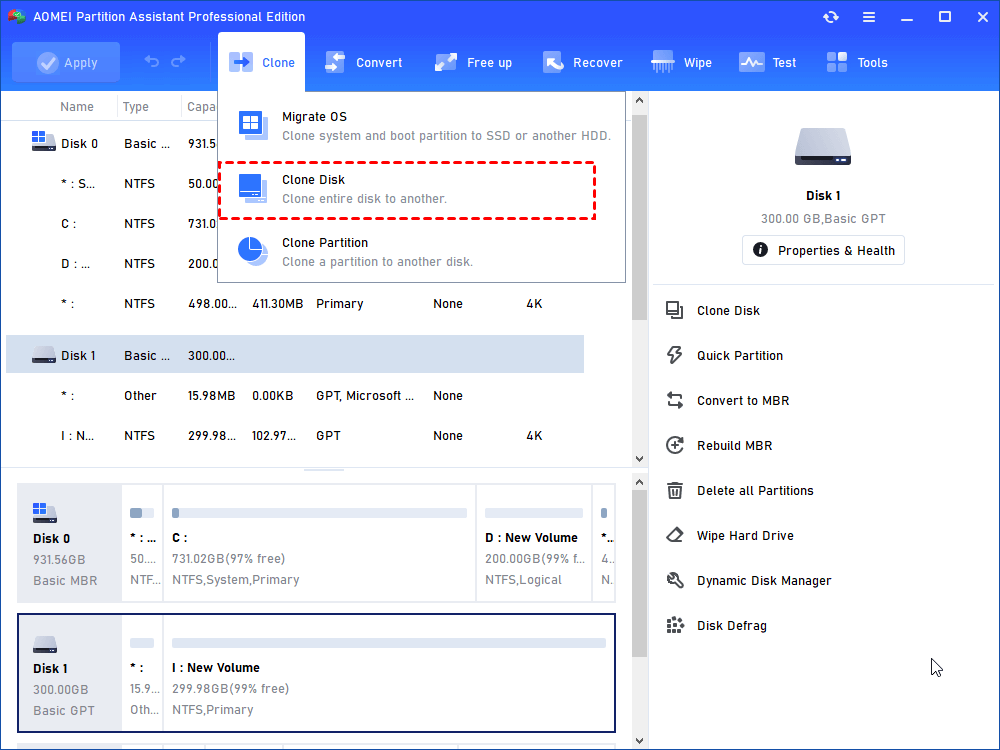
AOMEI Partition Assistant Disk Clone Wizard Brief Tutorial:
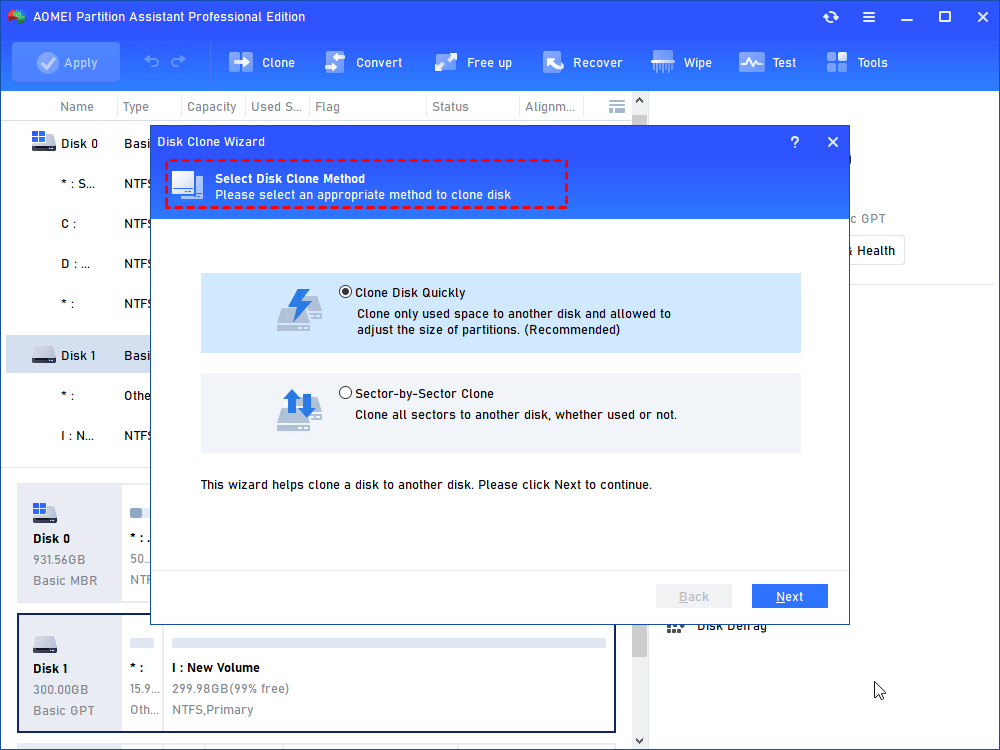
Step 1: Select Disk Clone
Get new windows of Disk Clone Wizard and choose the proper method:
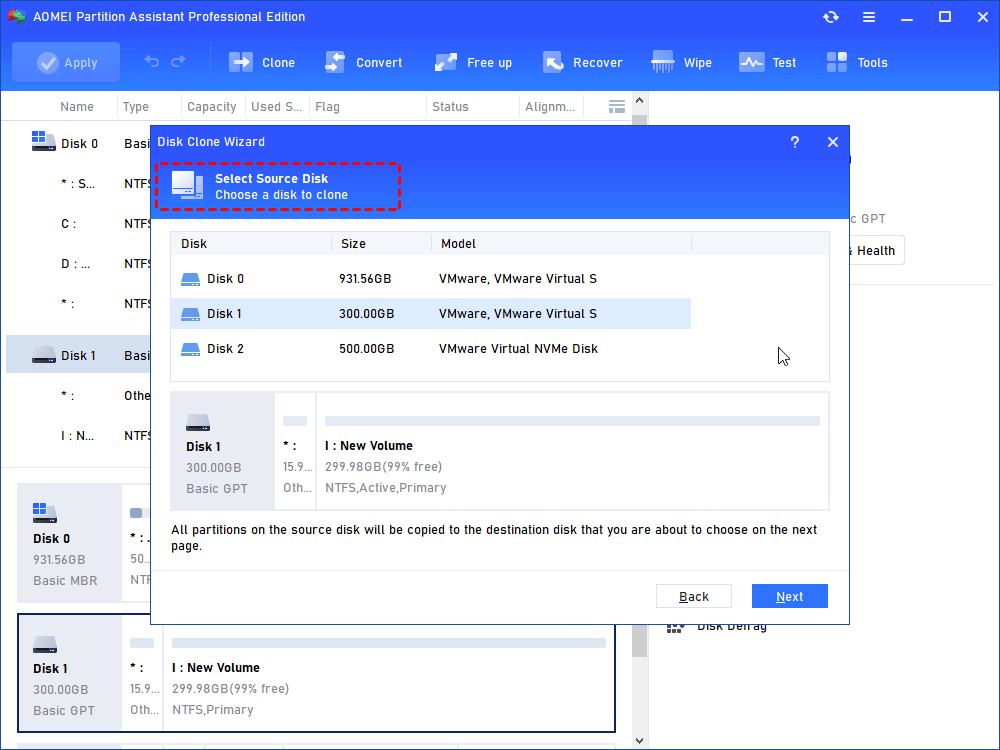
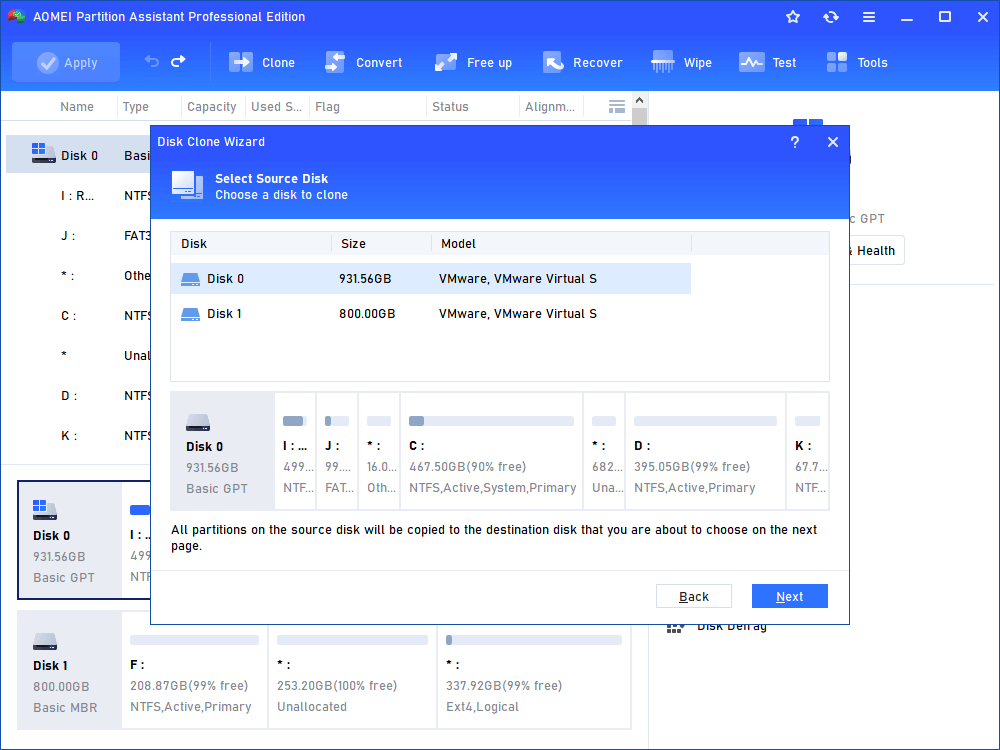
Step 2: Select Source Disk
In the disk map, choose the source disk that needs to be cloned:
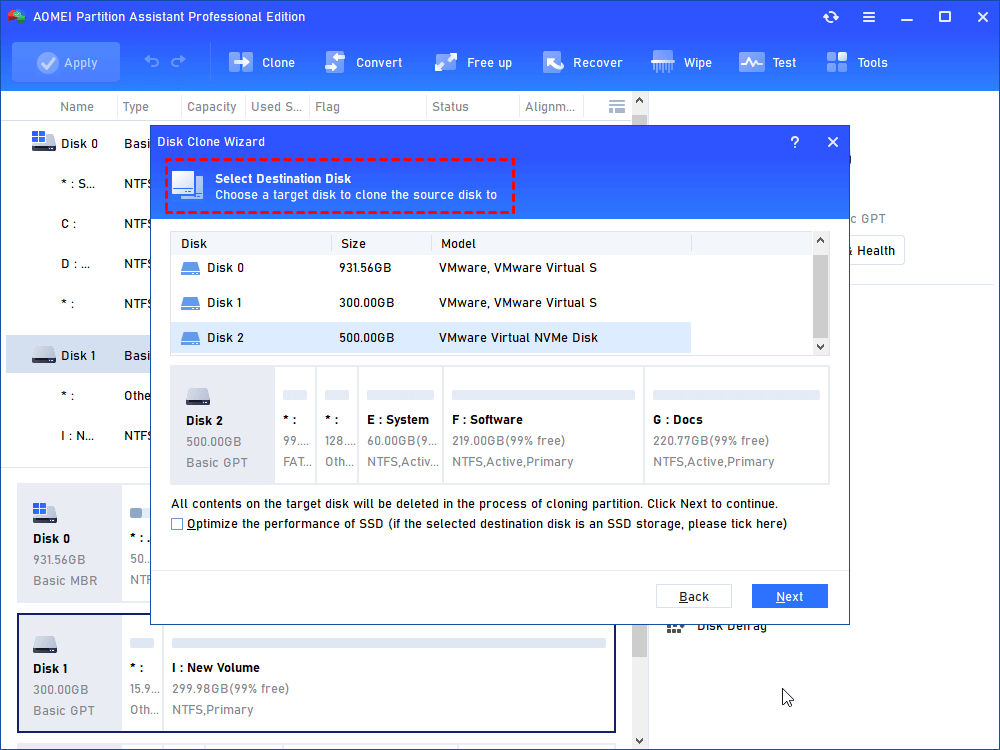
Step 3: Select Destination Disk
Choose the destination disk: (Note: The destination disk should be equal to or larger than the source disk; all the data on the destination disk will be covered by the files on the source disk, so any important data on it has been backed up in advance.)
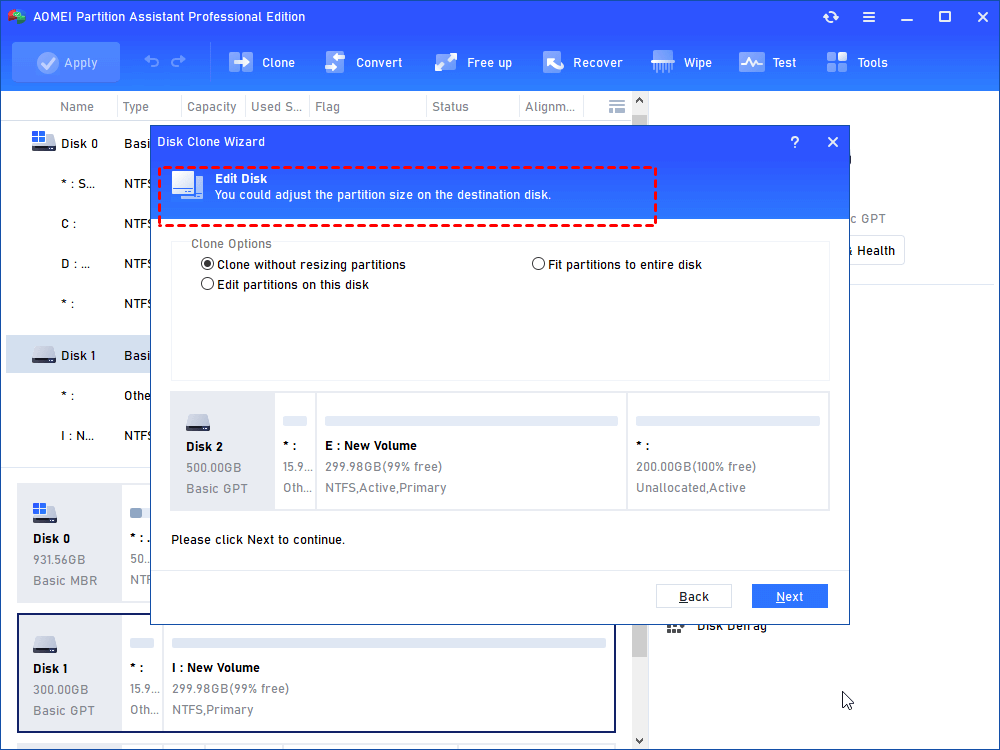
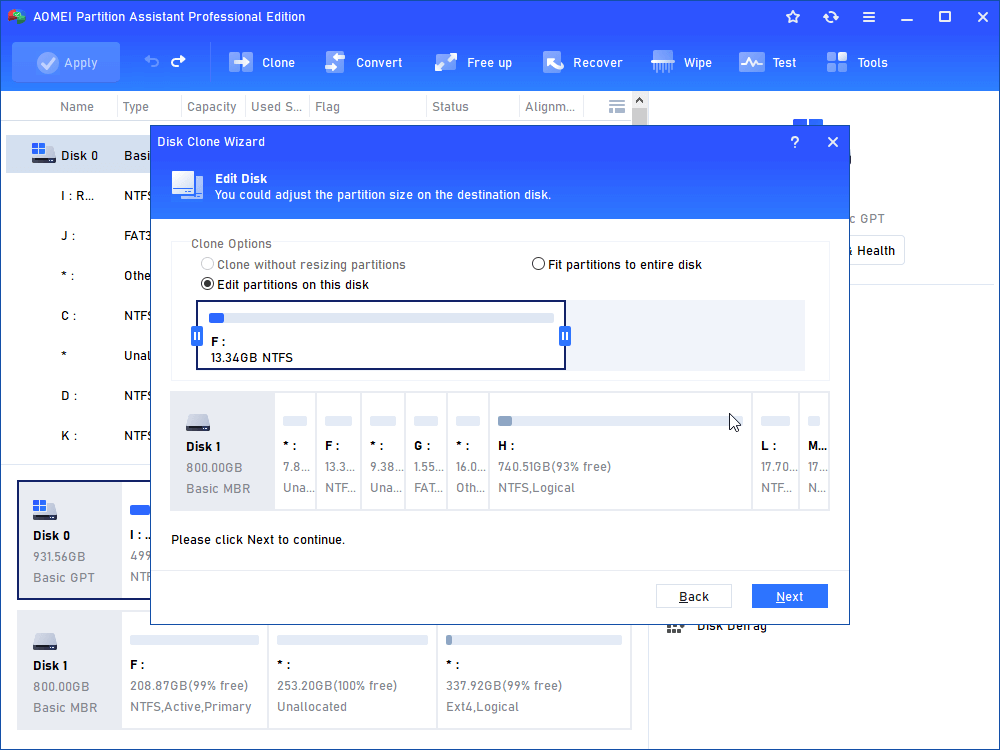
Step 4: Edit Disk (Optional)
- Clone disk options:✎...
- Clone without resizing partitions: The source disk configuration will be copied onto the new disk with the same partition sizes.
- Fit partitions to the entire disk: The partitions on the source disk will occupy the entire destination disk.
- Edit partition on this disk: You could change the partition's size on the new disk.
P.S. Each option provides a detailed introduction and a graphic solution
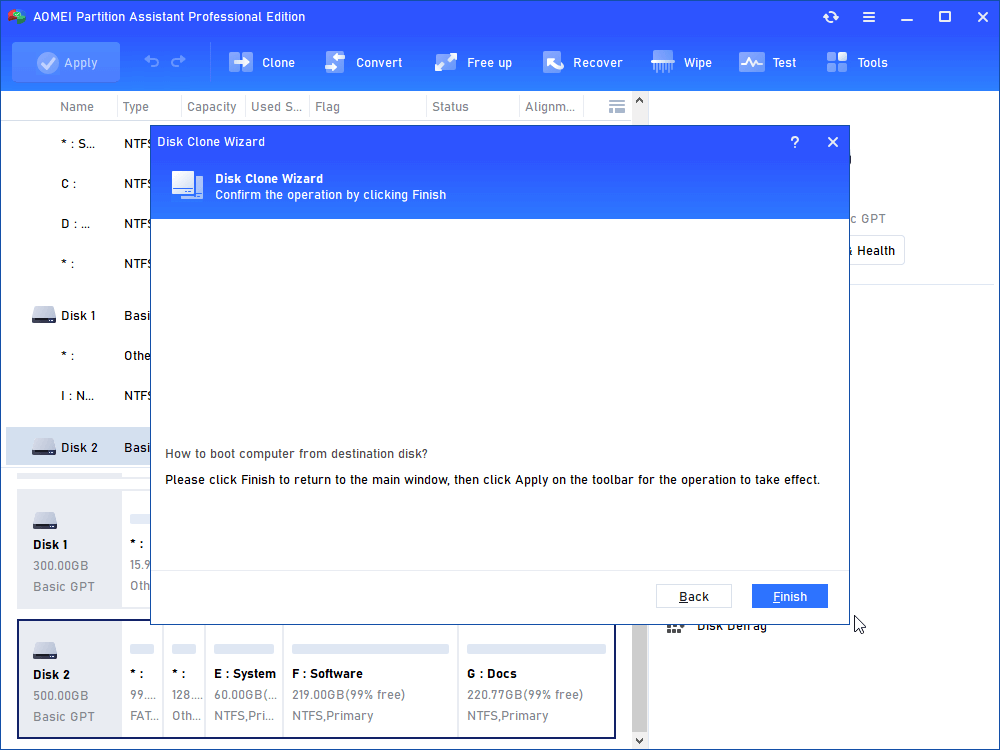
If you copy the disk that contains the system partition, you will receive the following message, which guides youon how to boot the OS from the destination disk:
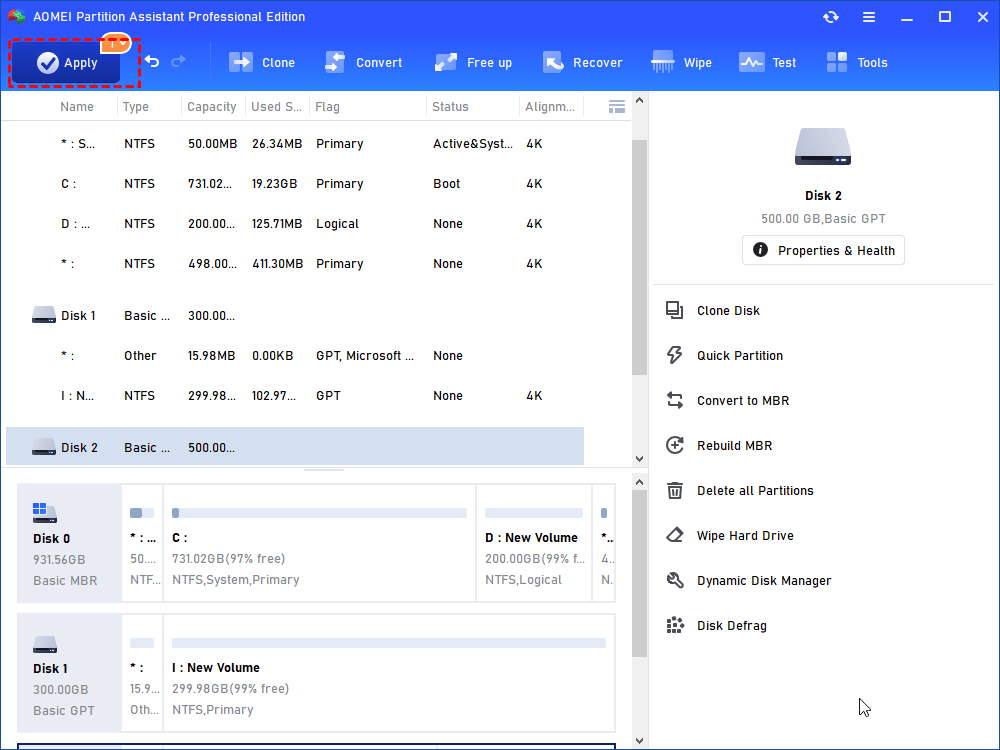
Step 5: Apply to Proceed
Back to the main window, click "Apply" on the toolbar to get the operation: (P.S. If you copied a large amount of data, the whole process will take a little longer time.)
AOMEI Partition Assistant Partition Clone Wizard Brief Tutorial:
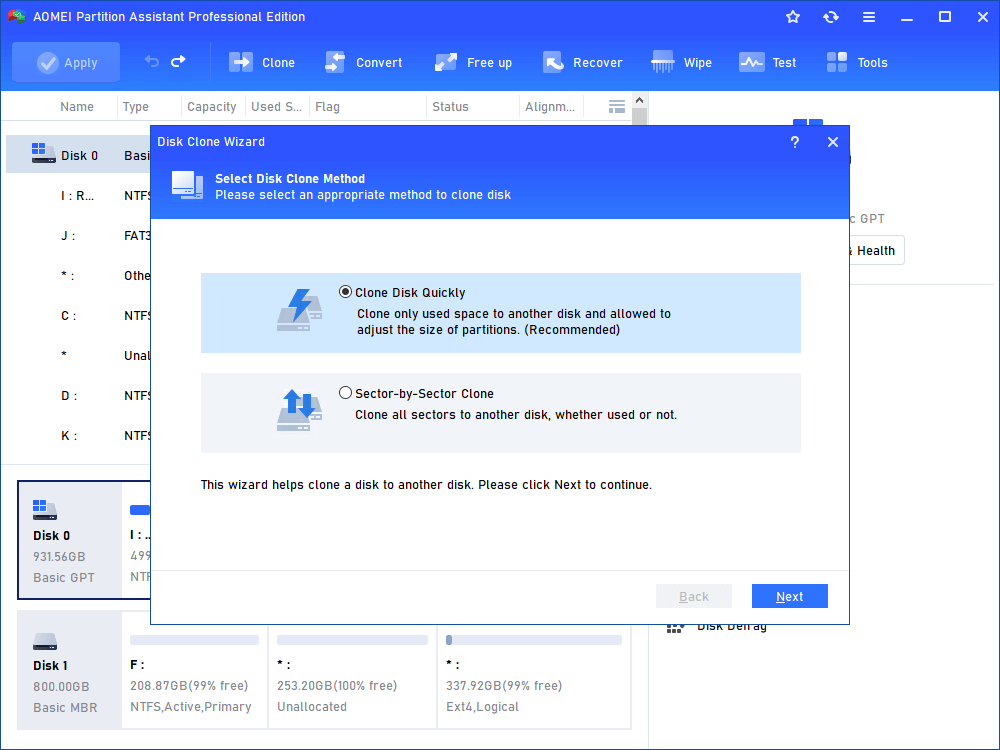
Step 1: Select Clone Partition
Get the new window to choose the copy partition method, and each method provides the description:
Step 2: Select the Partition to Clone
Select the source partition. Here, we choose the system partition to copy:
Step 3: Select Destination Location
Select the destination partition. (The destination should be unallocated space, which is equal to or larger than the source partition)
In the main window, you could define the new partition info:
- Notes:✎...
- Create as a primary partition or logical partition in the drop-down menu.
- Change the default drive letter as you wish.
- Adjust the partition size by dragging.
Step 4: Apply to Proceed
Back to the main window, click "Apply" on the toolbar to proceed. After rebooting, you will see the changes:
